Convert your script into a stunning video
Fliki's Script-to-Video workflow turns written content into a finished video. Paste a marketing script, an educational guide, or a story, and Fliki builds every scene, adds visuals, and generates the voiceover. Everything happens on a single-page builder, so you can review your script and adjust every setting in one place before generating.
Step 1 - Start a Script-to-Video project
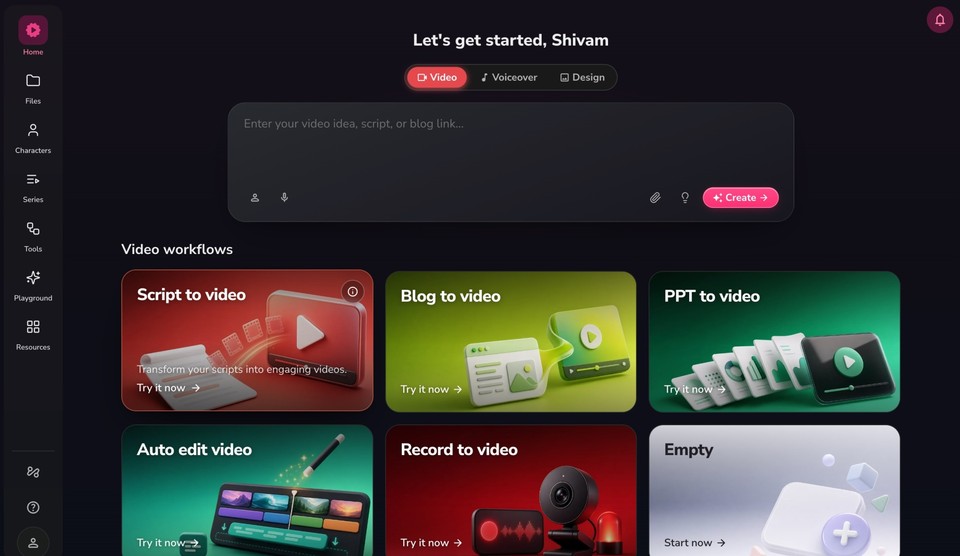
Open the Fliki homepage at app.fliki.ai.
Under Video workflows, click Script to video (other options include Blog to video and PPT to video).
Step 2 - Add your script and review settings
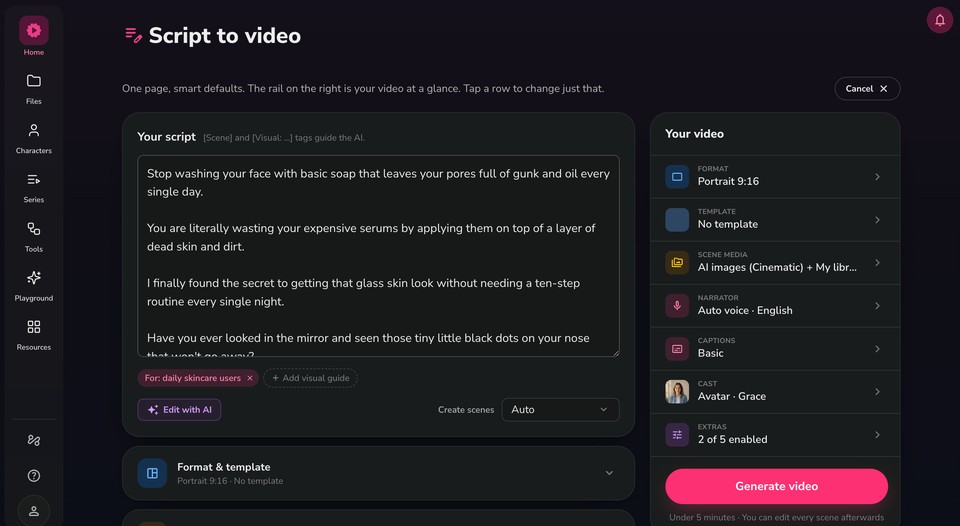
The builder is a single page. Your script sits on the left, and the rail on the right ("Your video") summarizes every setting at a glance. Tap any row to change just that part.
Write or paste your script into the Your script box. Use [Scene] and [Visual: ...] tags in your text to guide how Fliki splits scenes and picks imagery.
Use Edit with AI to rewrite, shorten, or change the tone of your script.
Add a For: audience tag or an Add visual guide tag to steer the tone and imagery.
Leave Create scenes on Auto to let Fliki split the script into scenes, or choose a manual option.
The right rail shows your current Format, Template, Scene media, Narrator, Captions, Cast, and Extras. The next steps cover each of these.
Step 3 - Set format and template
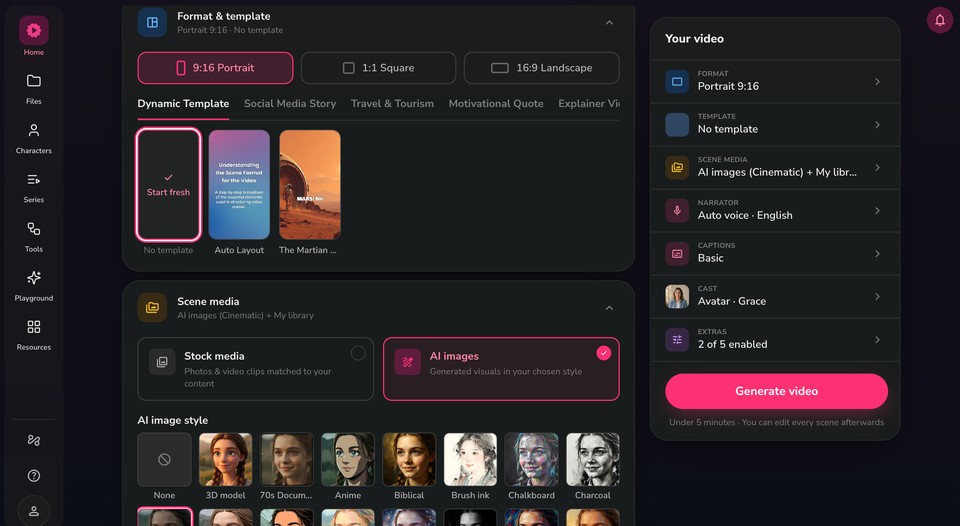
Choose your aspect ratio: 9:16 Portrait, 1:1 Square, or 16:9 Landscape.
Pick a template to style your scenes, or select Start fresh (No template) to build clean scenes with smart defaults.
Browse template categories such as Dynamic Template, Social Media Story, Travel & Tourism, Motivational Quote, and Explainer Video.
Step 4 - Choose your scene media
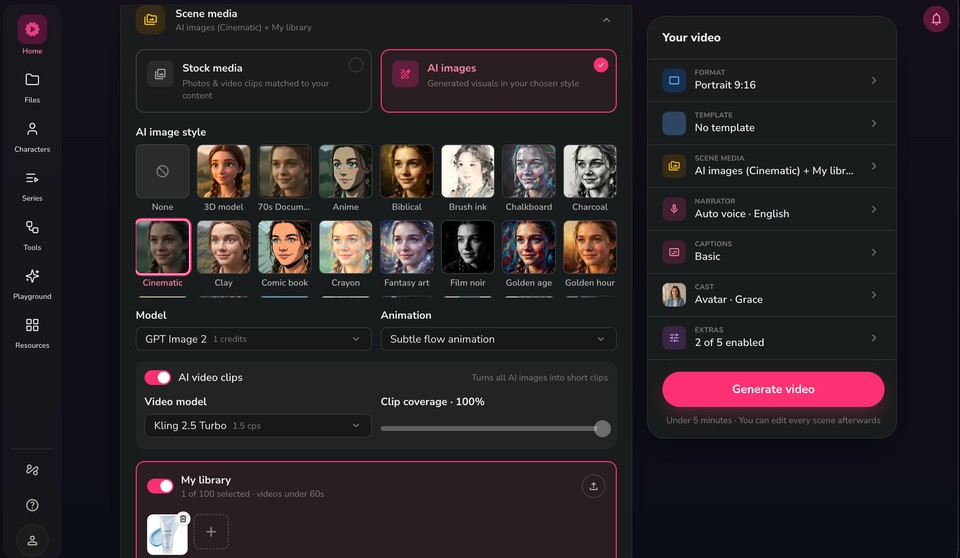
Select Stock media to use photos and video clips matched to your content, or AI images to generate visuals in a chosen style.
If you chose AI images, pick an AI image style from the gallery, for example Cinematic, 3D model, Anime, Comic book, Film noir, or Golden hour.
Set the Model (for example, GPT Image 2) and an Animation style such as Subtle flow animation.
Turn on AI video clips to convert your AI images into short moving clips. Choose a video model (for example, Kling 2.5 Turbo) and set the Clip coverage percentage.
Enable My library to include your own uploaded images and clips, and use the upload button to add new assets.
Step 5 - Set the narrator and captions
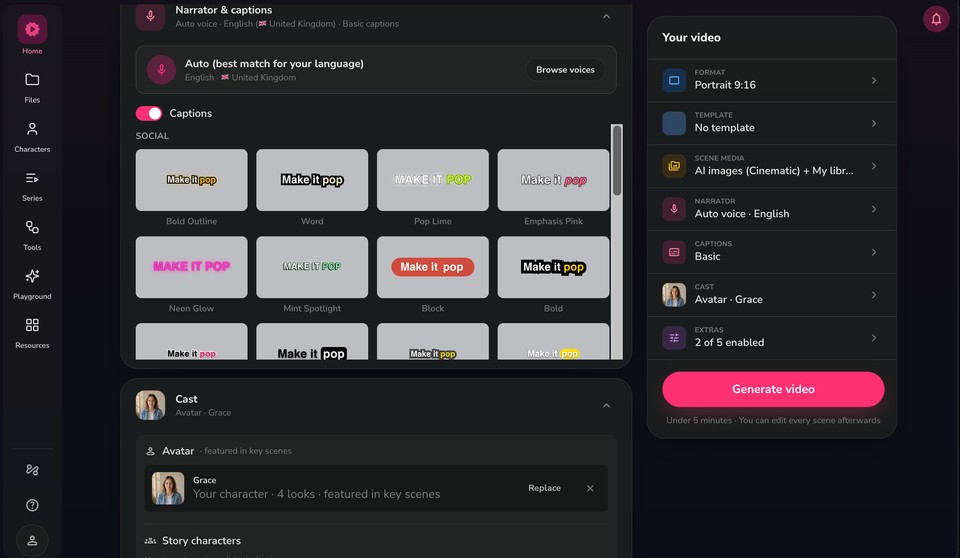
Keep Auto (best match for your language) or click Browse voices to choose a specific voice from 80+ languages and 100+ dialects, filtered by language, dialect, and gender.
Toggle Captions on or off.
Pick a caption style from the gallery. Styles are grouped into sets like Social and Retro, with options such as Bold Outline, Word, Pop Lime, Neon Glow, and Block.
Step 6 - Add an AI presenter or cast (optional)
Feature a consistent AI character or avatar in your video.
Pick a character or avatar
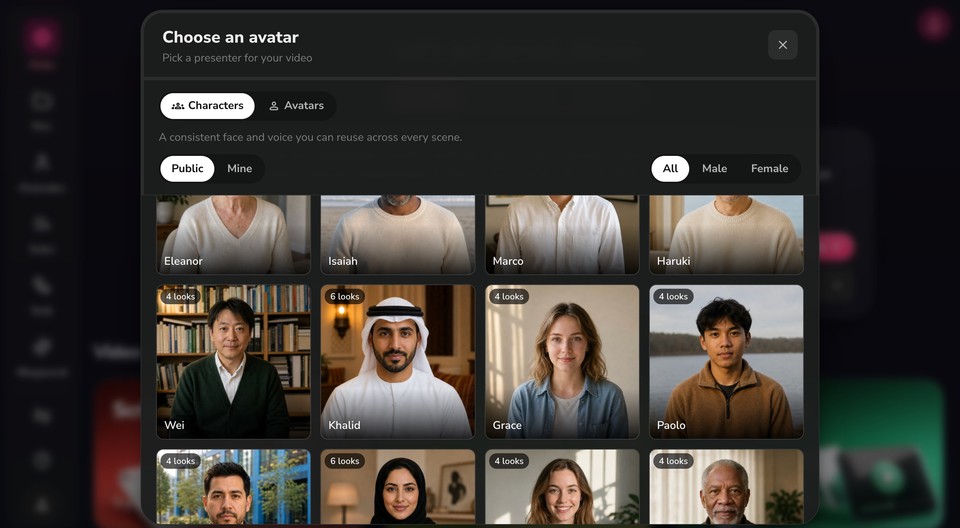
From the Cast row, open the picker and switch between the Characters tab (a consistent face and voice you can reuse across every scene) and the Avatars tab.
Filter by Public or Mine, and by All, Male, or Female.
Select the presenter you want. Characters with multiple angles show a "looks" badge (for example, "4 looks").
Select the looks to feature
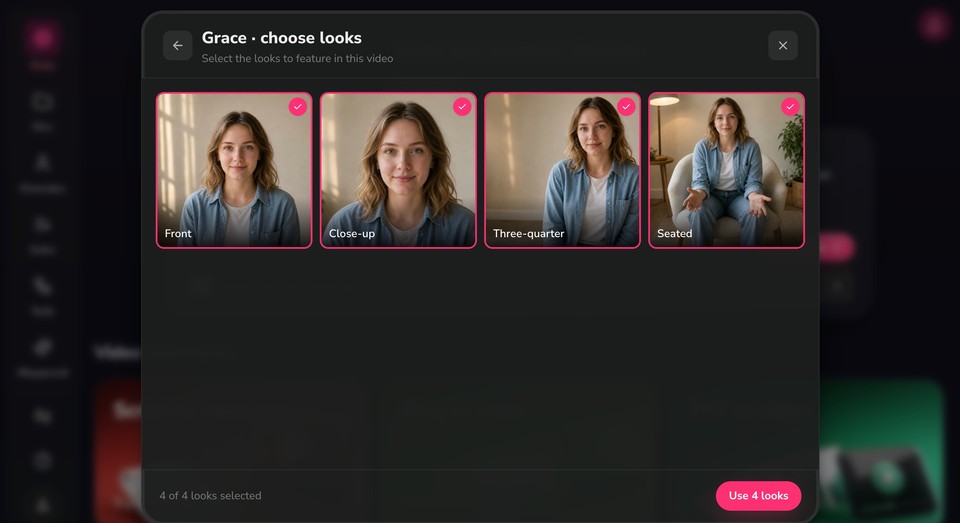
Toggle the camera looks you want, such as Front, Close-up, Three-quarter, and Seated. Selected looks are outlined and checked.
Click Use looks to confirm. Fliki mixes these looks across your scenes for variety.
Review the cast
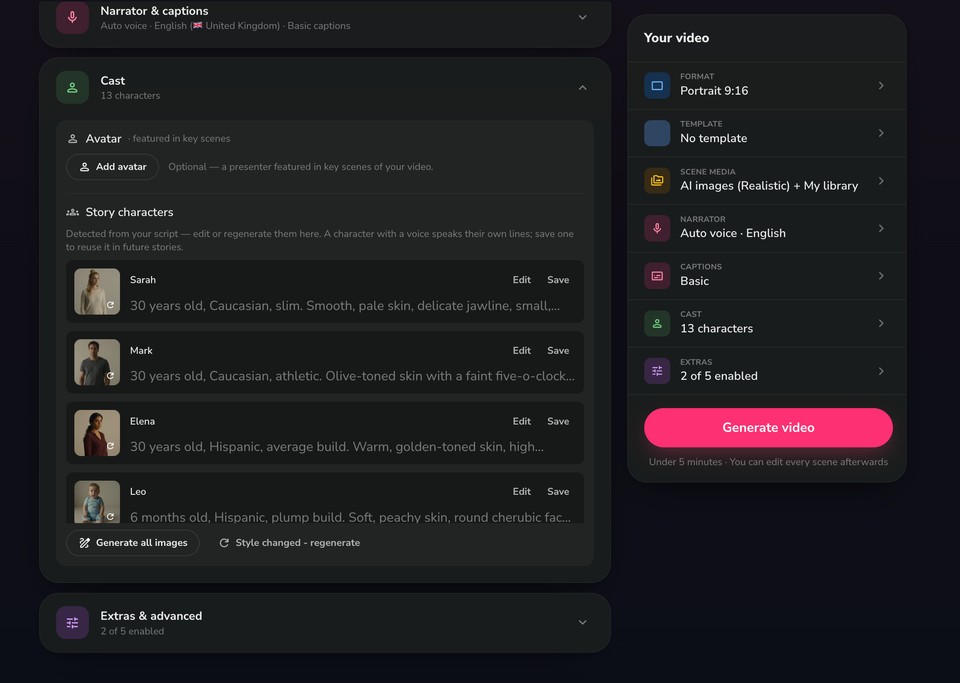
Under Avatar, review the presenter featured in your key scenes. Use Replace to swap them or the X to remove.
Under Story characters, click Detect from script to let Fliki find and cast named characters from your script.
Step 7 - Adjust extras and advanced options
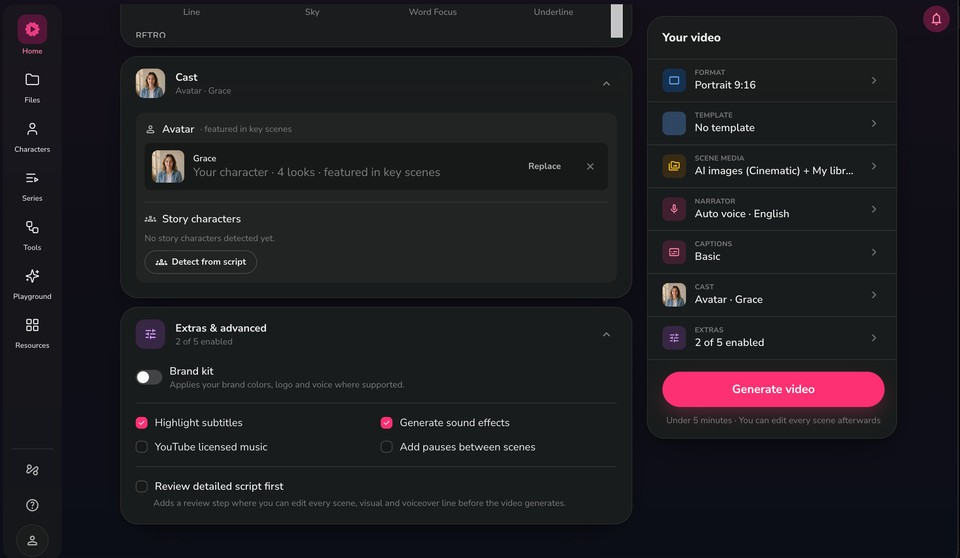
Turn on Brand kit to apply your brand colors, logo, and voice where supported.
Enable extras as needed: Highlight subtitles, Generate sound effects, YouTube licensed music, and Add pauses between scenes.
Check Review detailed script first to add a step where you can edit every scene, visual, and voiceover line before the video generates.
Step 8 - Generate your video
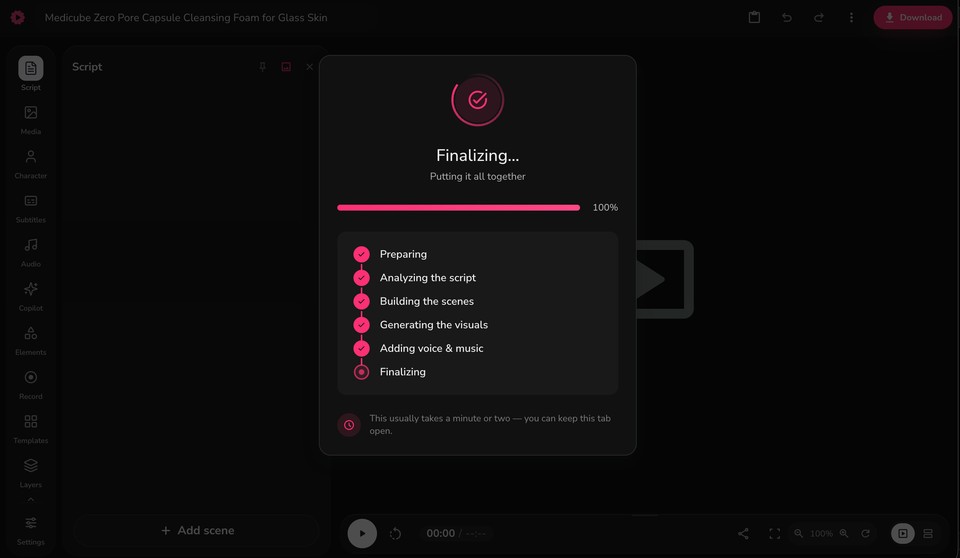
Click Generate video. Generation usually takes under 5 minutes, and you can edit every scene afterward.
Fliki walks through each stage: Preparing, Analyzing the script, Building the scenes, Generating the visuals, Adding voice & music, and Finalizing. You can keep the tab open while it works.
Step 9 - Edit, preview, and download
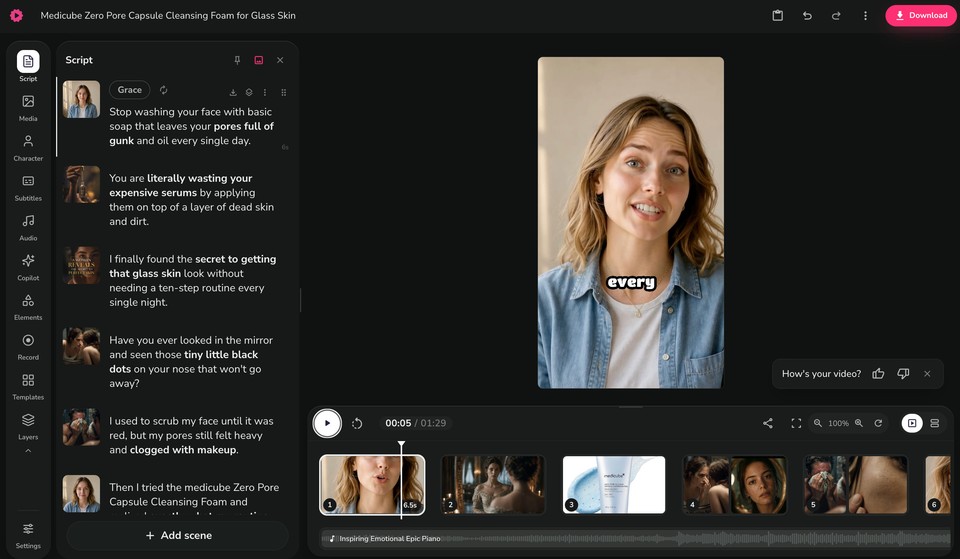
When generation completes, your video opens in the editor. The left panel lists every scene and line of script, and the center shows a live preview.
Use the left sidebar to fine-tune Script, Media, Character, Subtitles, Audio, Elements, and more.
To change background music, select the background audio layer and pick a new track, then adjust volume and speed from the customization panel.
Play back the video, tweak any scene, then click Download to export your video as an MP4. You can also export subtitles in SRT or VTT format.
With Fliki's Script-to-Video workflow, transforming your text into professional videos has never been easier.
FAQs
Yes, it's possible to convert text to video using AI video generator platforms like Fliki.
Fliki is an AI-powered platform that facilitates the conversion of text to video. It offers various customization options, including voice selection, avatar customization, text overlays, and background music, making it a versatile tool for generating captivating videos from text.
To make an AI video from text using Fliki, input your text content in the script tab and hit submit. Fliki will format it based on new lines and automatically add relevant media. Customize visuals using stock avatars, uploaded images, or AI-generated visuals. Add background music, preview the result, and then export the video once satisfied.
Fliki is an artificial intelligence website that specializes in converting text to video. With its AI-powered features and extensive customization options, Fliki enables users to create professional-quality videos from their text content quickly and easily.