Convert any blog into an engaging video
Fliki's Blog-to-Video workflow turns a web page into a polished video with voiceover, captions, matching visuals, and an optional AI presenter. Paste a link, choose how long and in what style you want it, then fine-tune everything on a single-page builder before generating. Embed the result in your blog to enhance SEO, or share it on YouTube, TikTok, Instagram, and Facebook to drive traffic.
Step 1 - Open the Blog to video workflow
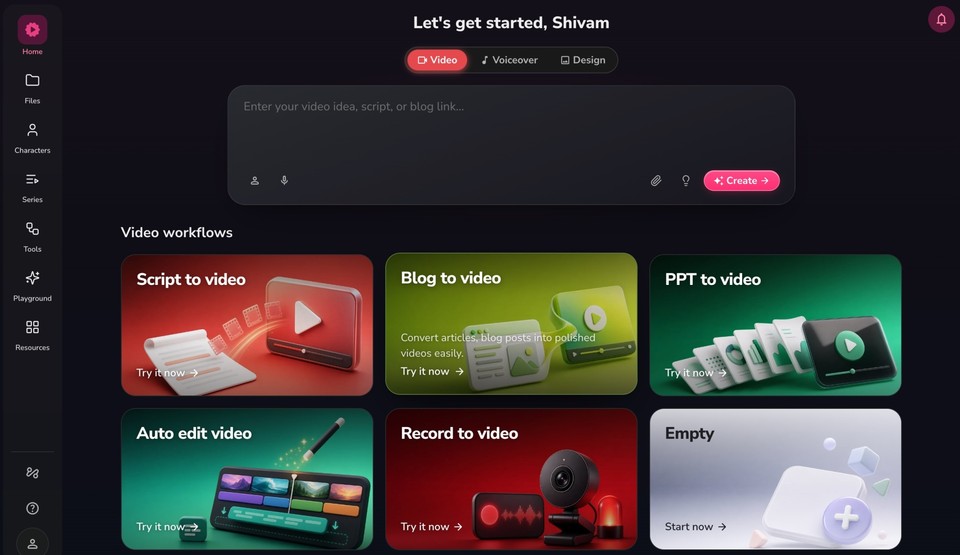
Open the Fliki homepage at app.fliki.ai.
Under Video workflows, click Blog to video ("Convert articles, blog posts into polished videos easily").
Step 2 - Paste your blog URL and fetch images
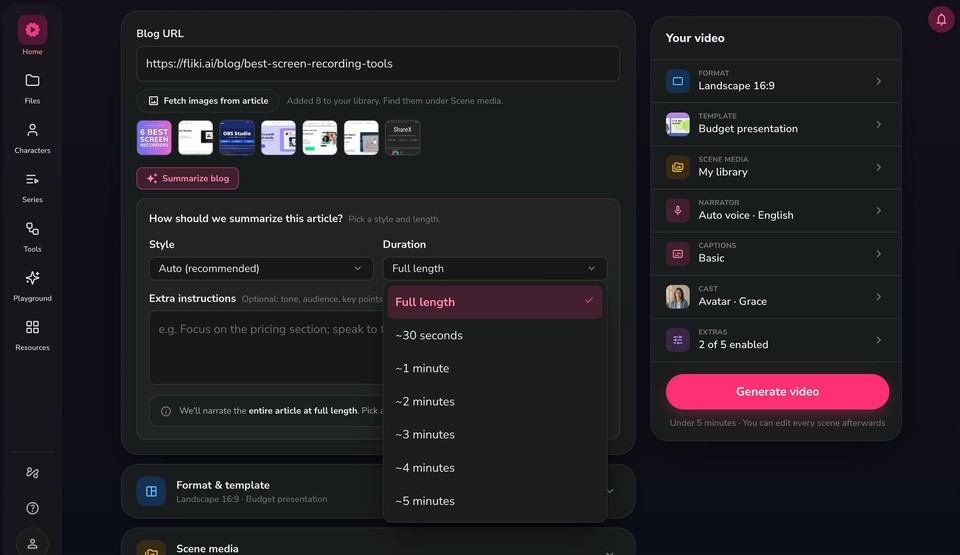
Paste the link to your blog post or article into the Blog URL field.
Click Fetch images from article to pull the images from that page into your media library. Fliki shows how many were added, and you can find them later under Scene media.
Remember: the rail on the right ("Your video") summarizes every setting at a glance, and you can tap any row to change just that part.
Step 3 - Choose how to summarize the article
Click Summarize blog (optional) to have Fliki condense the article, then set how it becomes a video:
Style - Choose how the video is written. Auto (recommended) lets Fliki pick the best approach.
Duration - Choose Full length to narrate the entire article, or pick a target length (~30 seconds, or ~1 to ~5 minutes) to make it shorter and punchier.
Extra instructions (optional) - Add guidance such as tone, audience, or key points to emphasize (for example, "Focus on the pricing section; speak to first-time buyers").
Step 4 - Set the format and template
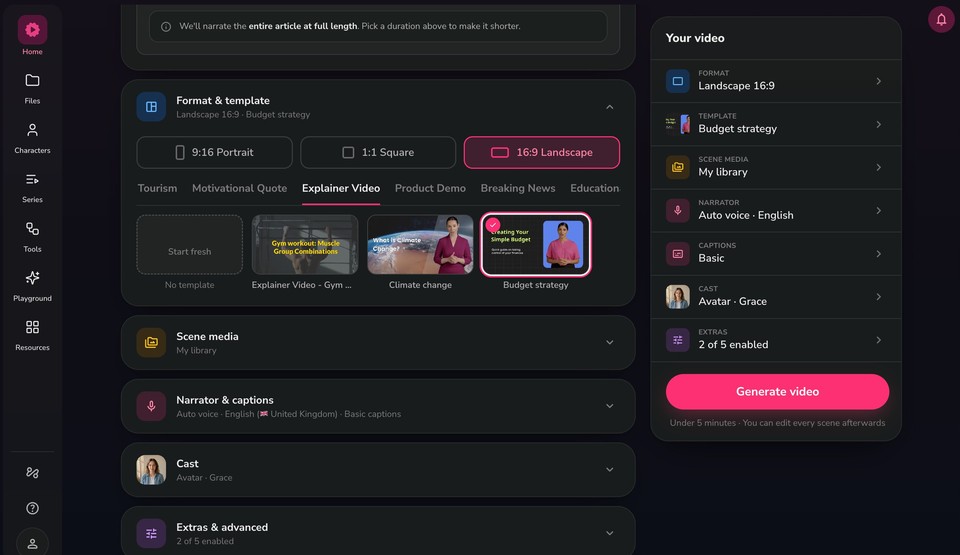
Open Format & template from the rail to set:
Aspect ratio - 9:16 Portrait (TikTok, Reels, Shorts), 1:1 Square (social feeds), or 16:9 Landscape (YouTube and blog embeds).
Template - Browse categories such as Explainer Video, Product Demo, Breaking News, Tourism, Motivational Quote, and Education, then pick a template (for example, Budget strategy), or choose Start fresh (No template).
Step 5 - Choose your scene media
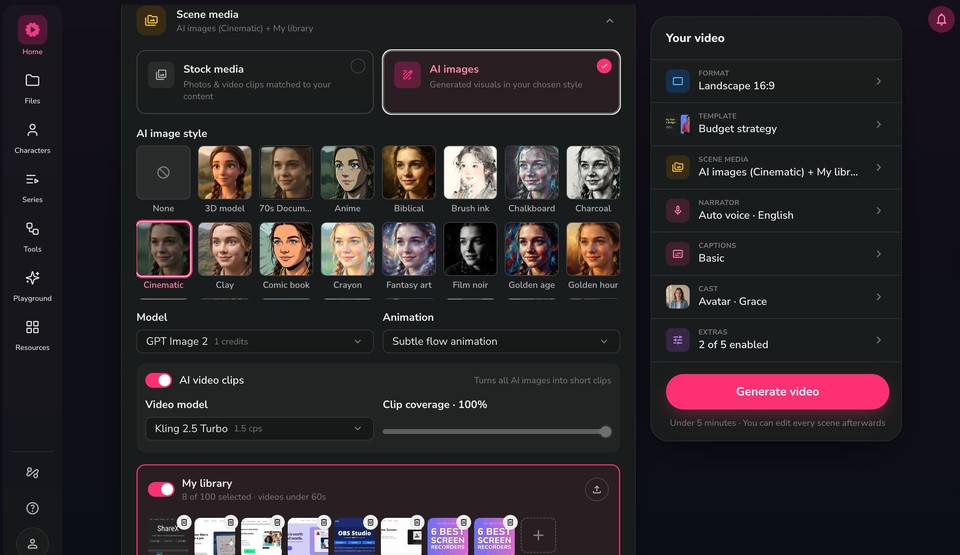
Open Scene media to control the visuals:
Stock media - Photos and video clips matched to your content.
AI images - Generated visuals in a style you pick from the gallery (Cinematic, 3D model, Anime, Comic book, Film noir, Golden hour, and more).
When AI images are selected, set the Model (for example, GPT Image 2) and an Animation style such as Subtle flow animation.
Turn on AI video clips to convert AI images into short moving clips, then choose a Video model (for example, Kling 2.5 Turbo) and set the Clip coverage percentage.
Enable My library to include the images you fetched from the article, plus any of your own uploads. This is what lets the real screenshots from your blog appear in the video.
Step 6 - Set the narrator and captions
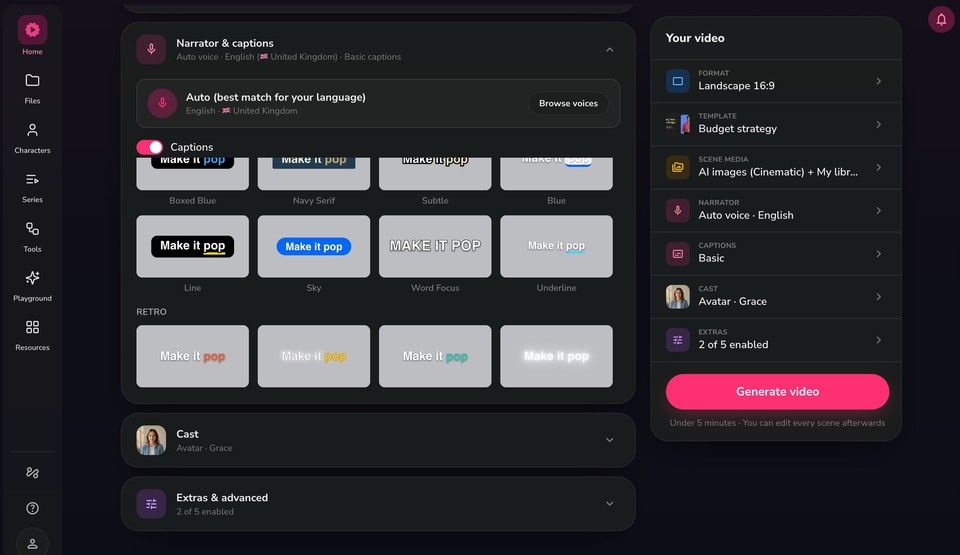
Open Narrator & captions:
Keep Auto (best match for your language) or click Browse voices to choose a specific voice, language, and dialect.
Toggle Captions on or off, then pick a style from the gallery (grouped into sets like Social and Retro), for example Boxed Blue, Line, Sky, Word Focus, or Underline.
Step 7 - Confirm your cast
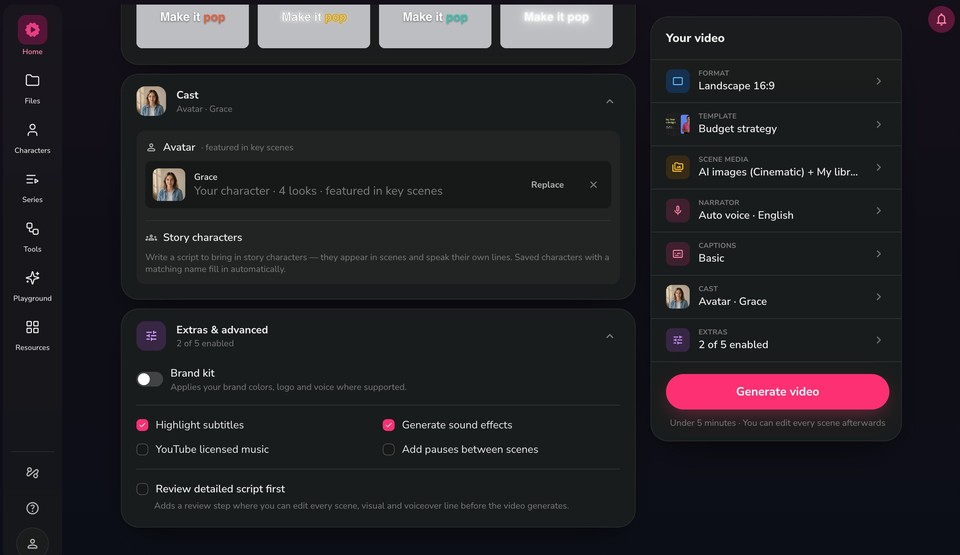
Open Cast to add an on-screen presenter:
Under Avatar, choose a presenter featured in key scenes (for example, Grace with 4 looks). Use Replace to swap them or the X to remove.
Story characters appear automatically when your script brings in named characters. Saved characters with a matching name fill in on their own.
Step 8 - Adjust extras and advanced options
Open Extras & advanced to enable optional features:
Brand kit - Applies your brand colors, logo, and voice where supported.
Highlight subtitles, Generate sound effects, YouTube licensed music, and Add pauses between scenes.
Review detailed script first - Adds a review step where you can edit every scene, visual, and voiceover line before the video generates.
Step 9 - Generate your video
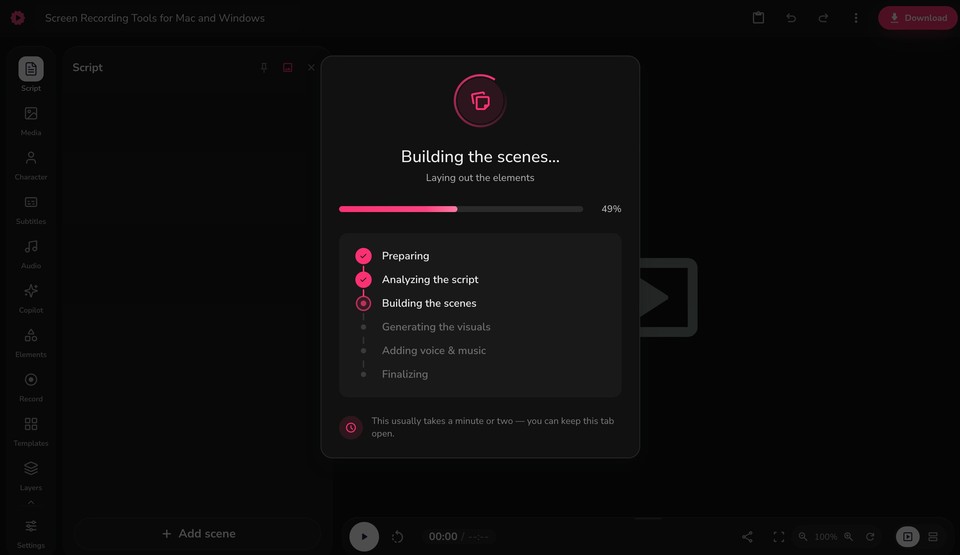
Click Generate video. Generation usually takes under 5 minutes, and you can edit every scene afterward. Fliki works through each stage: Preparing, Analyzing the script, Building the scenes, Generating the visuals, Adding voice & music, and Finalizing. You can keep the tab open while it works.
Step 10 - Edit, preview, and download
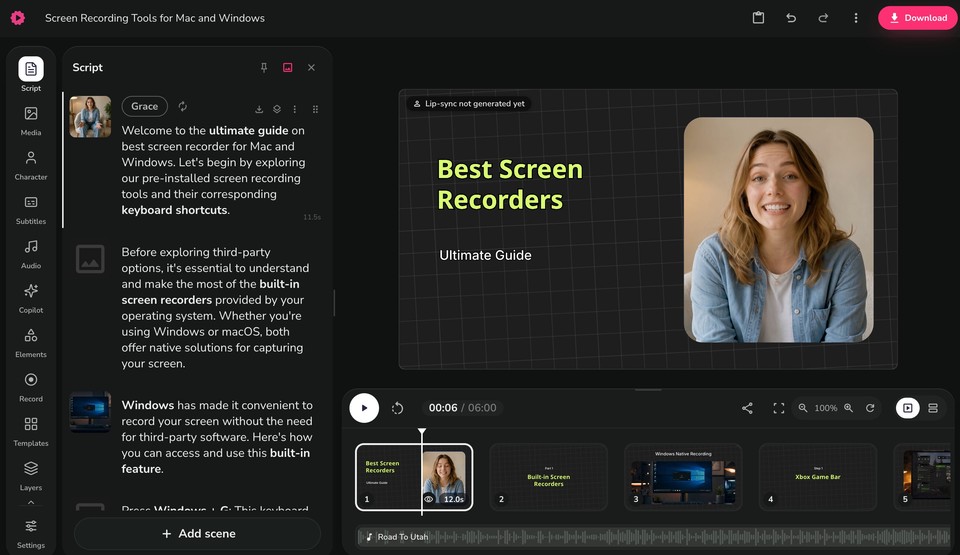
When generation completes, your video opens in the editor:
The left panel lists every scene and line of narration, and the center shows a live preview built from your article's content and images.
Use the left sidebar to fine-tune Script, Media, Character, Subtitles, Audio, Elements, and more.
If you added an avatar, you may see a "Lip-sync not generated yet" note. Generate lip-sync from the character options when you want the avatar's mouth movements matched to the narration.
To change background music, select the background audio layer and pick a new track, then adjust volume from the customization panel.
Play back the video, adjust any scene, then click Download to export as an MP4. You can also download subtitles in your preferred format.
With Fliki's Blog-to-Video workflow, transforming web content into compelling videos has never been easier. Try it today and enhance your digital presence.
FAQs
Fliki is a versatile tool that effortlessly converts blog articles into engaging videos.
To turn your blog post into a video using Fliki, paste the link to your blog article and customize options such as video length, media type, etc. Fliki will then generate the video based on your blog post and selected preferences.
Videos and blogs serve different purposes and cater to diverse audiences. While blogs are great for conveying detailed information and fostering in-depth understanding, videos offer visual and auditory engagement, making content more accessible and engaging for viewers.