Make videos with Fliki inside Claude
Fliki now works inside Claude. Once you connect the two, you describe what you want in plain words and Claude does the work in your Fliki account. It writes the script, picks a voice, generates the visuals, adds captions and music, and builds a finished video you can download.
This guide takes you from zero to your first video. First you connect Fliki to the Claude Desktop app and check that it works. Then you make a real 30-second Instagram Reel for a coffee shop from start to finish, without opening a video editor.
What you can make
Anything Fliki can make, you can ask Claude for:
Videos - Social Reels and Shorts, product ads, explainers, stories, presenter-led videos with an AI avatar, and videos made from a script, blog post, or link.
Audio - Voiceovers in 80+ languages, multi-voice podcasts, audiobooks, and original songs and music tracks.
Designs - YouTube thumbnails, ad creatives, social carousels, and slide decks you can export as PowerPoint or PDF.
Single pieces - One image, a short AI video clip, a music track, or a voice line when that's all you need.
Everything is saved to your Fliki library, so you can open it in the Fliki editor anytime to preview, tweak, or download.
Before you start
A Fliki Premium or Enterprise plan. Claude access is included with these plans. Anything Claude generates uses your normal Fliki credits. There's no separate charge for using Fliki through Claude.
The Claude Desktop app for Mac or Windows, signed in to your Claude account.
Step 1 - Find the setup steps in Fliki
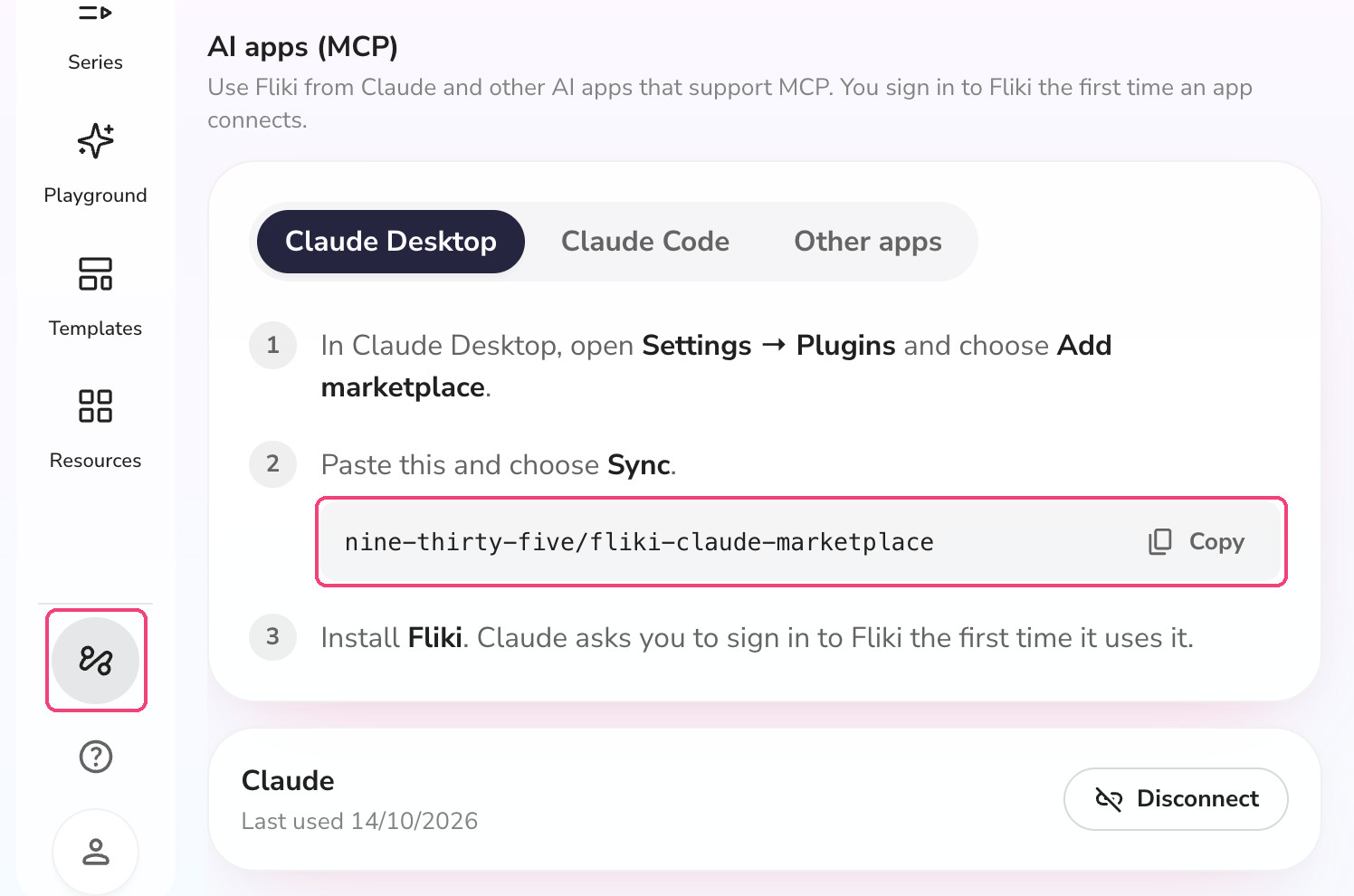
Sign in to Fliki and click the Automation icon near the bottom of the left sidebar.
Scroll down to AI apps (MCP) and keep the Claude Desktop tab selected.
Click Copy next to the marketplace address. You'll paste it into Claude in the next step: nine-thirty-five/fliki-claude-marketplace
Once you're connected, Claude also shows up on this page under the setup steps. That's where you'll come back later if you ever want to disconnect it.
Step 2 - Open Plugins in Claude Desktop
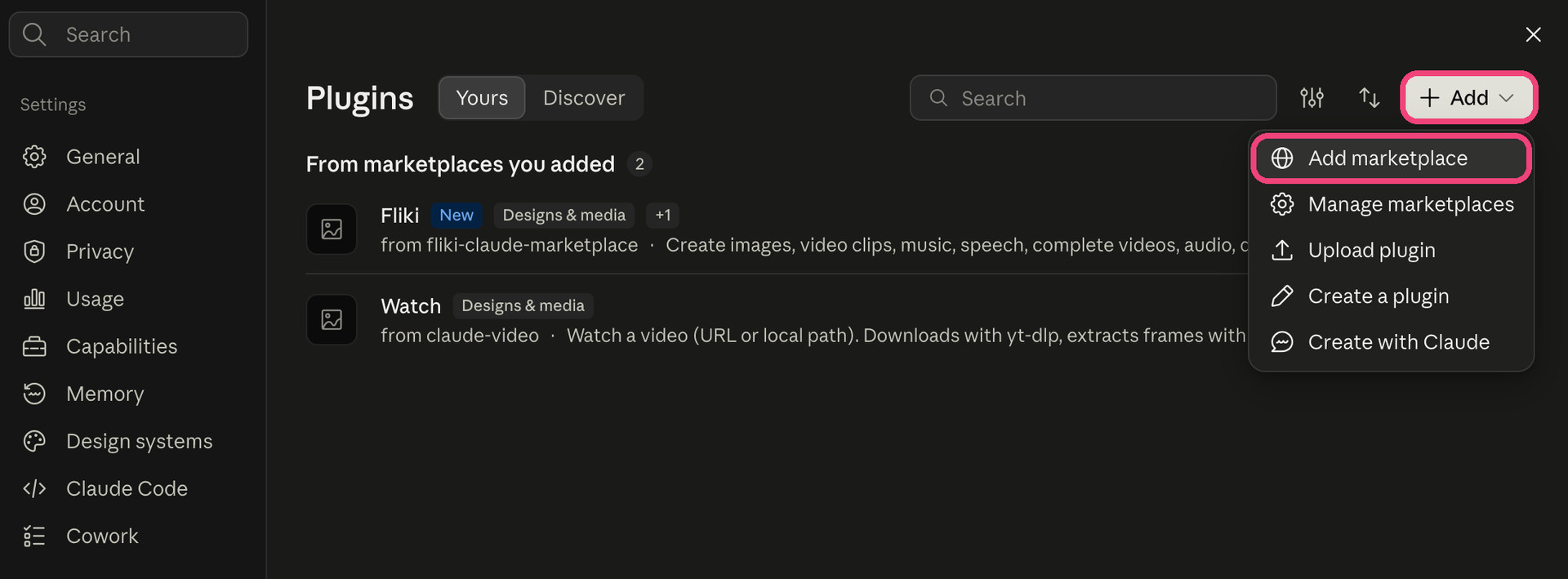
Open the Claude Desktop app and go to Settings, then Plugins.
Click + Add in the top right corner and choose Add marketplace.
Step 3 - Add the Fliki marketplace
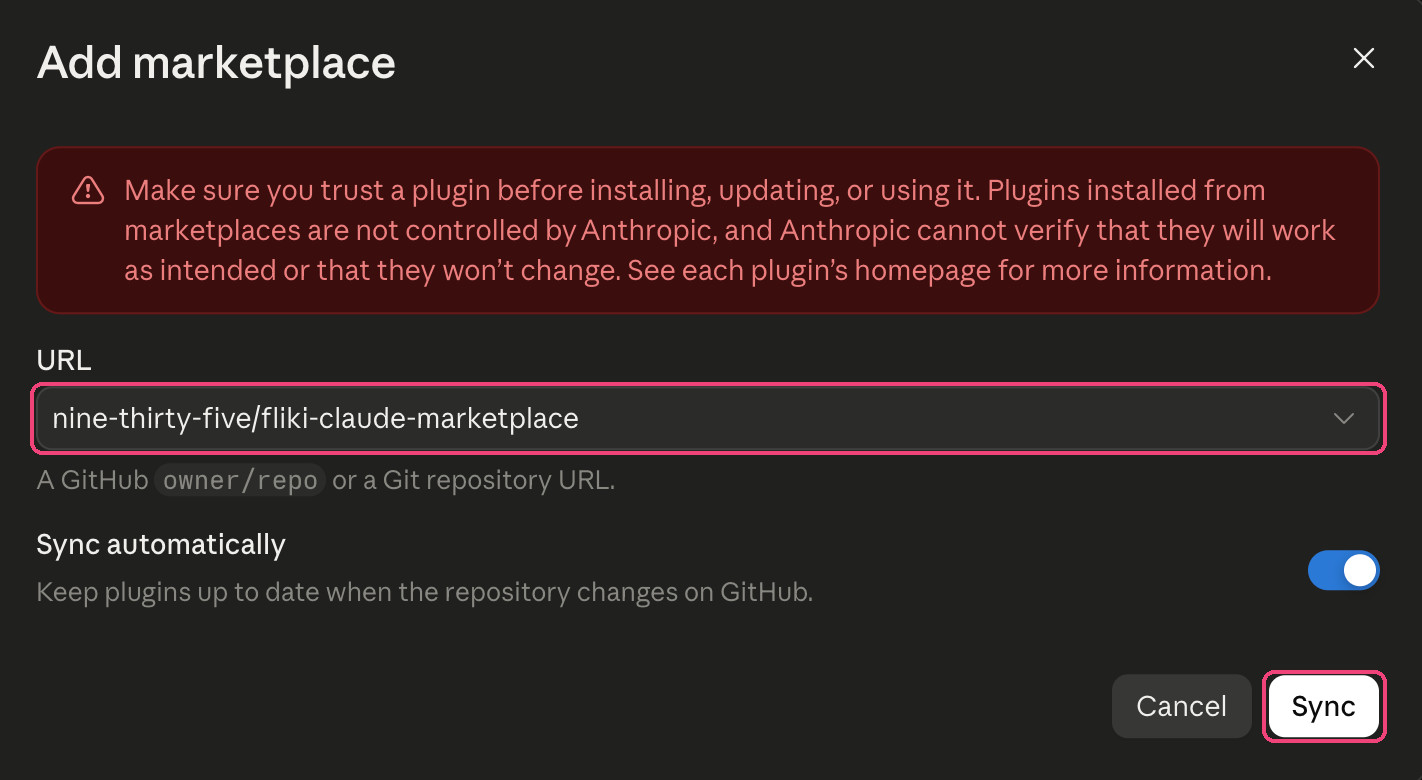
Paste nine-thirty-five/fliki-claude-marketplace into the URL field.
Leave Sync automatically on so you get Fliki updates as they ship.
Click Sync.
About the warning: Claude shows this notice for every plugin that doesn't come from Anthropic. The Fliki plugin comes from Fliki's official marketplace, the same address shown on your Automation page.
Step 4 - Install Fliki and sign in
After syncing, Fliki shows up in your plugin list as coming from fliki-claude-marketplace. Open it and click Install.
The first time Claude uses Fliki, it asks you to sign in to Fliki. Sign in with the same account you use at app.fliki.ai and approve the connection.
That's the whole setup. You only do it once.
Step 5 - Check that Fliki is connected
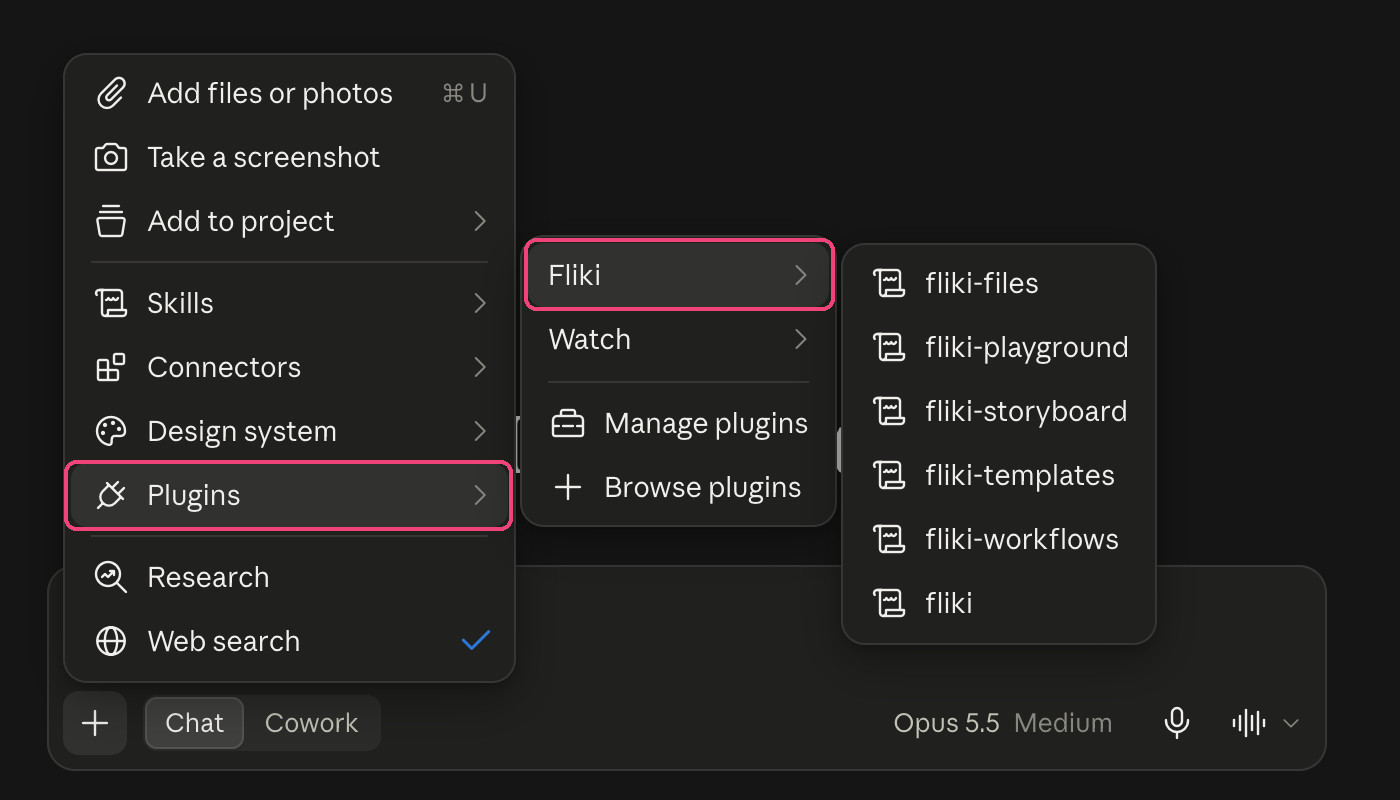
Start a new chat. Click the + button in the message box and hover over Plugins, then Fliki. You'll see Fliki's skills listed. These are the playbooks Claude follows for different jobs:
fliki - The starting point. It works out what you want and picks the best way to make it.
fliki-storyboard - Plans multi-scene videos and audio before anything is generated.
fliki-files - Builds finished videos scene by scene, and edits videos you already have.
fliki-playground - Makes single images, video clips, music tracks, and voice lines.
fliki-workflows - Runs Fliki's ready-made workflows, such as music videos, audiobooks, thumbnails, and slide decks.
fliki-templates - Designs reusable branded templates.
You don't need to pick a skill yourself. Claude chooses the right one from your request.
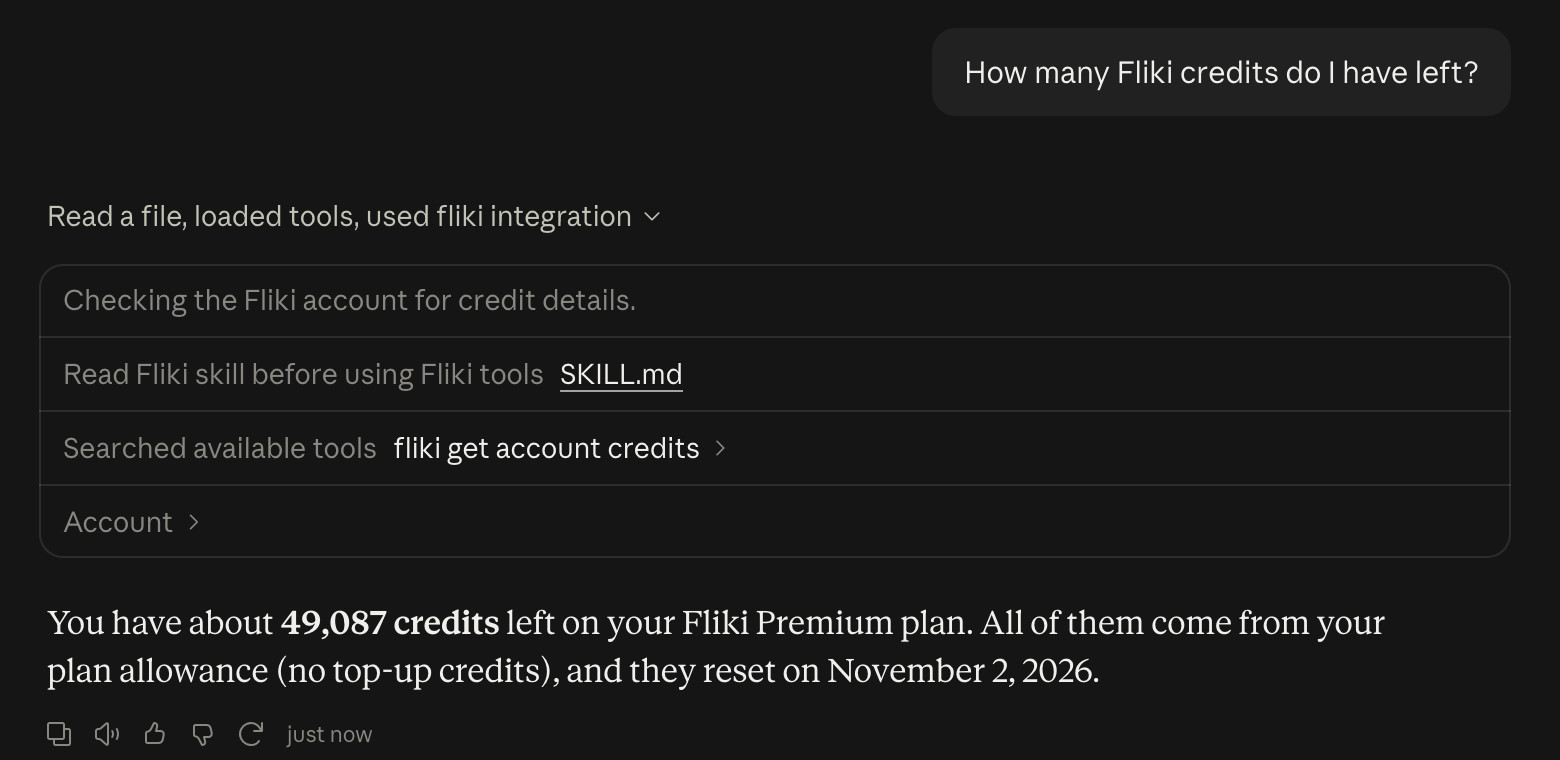
To test the connection, ask a simple question like "How many Fliki credits do I have left?" Claude checks your account and answers with your plan, your balance, and when your credits reset. If you see that, you're ready to create.
Step 6 - Describe the video you want

Now for the fun part. Type what you want the way you'd brief a person. For this guide, we asked for a promo Reel for a coffee shop:
Make a 30-second vertical video for Instagram Reels promoting the new cold brew at my coffee shop, Bean There. Friendly, upbeat tone with a voiceover and captions.
A good request covers five things. You don't need all of them, but each one makes the result better:
What it is - A Reel, an ad, an explainer, a podcast, a thumbnail.
Where it goes - Instagram, TikTok, or YouTube tells Claude the shape: vertical for Reels and Shorts, widescreen for YouTube.
How long - For example, 30 seconds or 2 minutes.
The feel - Friendly, premium, funny, calm.
What it must do - Get people into the shop, explain a feature, promote a sale.
Step 7 - Answer a few quick questions
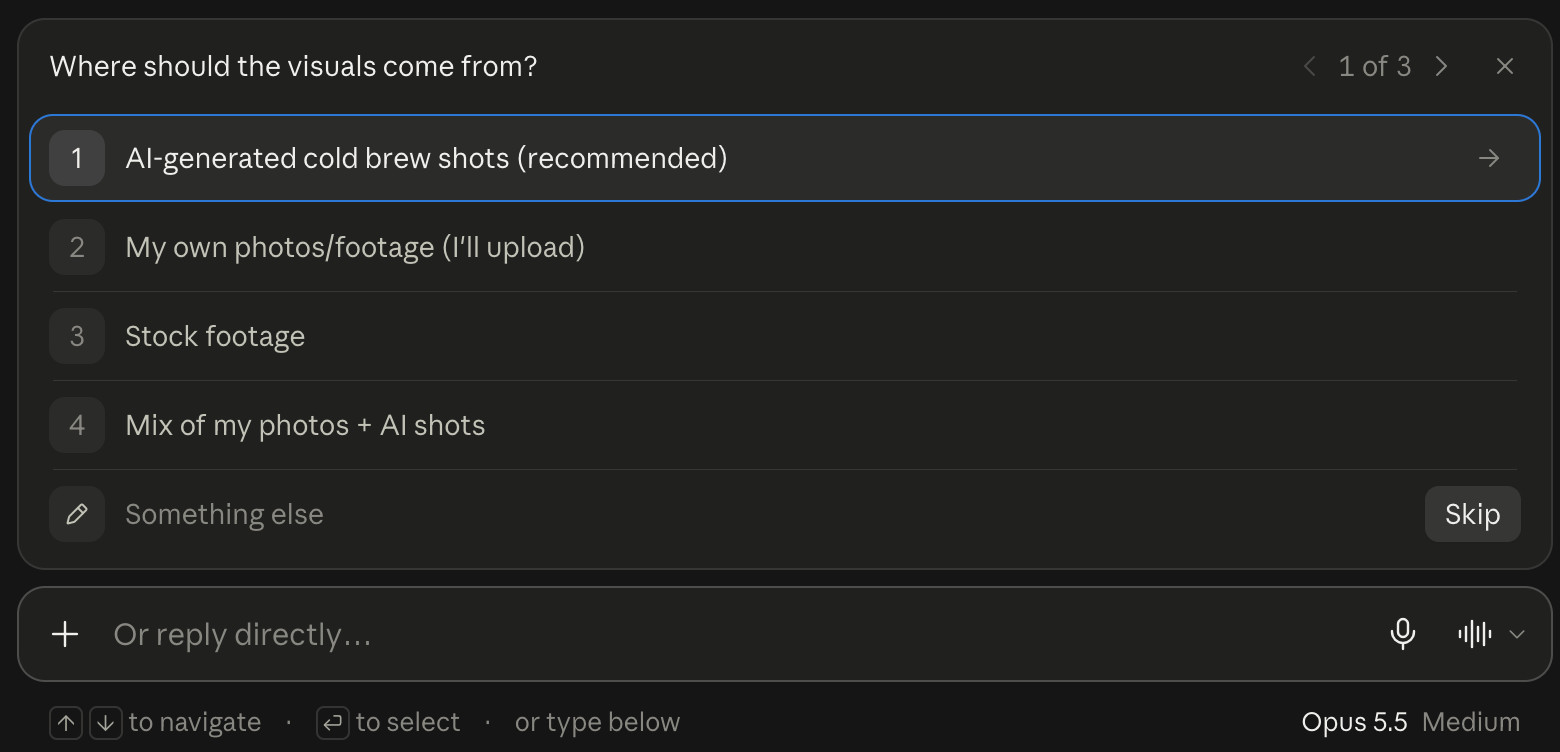
Claude asks only the questions that change the result, and offers real options from your Fliki account. For our Reel it asked three:
Where should the visuals come from? AI-generated shots, your own photos and footage, stock footage, or a mix.
Which voice? It suggested actual Fliki voices that fit the tone, such as Sonia, a cheerful UK English voice.
What's the call to action? For example, "Come try it this week" or a launch-day offer.
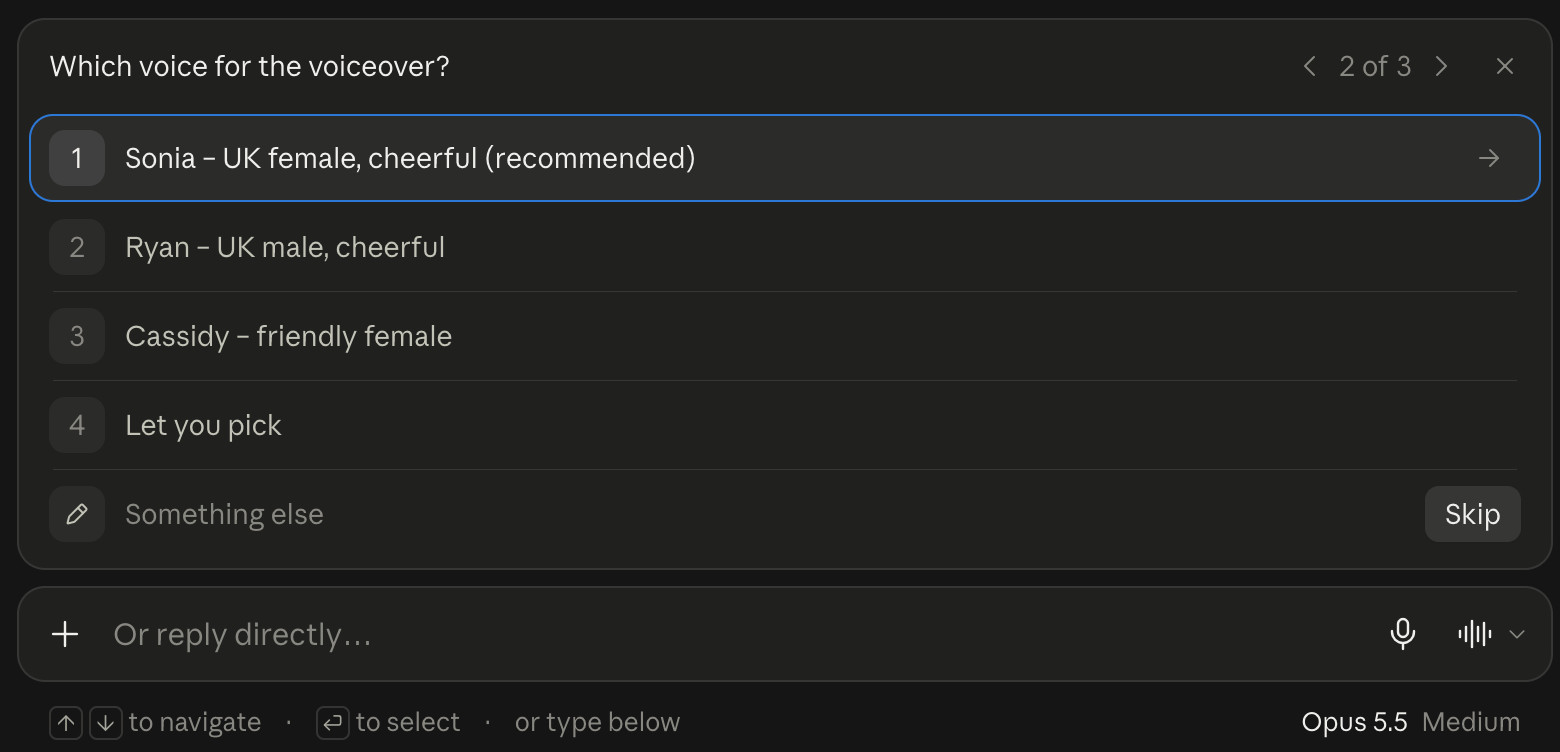
Click an option, use the arrow keys and Enter, or type your own answer in the box below. If you'd rather skip the questions entirely, say "just make it" in your first message, and Claude will go with sensible defaults.
Step 8 - Review the storyboard
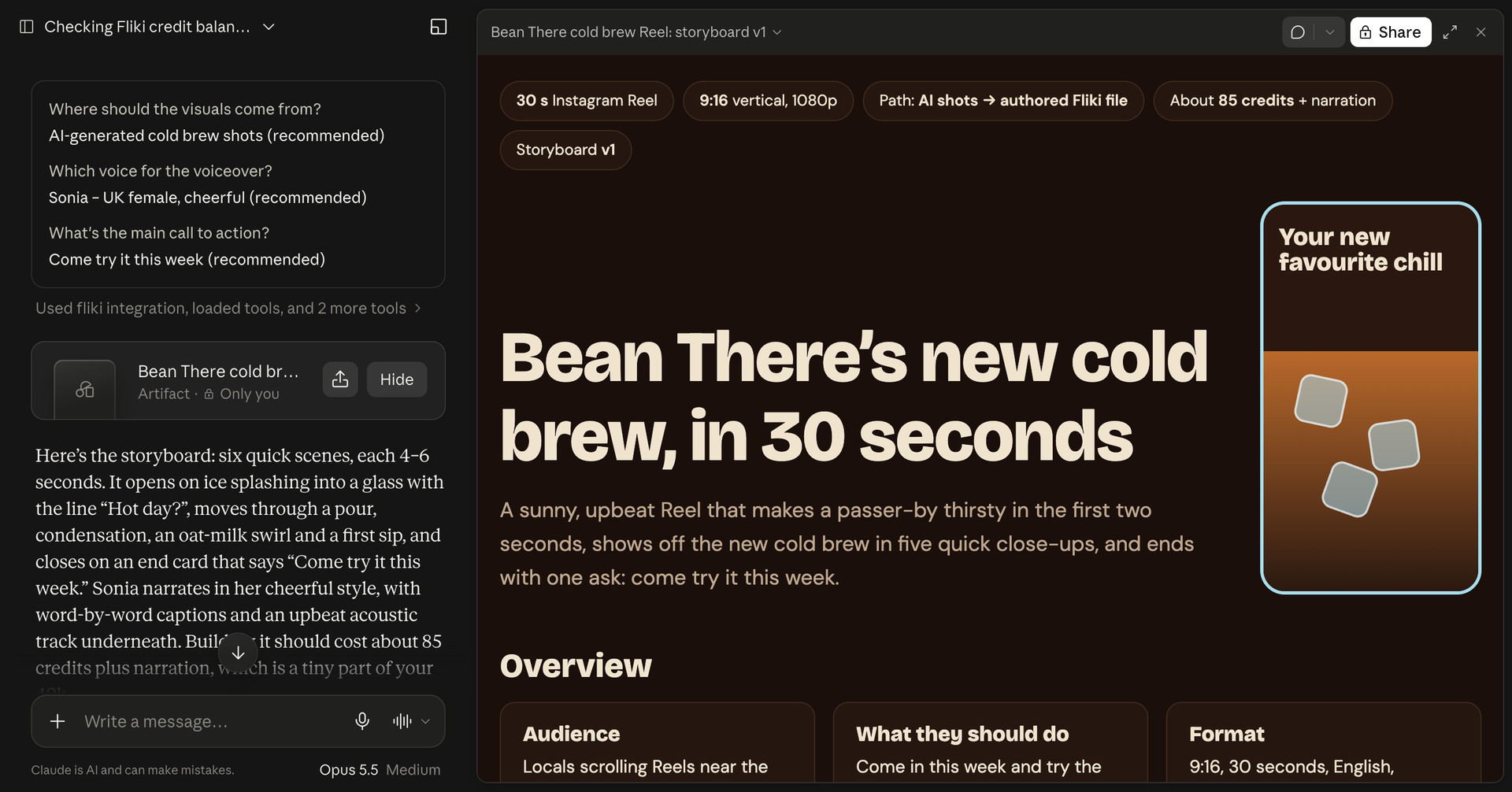
Before spending any credits on a multi-scene video, Claude writes a storyboard and opens it next to the chat. This is your chance to shape the video while changes are still free.
The top shows the essentials at a glance: the format (30-second Instagram Reel, 9:16 vertical, 1080p), how it will be built, and the estimated cost. Our Reel was estimated at about 85 credits plus narration.
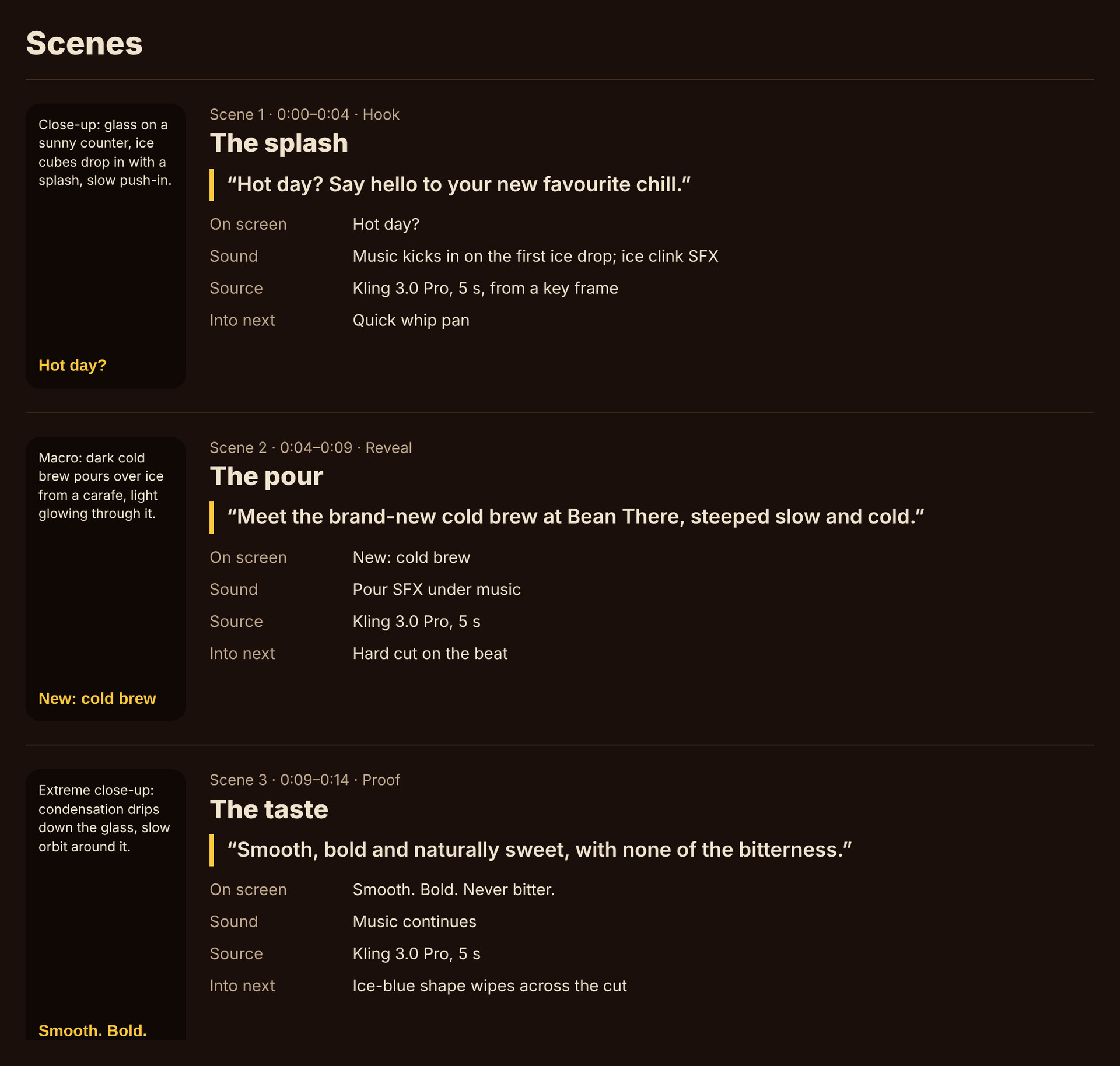
Scroll down to see every scene. Each one has its timing, what's on screen, the exact narration line, the sound, and the AI model that will generate it. Our Reel had six scenes: the ice splash hook, the pour, the taste, the oat-milk swirl, the first sip, and an end card.
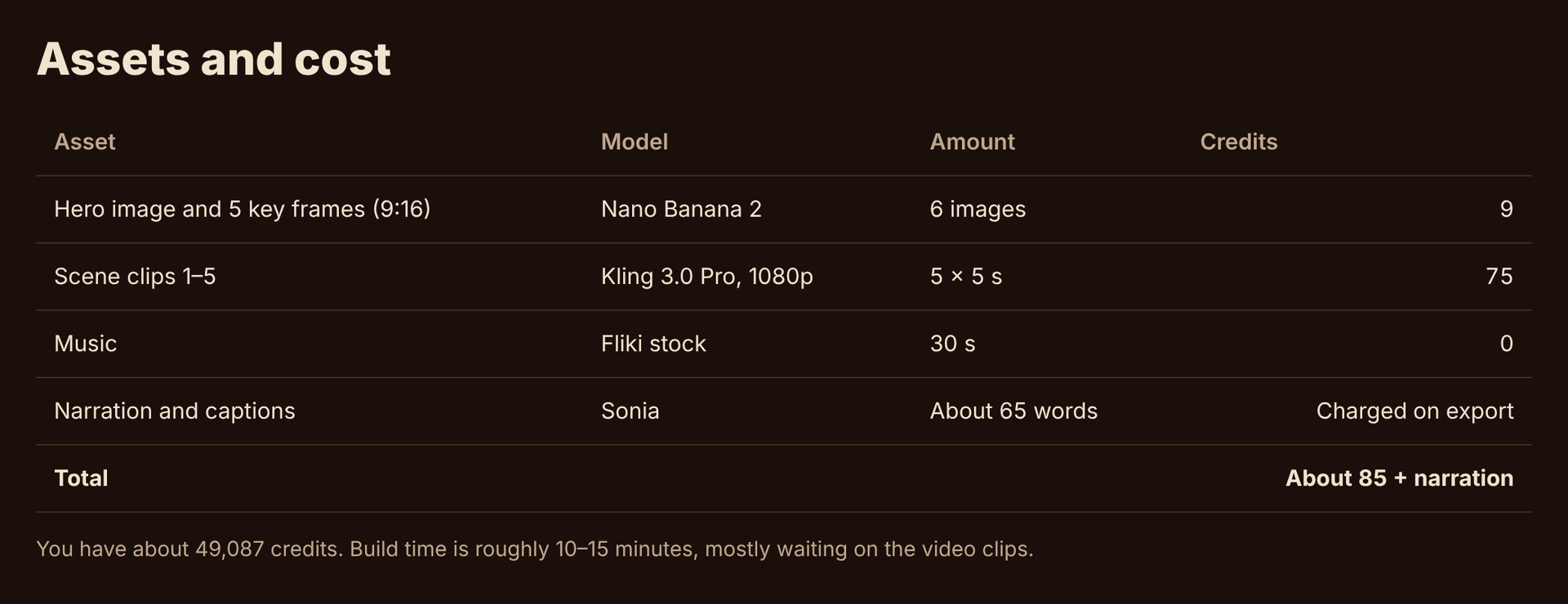
At the bottom, Assets and cost breaks down every credit, and Open points lists anything Claude guessed. For example, it asked whether we wanted our Instagram handle or brand colors on the end card.
Want changes? Reply in one message, for example "make the voice American and add our handle @beantherecoffee to the end card." Claude updates the storyboard before anything is generated.
Step 9 - Approve and let Claude build it
When you're happy, reply with something like "Looks great, go ahead and build it." Claude then works through the plan in your Fliki account:
Generates a hero image so the drink looks the same in every shot, then a key frame for each scene.
Turns the key frames into short AI video clips.
Creates a music track, records the narration, and adds word-by-word captions.
Puts it all together in a Fliki file, scene by scene, with headlines and transitions.
Video clips take the longest to generate. Our 30-second Reel took about 15 minutes, and you can do other things while it works.
If something needs fixing: Claude checks its own work and tells you about anything that came out differently from the plan. On our first pass the narration ran a little short, so Claude explained the timing fix it wanted to make. We replied "go ahead," and it adjusted the scenes before exporting. You can ask for changes the same way at any point.
Step 10 - Download your video
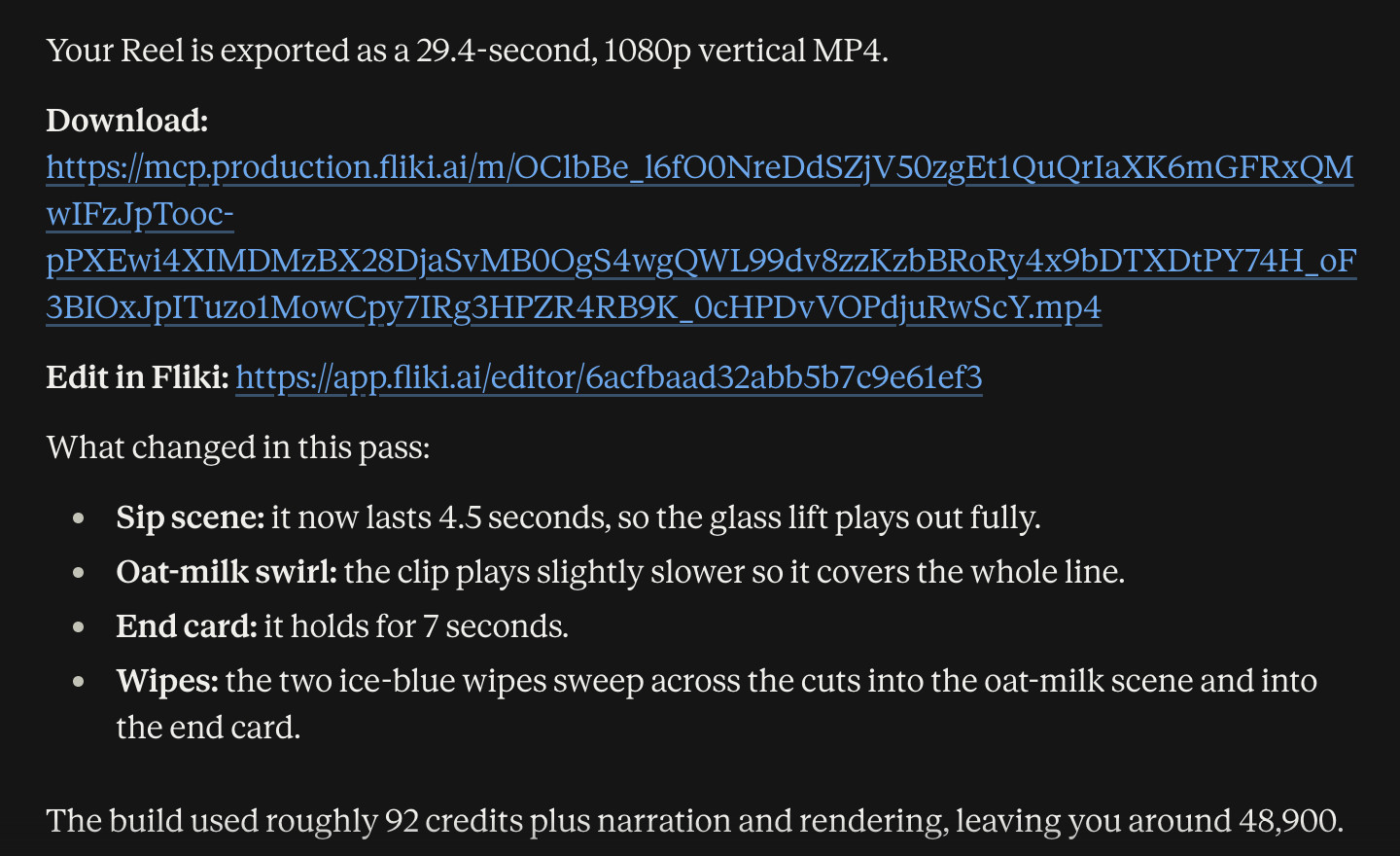
When the video is ready, Claude gives you two links:
Download - The finished MP4, ready to post. Download links expire after about an hour. If yours has expired, just ask Claude for a fresh link. It costs nothing and you don't need to export again.
Edit in Fliki - Opens the video in the Fliki editor.
Claude also lists what it changed and how many credits it used. Our Reel came out at 29.4 seconds in 1080p and used about 92 credits plus narration and rendering.
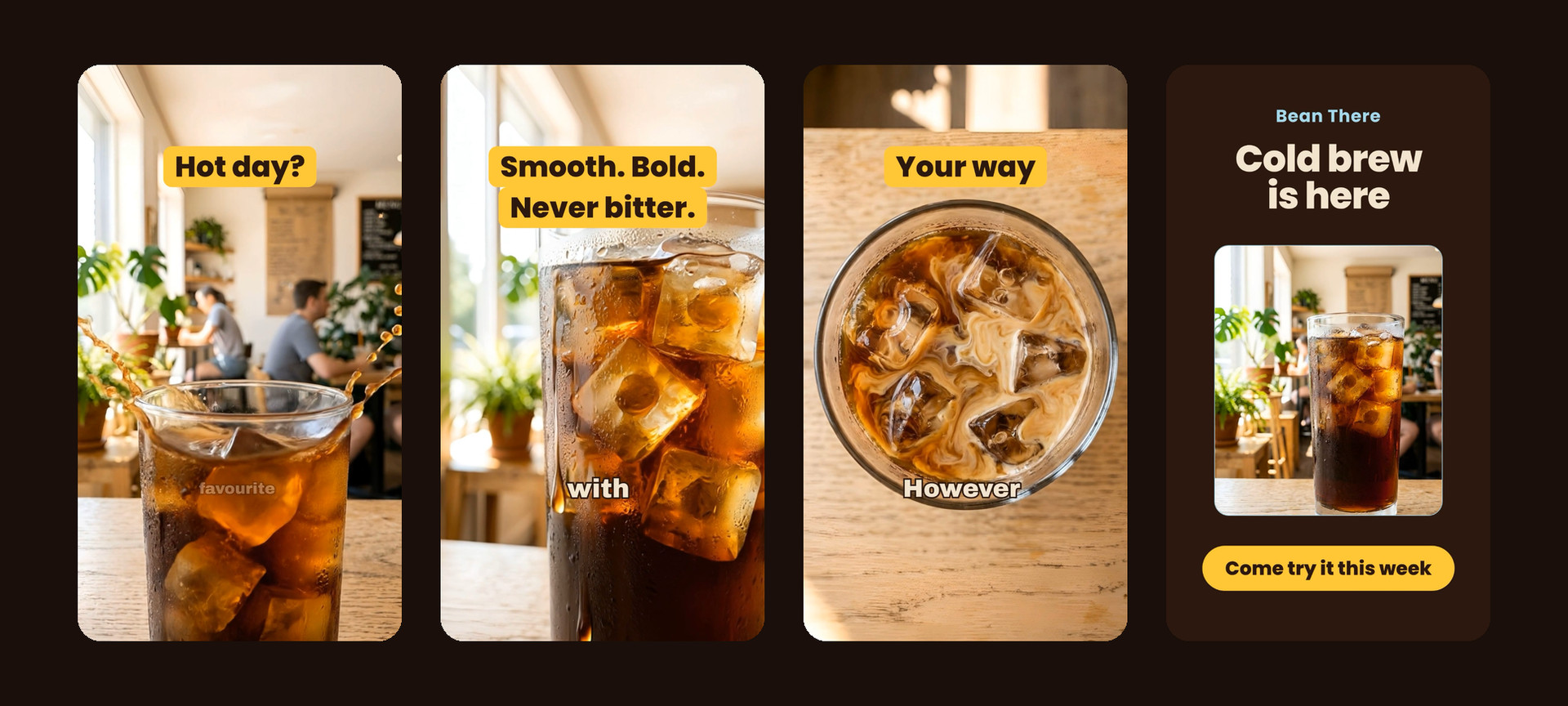
Here's how our finished Reel turned out: a splash hook, the drink up close, an oat-milk swirl, and an end card with the call to action.
Step 11 - Fine-tune in the Fliki editor (optional)
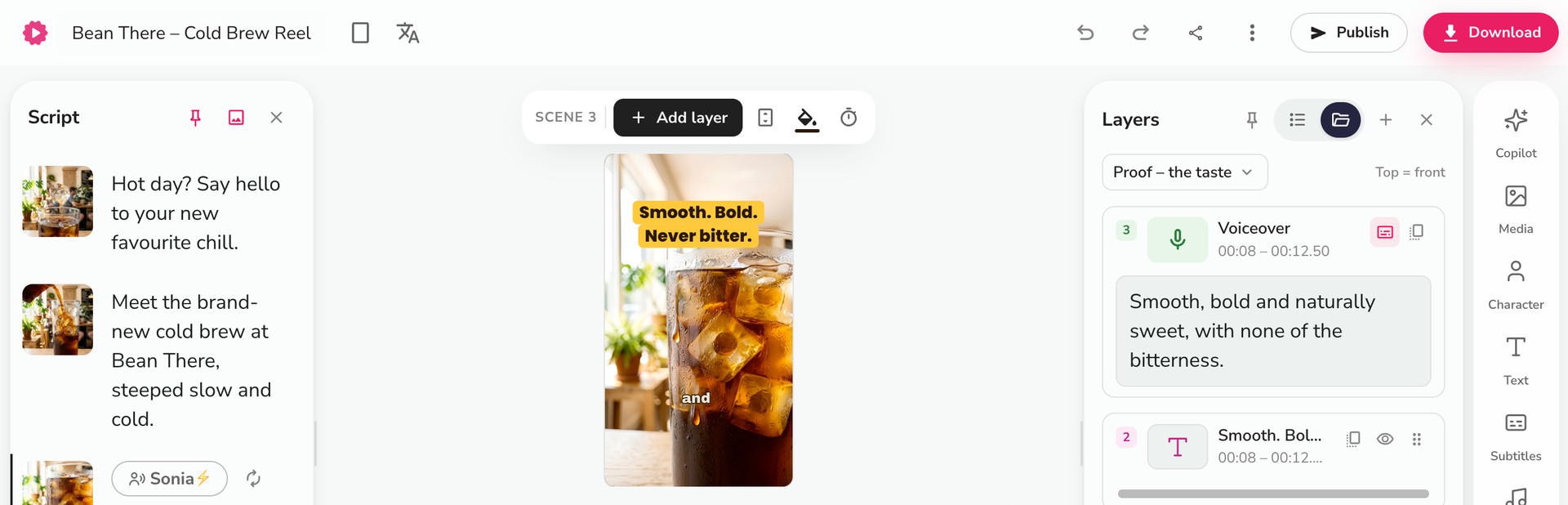
Everything Claude builds is a normal Fliki file. Open it with the Edit in Fliki link, or find it under Files in Fliki. You can change any line of the script, swap the voice, replace a clip, or restyle a headline, then click Download in the top right.
You can also keep editing through Claude. Ask something like "change scene 3's headline to Smooth and strong," and Claude updates only that scene and leaves the rest alone.
Managing your connection
Check your credits - Ask Claude "how many Fliki credits do I have?" anytime, especially before large video projects.
Disconnect Claude - In Fliki, go to Automation, then AI apps (MCP), and click Disconnect next to Claude. Claude can't use your Fliki account again until you sign in again.
Find your work - Everything Claude makes is saved in your Fliki library: videos and audio under Files, and generated images, clips, and music as media you can reuse.
Tips for getting the best results
Always review the storyboard. It's the biggest quality lever, and changes are free at that stage. Ask for everything you want changed in one reply.
Give real details. Your brand name, handle, prices, and facts about your product make the script specific instead of generic.
Use your brand kit. If you've set one up in Fliki, say "use my brand kit" and Claude applies your colors, fonts, and logo.
Name the platform. "Instagram Reel," "YouTube video," or "LinkedIn post" tells Claude the right shape and length.
Edit instead of starting over. Asking Claude to change one scene keeps everything else, including narration, and saves credits.
Ask for a fresh link instead of re-exporting. Download links expire after an hour, but a new link is free.
Troubleshooting
"Included with the Premium and Enterprise plans" when signing in - Your Fliki plan doesn't include Claude access yet. Upgrade your plan in Fliki to connect.
"Fliki's tools are paused right now" - Fliki has temporarily paused Claude access. Try again a little later.
The download link stopped working - Links last about an hour. Ask Claude for a fresh link.
"The file changed" when Claude edits a video - This happens if you edited the same video in the Fliki editor at the same time. Claude reloads the latest version and tries again.
Claude can't find a file on your computer - Upload it to your Fliki library first, then ask Claude to use it by name.
That's it. You've connected Fliki to Claude and made a finished, ready-to-post video just by describing it. Next, try a different format: a podcast, a YouTube thumbnail, a product ad, or a slide deck. The steps are the same: describe it, answer a few questions, approve the plan, and download.