
The honest answer first: Google Slides has no built-in text to speech
Let me save you the frustration of hunting through menus. Google Slides does not have a native text-to-speech feature that turns your slide text or speaker notes into a spoken voiceover. There is no "read this slide aloud and save it" button, and no synthetic-voice generator hiding in the toolbar. If you have been searching for one, you are not missing it. It does not exist.
That sounds like bad news, but it is not, because adding a natural, professional voiceover to Google Slides is still completely doable, and once you know the actual workflow it takes only a few minutes. The trick is that you generate the speech with a text-to-speech tool first, then drop that audio into your slides. This guide walks through every working method, the exact click-paths verified against Google's own help pages, the playback settings that trip everyone up, and the fixes for when audio refuses to play.
I have built plenty of narrated decks, so I will also flag the gotchas that the thin how-to posts leave out, like why your audience sometimes gets a "request access" error, and why you cannot export a Slides deck as a video with sound.
Let us start with what Google Slides can and cannot do, so the rest makes sense.
What Google Slides can and cannot do with audio
It helps to separate three things that people lump together as "text to speech."
A voiceover generator (what you want): not available. Slides will not convert typed text into an audio file for you.
Insert > Audio (what makes narration possible): available. Google Slides can play an audio file you already have, as long as it is an .mp3 or .wav stored in your Google Drive. This is the feature that makes everything in this guide work. Per Google's own help documentation, those are the only two supported formats, and the file has to live in Drive first.
Screen reader and live captions (accessibility, not narration): available but different. Under Tools > Accessibility you can turn on screen reader support, which lets tools like ChromeVox, NVDA, or VoiceOver read the interface and slide content aloud to the person operating the computer. In Present mode, Slides can also show live captions of what you speak into your microphone. Both are genuinely useful for accessibility, but neither creates an audio file you can attach to the deck or share. They read live, on the spot, and Google notes the captions are not even stored.
So the real job is simple: make the speech, then insert it. Here are the methods, best first.
Method 1: Generate an AI voiceover, then insert it into Slides (recommended)
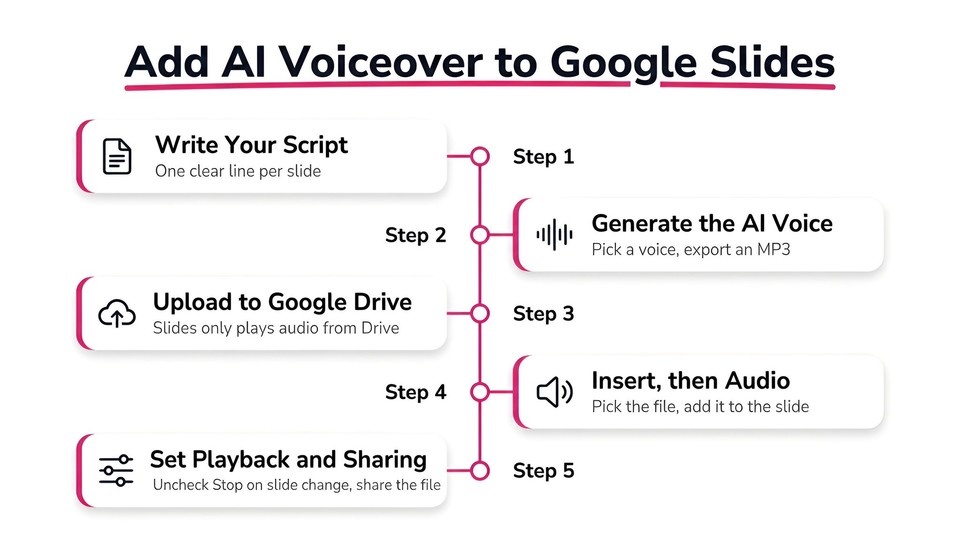
This is the method most people actually want, because modern AI voices sound natural, you can redo a line in seconds, and you can narrate in dozens of languages without hiring anyone. It has two parts: create the audio, then place it in your slides.
Part A: Create the voiceover audio
You need an .mp3 (or .wav) of your narration. Any solid text-to-speech tool works, and there is a comparison table further down. I will use Fliki's Script to Audio workflow as the walkthrough because it is built for exactly this, it exports a clean MP3 with no watermark, and it covers 80-plus languages if you need to localize your deck.
Step 1: Open the Script to Audio workflow. Go to app.fliki.ai, switch the top toggle to Voiceover, and under Voiceover workflows click Script to audio. You can also paste your script straight into the "Enter your voiceover idea, script, or blog link" box, or start from Blog to audio.
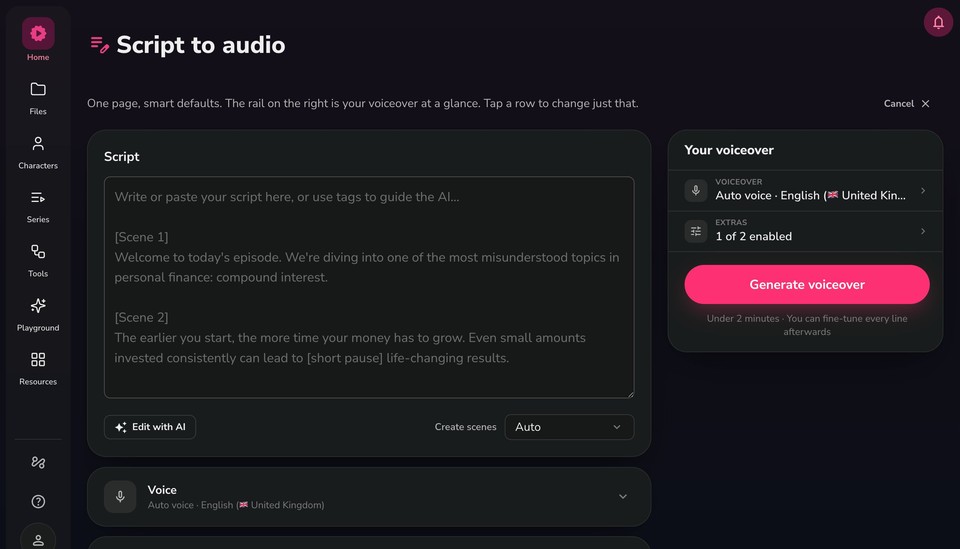
Step 2: Add your script. The builder is a single page: your script sits on the left, and a rail on the right summarizes your voice and extras. Paste or write your text. You can use tags to guide delivery, for example [Scene 1] and [Scene 2] to split sections and [short pause] for pacing, and use Edit with AI to shorten or change the tone. Leave Create scenes on Auto, or split by line breaks or sentences.
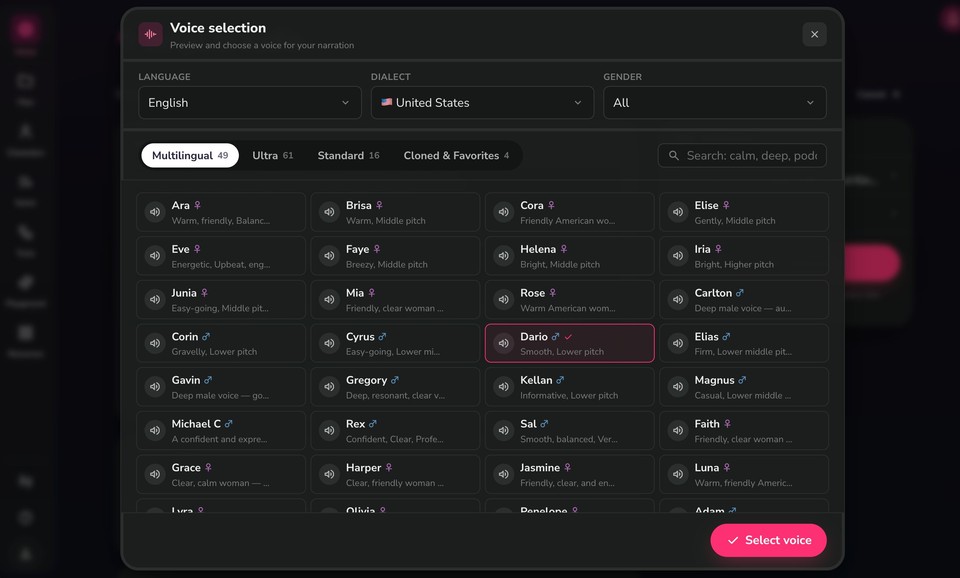
Step 3: Choose your voice. Open the Voice panel and click Browse voices. Filter by language, dialect, and gender, switch between the Multilingual, Ultra, Standard, and Cloned and Favorites sets, or search by descriptor like "calm," "deep," or "podcast." Preview with the speaker icon, then Select voice. Fliki offers 2,000-plus voices across 80-plus languages and 100-plus dialects, and you can even clone your own voice from a short sample and use it here.
Step 4: Set extras. Under Extras and advanced you can turn on contextual sound effects or add natural pauses between scenes.
Step 5: Generate. Click Generate voiceover. It usually takes under two minutes.
Step 6: Fine-tune and add music. When it opens in the editor, play it back, adjust any line, and open the Layers panel to swap or set the volume of a background music track if you want one. Use the pronunciation map to fix how names and acronyms are read, which matters a lot for a professional deck.
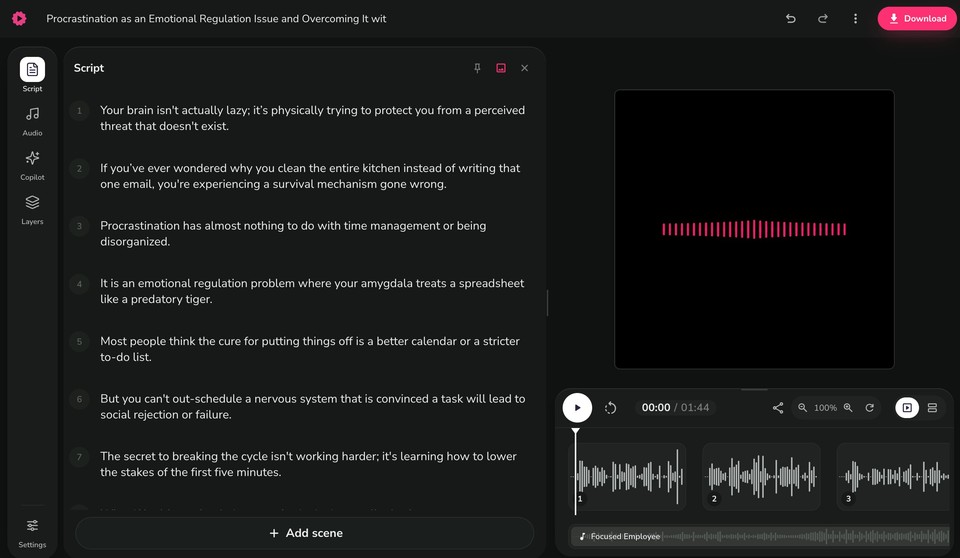
Step 7: Download. Click Download, choose MP3 (universal and small) or WAV, and export. That MP3 is what you will put into Slides.
Part B: Insert the audio into Google Slides
Now place the file. First, upload your MP3 to Google Drive (New > File upload), because Slides can only pull audio from Drive. Then, in your presentation:
Open your presentation in Google Slides on a computer (audio insertion is desktop only, not available in the mobile apps).
Select the slide where the audio should live.
Click Insert, then Audio.
In the Drive picker, choose your uploaded MP3 and click Select.
A speaker icon appears on the slide. Click it, then open Format options to set how it plays, which is the step most people skip and then wonder why the audio behaves strangely. The settings that matter:
Start playing: "On click" (default) or "Automatically" as the slide opens.
Hide icon when presenting: available when you choose Automatically, so the speaker icon does not show during your presentation.
Loop audio and Volume when presenting.
Stop on slide change: this is the important one. If you want narration or music to continue as you advance through slides, uncheck it. Leave it checked if each slide has its own separate voiceover clip.
For per-slide narration, add a separate audio clip to each slide and leave "Stop on slide change" checked so each clip plays only on its slide. For one continuous track across the whole deck, uncheck it.
One critical step people miss: sharing permissions
Because Slides links to the Drive audio file rather than embedding it, your audience needs permission to access that file, or they will see a "Request access" error when the audio tries to play. When you share the deck, accept Google's Access checker prompt, or set the audio file's sharing in Drive to match the deck (for example, "Anyone with the link, Viewer"). Do this before you present or send the deck to anyone.
Method 2: Record your own voice, then insert it
If you would rather use your real voice, the process is the same on the Slides side, you just create the MP3 by recording instead of generating. Google Slides has no built-in recorder, so record with a free browser tool like Vocaroo, or a desktop app like the free Audacity, export an MP3 or WAV, upload to Drive, and follow the Insert > Audio steps above. This is great for a personal touch, though it is slower to update than AI voiceover, since fixing one sentence means re-recording.
Method 3: Read-aloud add-ons and screen readers (for accessibility)
If your goal is simply to have slides read to you as you work or study, rather than to attach a shareable voiceover, a read-aloud tool is the right choice. Google's built-in screen reader support (Tools > Accessibility) works with ChromeVox on Chromebooks and with NVDA, JAWS, or VoiceOver elsewhere, and there are Google Workspace Marketplace add-ons that read selected text aloud. Just be clear about the limitation: these read content live for the person at the computer. They do not produce an audio file you can embed or share with an audience. If you find an add-on that claims to insert generated speech into your deck, test it before relying on it, since Marketplace listings and their reliability change often.
Method 4: Turn the whole deck into a narrated video (the best-quality option)
Here is a fact that surprises people: Google Slides cannot export your presentation as a video with audio. Its File > Download menu offers PowerPoint, ODP, PDF, plain text, JPEG, PNG, and SVG, and nothing else. There is no MP4 export, despite what some outdated articles claim. So if you want a self-contained narrated video that plays anywhere, on social media, in an LMS, or as a shareable link, you need to build it outside Slides.
The cleanest route is to turn your slides into a narrated video with AI voiceover. Fliki's PPT to video workflow imports your deck, narrates each slide with an AI voice, and adds captions, so you get a finished MP4 with synced audio. Tools like Narakeet are also purpose-built to convert PowerPoint and exported Slides into narrated video using your speaker notes as the script. This path also solves accessibility and distribution in one move, because a real video file carries its audio with it and does not depend on Drive permissions.
The playback settings that actually matter
Most "my audio is broken" complaints trace back to two settings, so commit these to memory:
To keep audio playing across multiple slides, uncheck "Stop on slide change" in Format options. By default, audio stops the moment you advance.
To autoplay without a visible icon, set "Start playing" to Automatically and tick "Hide icon when presenting." Note that browsers often block autoplay-with-sound until you interact with the page, so a single click may still be needed to kick it off.
Troubleshooting: when the audio won't cooperate
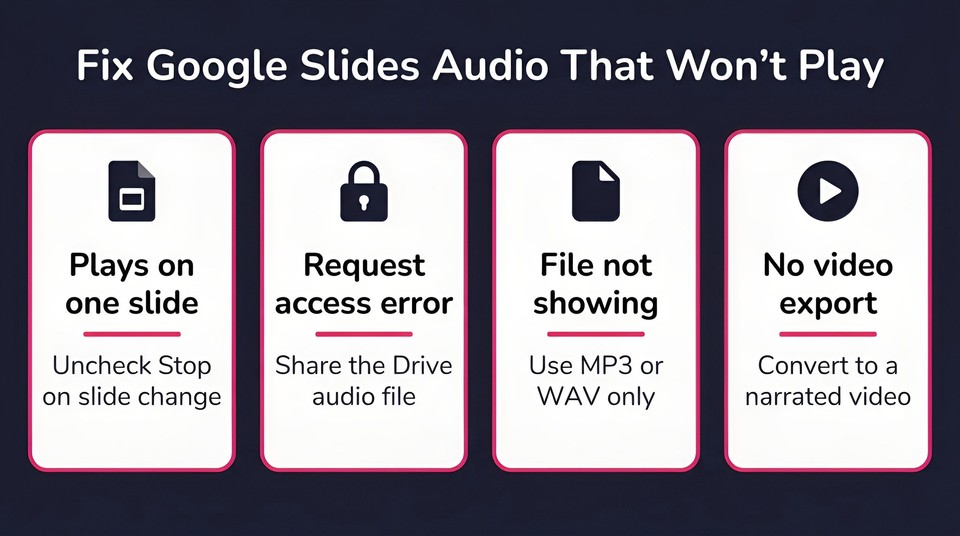
Audio only plays on one slide. That is the default. Uncheck "Stop on slide change" to continue across slides.
Audience sees "Request access." The audio is a linked Drive file. Set that file's sharing to match the deck, or accept the Access checker prompt when you share.
Your file does not show in the Insert > Audio picker. Only .mp3 and .wav appear. Formats like m4a, aac, or ogg are silently hidden, so convert to MP3 and re-upload to Drive.
No sound on mobile. You cannot insert audio from the Slides mobile apps at all, and playback on phones and tablets is inconsistent. Some users report needing to tap the speaker icon manually. For reliable mobile playback, the narrated-video route (Method 4) is safer.
You want to download the deck as a video. Slides cannot do this natively. Convert to PowerPoint (File > Download > .pptx) and use PowerPoint's Export to video, or use a slides-to-video tool.
Google Slides vs PowerPoint for narration
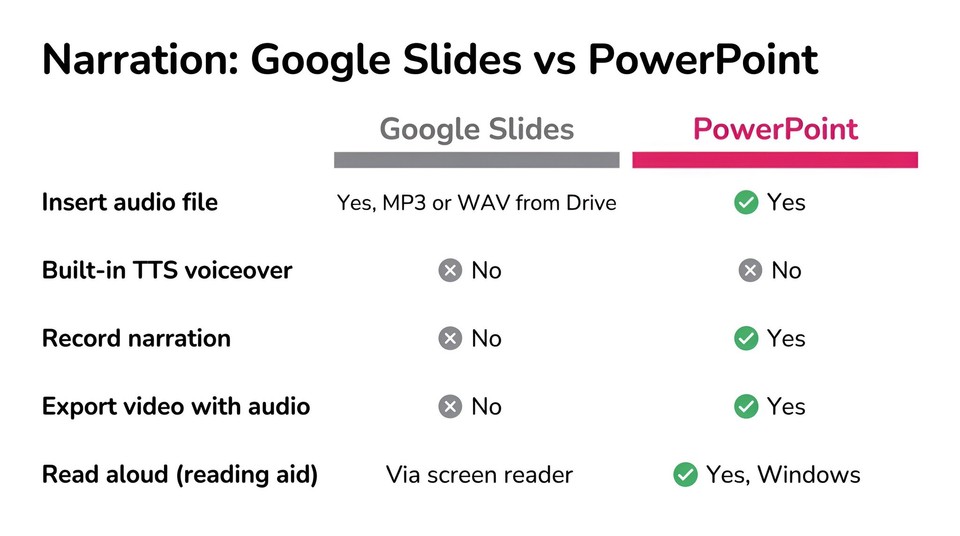
If you are coming from PowerPoint, the gap will feel obvious. PowerPoint has native narration built in: its Record Slide Show feature captures voice narration and timings per slide, and its Export menu can create an MP4 with that narration baked in. PowerPoint also has a Windows-only "Read Aloud" that speaks selected text as a reading aid, though that is a proofreading tool, not a way to export slide audio. Google Slides has none of this, which is exactly why the Insert > Audio and external-TTS workflow above is the standard approach for Slides users.
The best text-to-speech tools to create your slide audio
Any of these can produce the MP3 you insert. Pricing and voice counts change often, so confirm current details on each vendor's page.
Tool | Best for | Voices / languages | Free tier | Notes |
|---|---|---|---|---|
Fliki | Slides voiceover plus turning decks into narrated video | 2,000+ voices, 80+ languages, 100+ dialects | Free forever plan | MP3 and WAV export, no audio watermark, emotion control, voice cloning, PPT-to-video |
ElevenLabs | Most natural single-clip voice quality | 30+ languages | ~10k characters/mo | Export MP3 then insert; excellent naturalness |
Murf | Presentation-style studio voiceover | 200+ voices, 35+ languages | Limited trial | Built around presentation and video narration |
NaturalReader | Education and accessibility reading | 200+ voices, many languages | Free tier | Long-standing read-aloud and export tool |
Narakeet | Turning slides into narrated video | 700+ voices, 90+ languages (vendor) | Limited free | Purpose-built for decks; reads speaker notes as script |
Google Cloud TTS | Developers who want API control | 380+ voices, 75+ languages | Monthly free character tier | Powerful but requires technical setup |
TTSMaker | A quick free MP3 with commercial use | 600+ voices (vendor) | Generous free tier | Good no-frills free option |
A quick honest read. If you only need a fast, natural MP3 to drop onto a slide, ElevenLabs and TTSMaker are easy starting points. If you are narrating a full course or want to localize a deck across languages, or you want the option to turn the whole thing into a video, Fliki covers both the MP3 and the video routes in one place with 2,000-plus voices across eight leading AI voice providers, emotion control, and voice cloning. You can compare voices on the text to speech page, and there is a wider roundup in our best free AI voice generators guide.
A note on accessibility
Adding a voiceover is a real accessibility win. Roughly 1.3 billion people, about 16 percent of the world, live with a significant disability, and spoken narration helps people with low vision, reading difficulties, and non-native speakers engage with a text-heavy deck. One important caveat so you do it right: audio serves people who cannot easily read the screen, but it does not serve people who are deaf or hard of hearing. To be genuinely accessible, pair your narration with on-slide text, a transcript, or captions. This mirrors the WCAG guidance that prerecorded audio should have a text equivalent. If accessibility is the main goal, the narrated-video route makes captions easy to add.
Why bother adding voiceover to slides at all
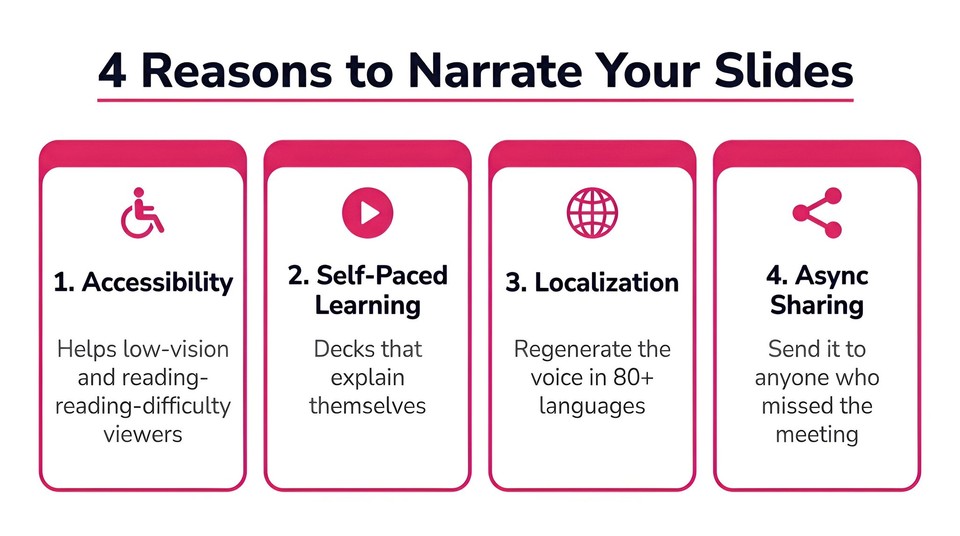
Beyond accessibility, narration turns a deck into something that works without you in the room. A self-narrating presentation can be shared for self-paced learning, sent to a client who missed the meeting, used as an e-learning module, or localized into other languages by regenerating the voiceover. In an era where so much learning and communication happens asynchronously, a deck that explains itself is far more useful than one that needs a live presenter every time.
Final thoughts
Google Slides may not have a text-to-speech button, but that has never really been the obstacle. Generate a natural voiceover with an AI voice tool, insert the MP3, set "Stop on slide change" correctly, and fix the Drive sharing, and you have a professional narrated deck in a few minutes. When you need something that travels on its own, with captions and no permission headaches, turn the deck into a narrated video instead.
If you want to make the audio right now, you can generate a voiceover with Fliki for free, download the MP3, and drop it straight into your slides. Same script, any of 80-plus languages, in about the time this article took to read.
FAQs
No. Google Slides has no built-in feature that converts your text or speaker notes into a spoken voiceover. It can play an audio file you insert (Insert > Audio, using an .mp3 or .wav from Google Drive), and it has screen-reader support for accessibility, but it will not generate speech for you.
Create the audio first with a text-to-speech or recording tool, export it as an MP3, upload it to Google Drive, then in Slides click Insert > Audio, select the file, and set your playback options under Format options. Remember to share the Drive audio file so your audience can hear it.
By default, audio stops when you change slides. Click the speaker icon, open Format options, and uncheck "Stop on slide change" so it continues. For separate per-slide narration, leave it checked and add one clip per slide.
Not natively. Slides only downloads as PowerPoint, ODP, PDF, text, or image files. To get a narrated MP4, use a slides-to-video tool, or download the deck as a PowerPoint file and use PowerPoint's Export to video feature.
Only .mp3 and .wav, and the file must be stored in your Google Drive. Other formats will not appear in the Insert > Audio picker, so convert them to MP3 first.
Several tools have genuine free tiers, including Fliki, TTSMaker, and NaturalReader. Fliki's free plan exports a watermark-free MP3 and also lets you turn the whole deck into a narrated video, which is useful if you outgrow the Insert > Audio approach.