Introduction
If you make videos on your phone, the best text to speech apps are not the ones that simply read an article aloud. They are the ones that turn a script into a voiceover you can export, caption and publish. For most video creators that means a video-first app such as Fliki or CapCut, with ElevenLabs as the pick when voice quality matters most. Reader apps like Speechify and NaturalReader are better for listening than for publishing.
The trouble is that almost every "best text to speech apps" list mixes these two jobs together. You end up comparing an app built for dyslexia support with an app built for faceless YouTube Shorts, and the ranking tells you nothing. This guide separates them, covers both iPhone and Android, and flags the details that decide whether you can actually use the audio in a published video: export formats, commercial rights, credits and what the store reviews say.
How I evaluated these apps
I did not run a blind listening test, and I want to be clear about that. For Fliki, I used screenshots captured in the Fliki 1.8.0 mobile app in November 2026, so you can see the actual screens rather than marketing images. For the other apps I could not run them side by side, so I used the official App Store and Google Play listings (including their own listing images, which I label as such), each vendor's pricing and feature pages, and the published store ratings, all read in early November 2026. Where I could not confirm something (an Android listing, a voice count, an export format on mobile), I say so instead of guessing.
I scored each app on what a video creator needs, in this order: whether it produces something publishable (a finished video or a downloadable audio file), voice choice and language coverage, export formats, clarity about commercial use, price transparency, and what real users say in the store. Voice counts are vendor claims, and several vendors cite different numbers on different pages, so treat them as rough scale rather than precision.
Quick picks
If you want to... | Start with |
|---|---|
Go from script to a finished narrated video, or a downloadable voiceover, on your phone | Fliki |
Add a voiceover inside a full video editor you may already use | CapCut |
Get the most lifelike voice and export the audio | ElevenLabs |
Caption, dub and translate talking-head videos | Captions |
Listen to scripts and articles while you edit | Speechify or NaturalReader |
Record free voice clips on Android with no account | @Voice |
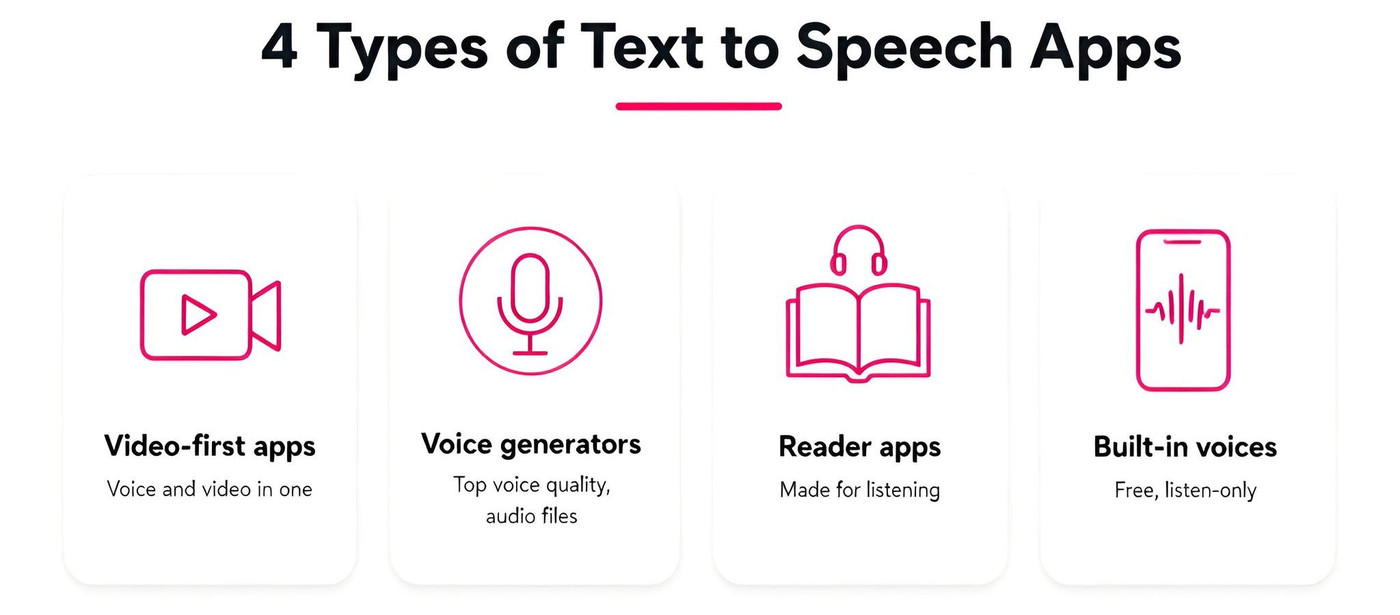
The four types of apps in this space behave quite differently, which is why the picks above are split by job rather than by a single ranking.
The best text to speech apps for video creators
1. Fliki (iPhone and Android)
Best for: turning a script, blog link or idea into a narrated, captioned video, or into a standalone voiceover file, without filming.
Source: screens captured in the Fliki 1.8.0 mobile app (November 2026), plus the App Store and Google Play listings.
Fliki's mobile app is built around the whole piece of content, not just the voice. The home screen has a Video, Voiceover and Design switch above one prompt box, and a row of workflows underneath: Script to audio, Directed voiceover, Audiobook and Music, alongside the video workflows. If all you need is narration, the Voiceover tab is the shortest route. The same engine powers Fliki's web tools for text to speech, text to video and voiceover.
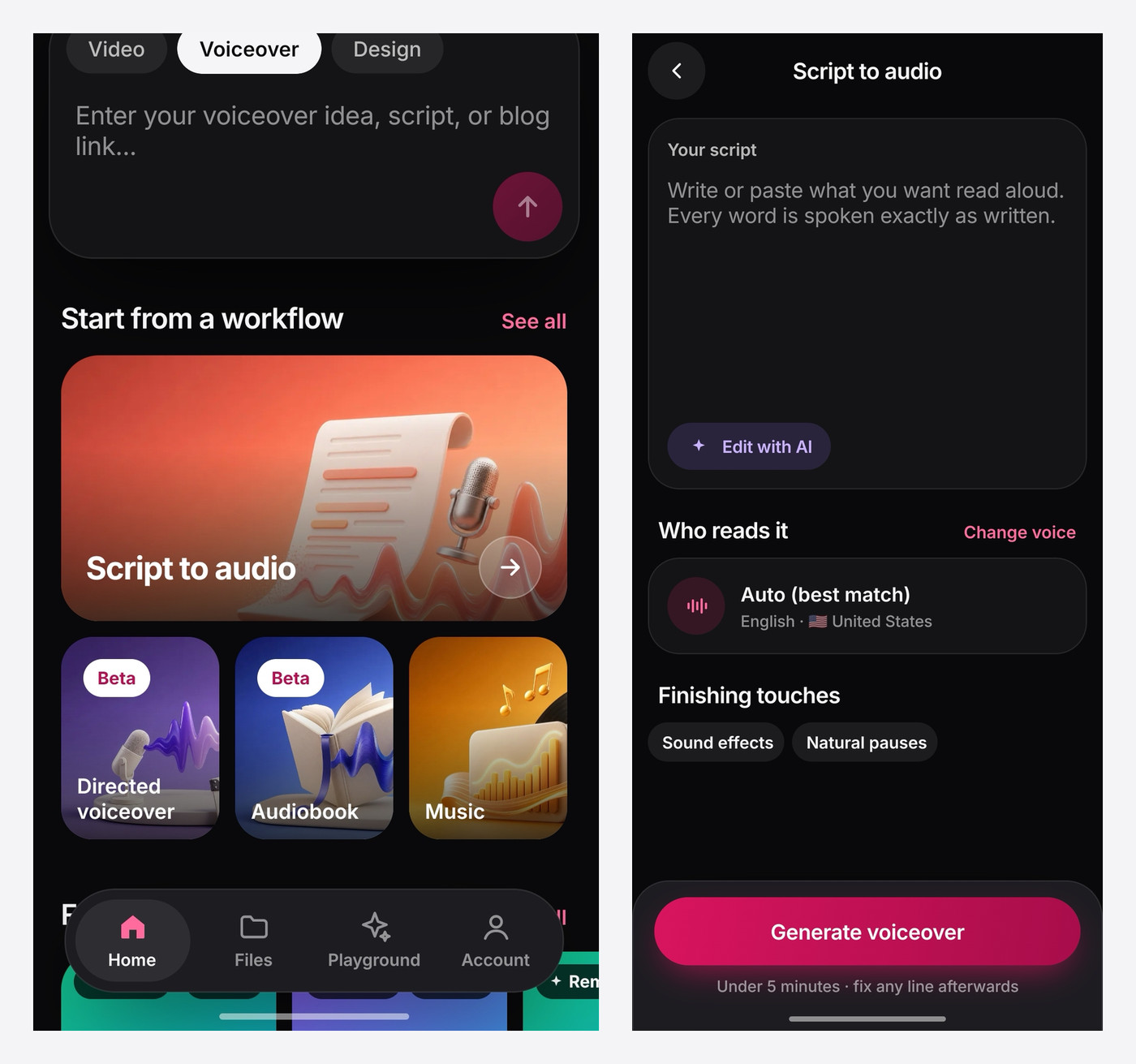
In Script to audio you paste or write what you want read aloud, and the screen tells you every word is spoken exactly as written. Below that is a "Who reads it" control with an Auto (best match) option, where the app picks the voice that fits your script, and a Change voice link. A "Finishing touches" row offers sound effects and natural pauses, and the generate button notes you can fix any line afterwards.
Choosing the voice, language and dialect
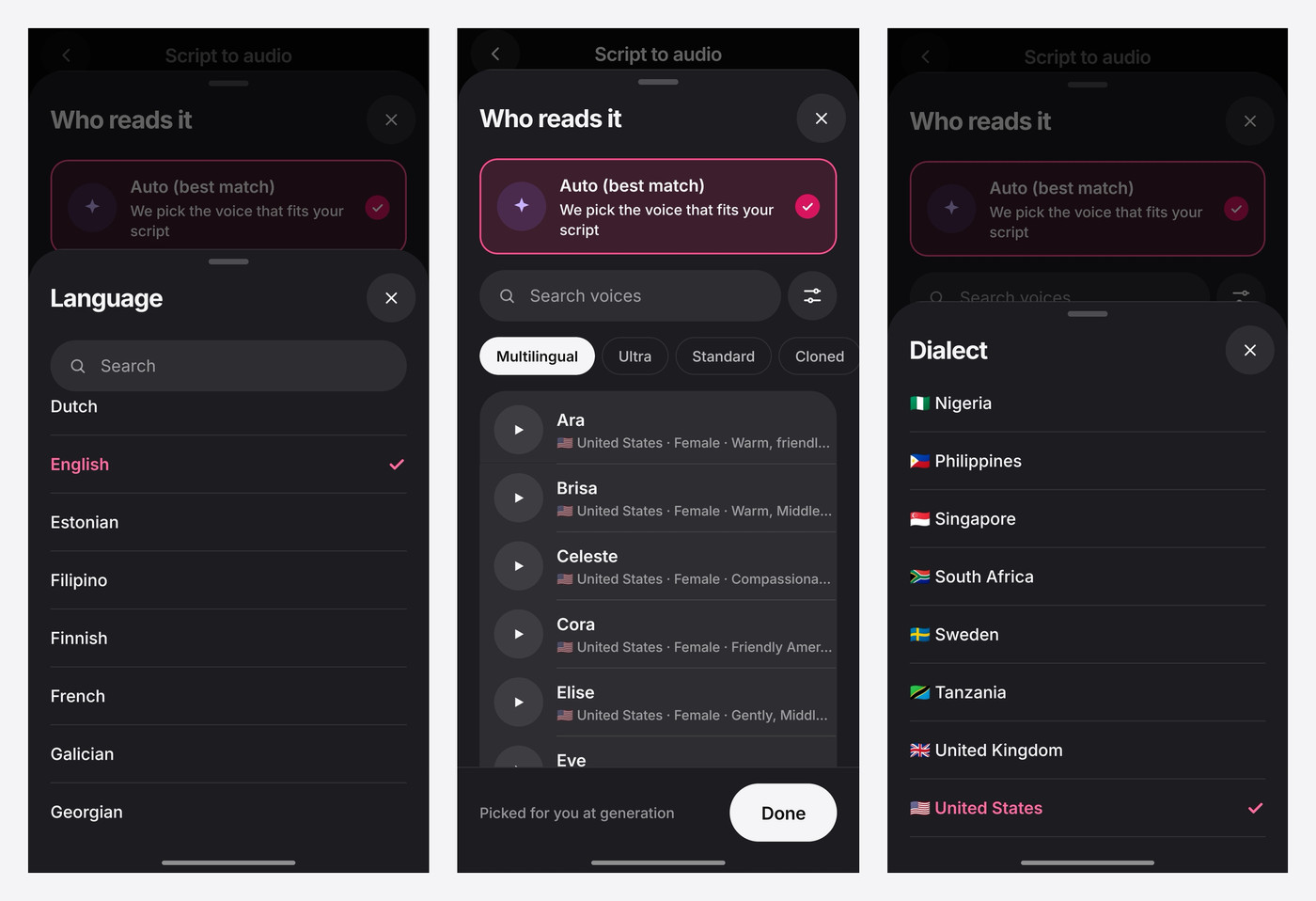
This is where Fliki is deeper than most mobile voice apps. The voice picker lets you search voices and filter by Multilingual, Ultra, Standard or Cloned, each voice shows its accent, gender and tone, and a preview button plays a sample before you commit. Separate language and dialect screens sit behind it. On the screens I captured, English alone offered dialects from Nigeria and the Philippines to South Africa, Sweden, the UK and the US. For the voice library size, Fliki's own text to speech page cites 2,000+ voices in 80+ languages while its voices page cites a larger total, so check the live voices library for the current number.
Directed voiceover for multi-speaker scripts
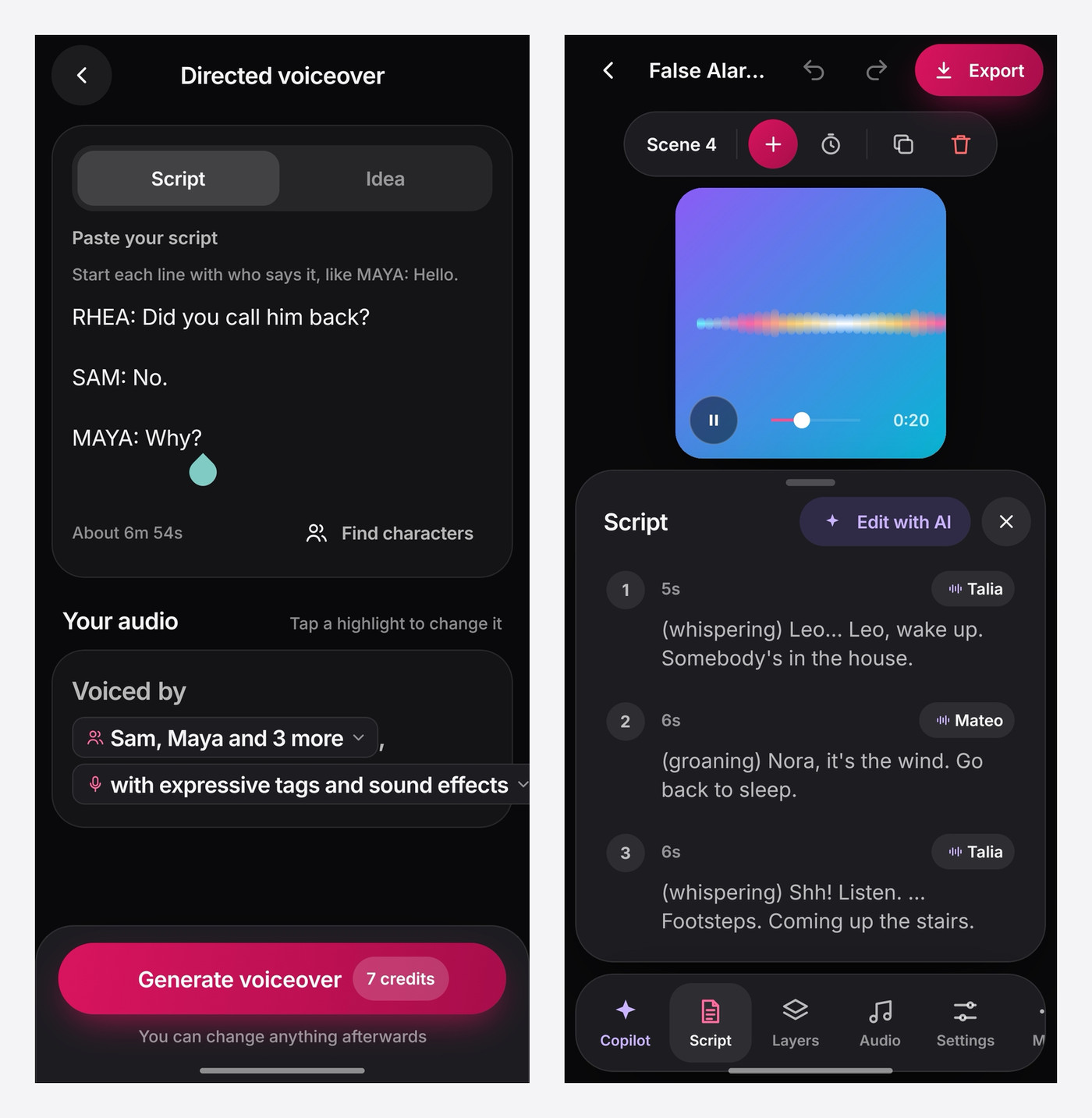
Directed voiceover (labelled Beta in the app) is the feature I would point creators to first. You paste a script with speaker names at the start of each line, such as "RHEA: Did you call him back?", and the app assigns voices to the speakers and supports expressive tags and sound effects. In the generated project, each line carries its own voice label and direction, like "(whispering)" or "(groaning)". That makes it practical for dialogue, skits, story channels and explainer videos with two presenters. The app showed 7 credits for the sample script, which is an estimate for that script and will vary with length and options.
Editing, video and export
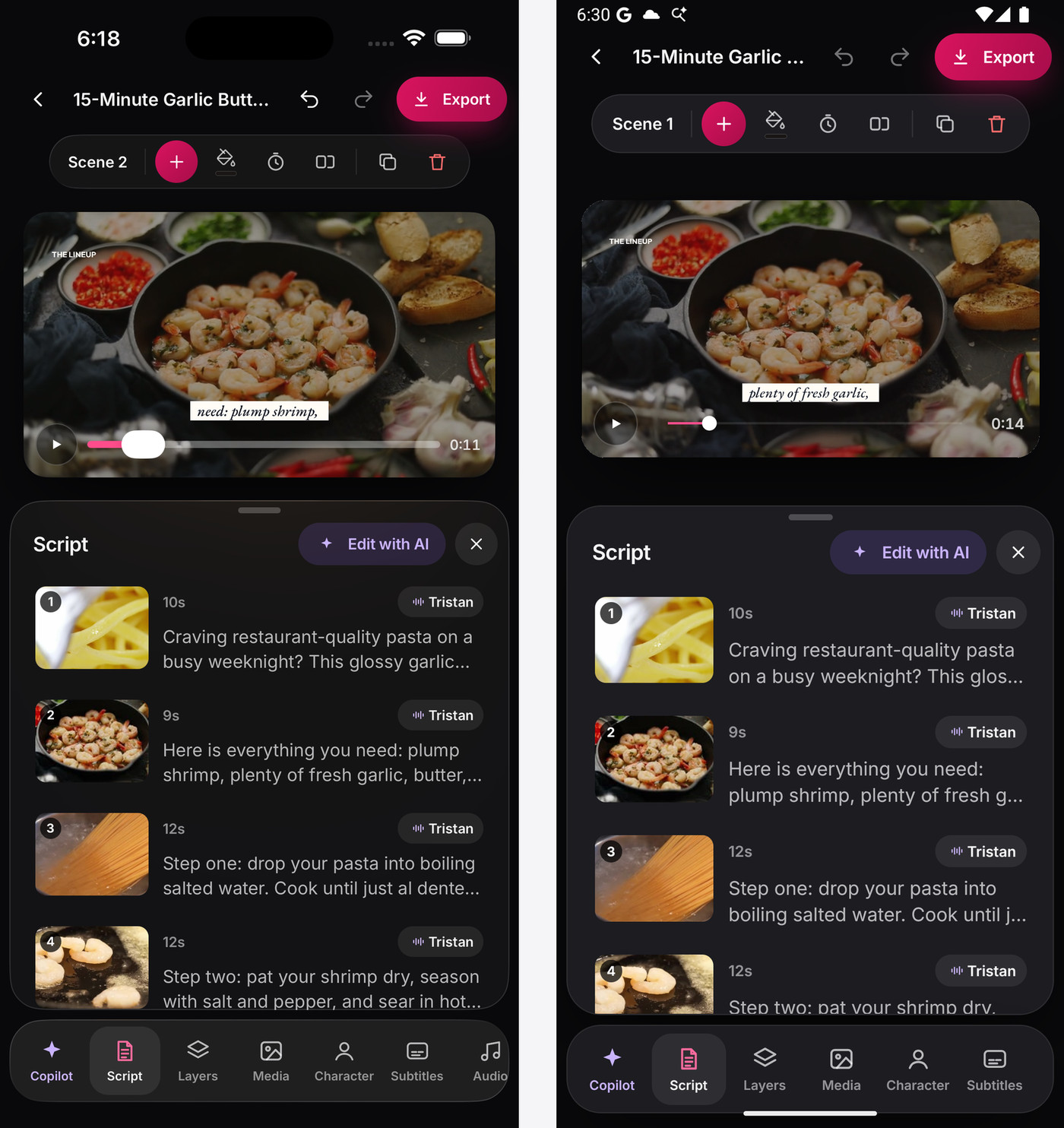
If you are making a video rather than audio, the editor shows every scene with its narration line, duration and voice, so you can retime or rewrite a line without regenerating everything. The same layout appears on iPhone and Android.
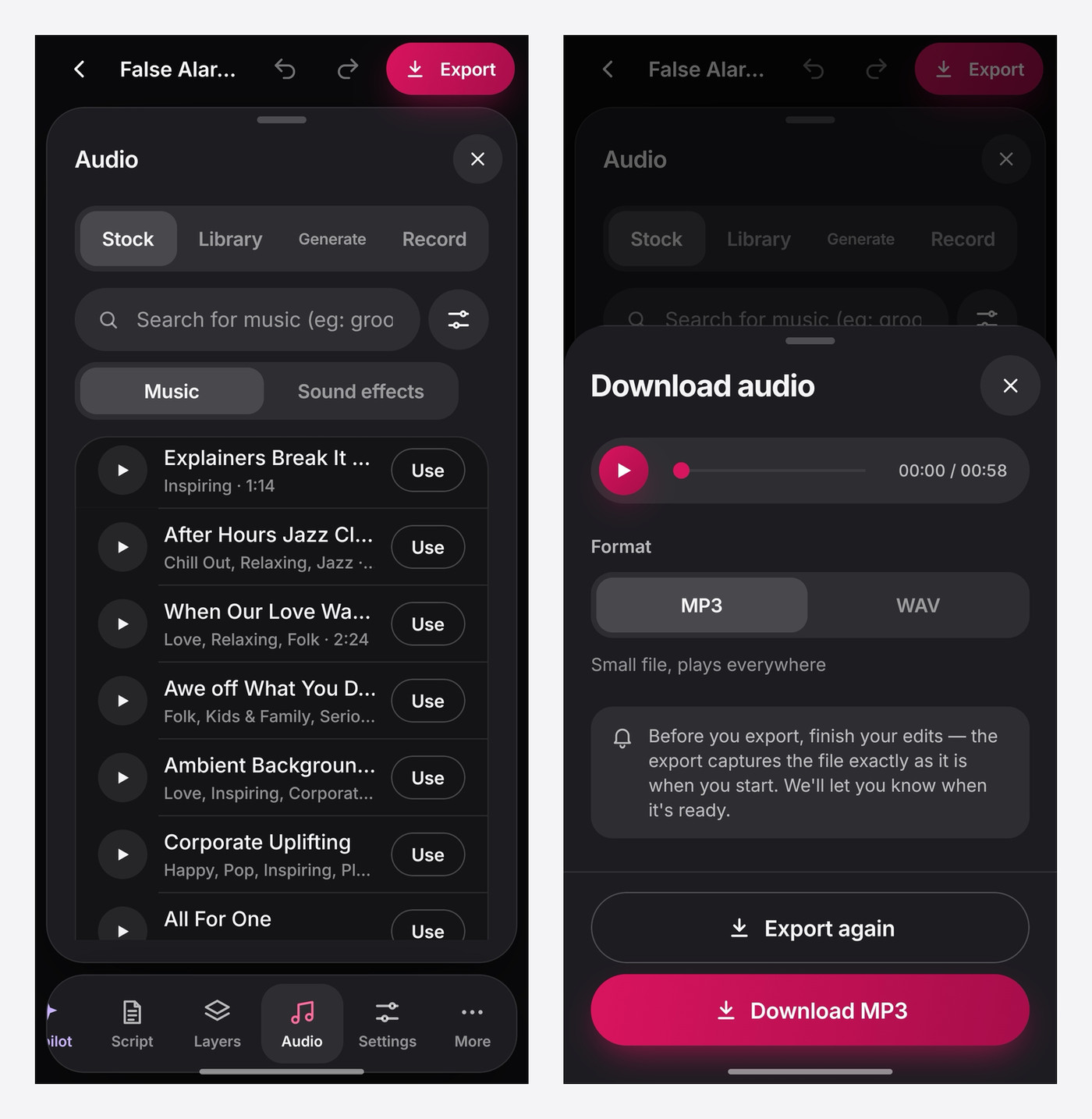
For audio, the Audio panel lets you add stock music and sound effects, use your library, generate sounds or record. When you are done, Download audio gives you a choice of MP3 or WAV, and a note that the export captures the file exactly as it is when you start, so finish your edits first. Video exports go up to 1080p in MP4 or MOV, according to the App Store listing.
The same home screen also holds an Audiobook workflow (Beta, with Idea, Script and Book inputs) and a Music workflow where you describe a song or write lyrics. They show how far the voice engine reaches beyond a single voiceover, though they matter less if you only need narration.
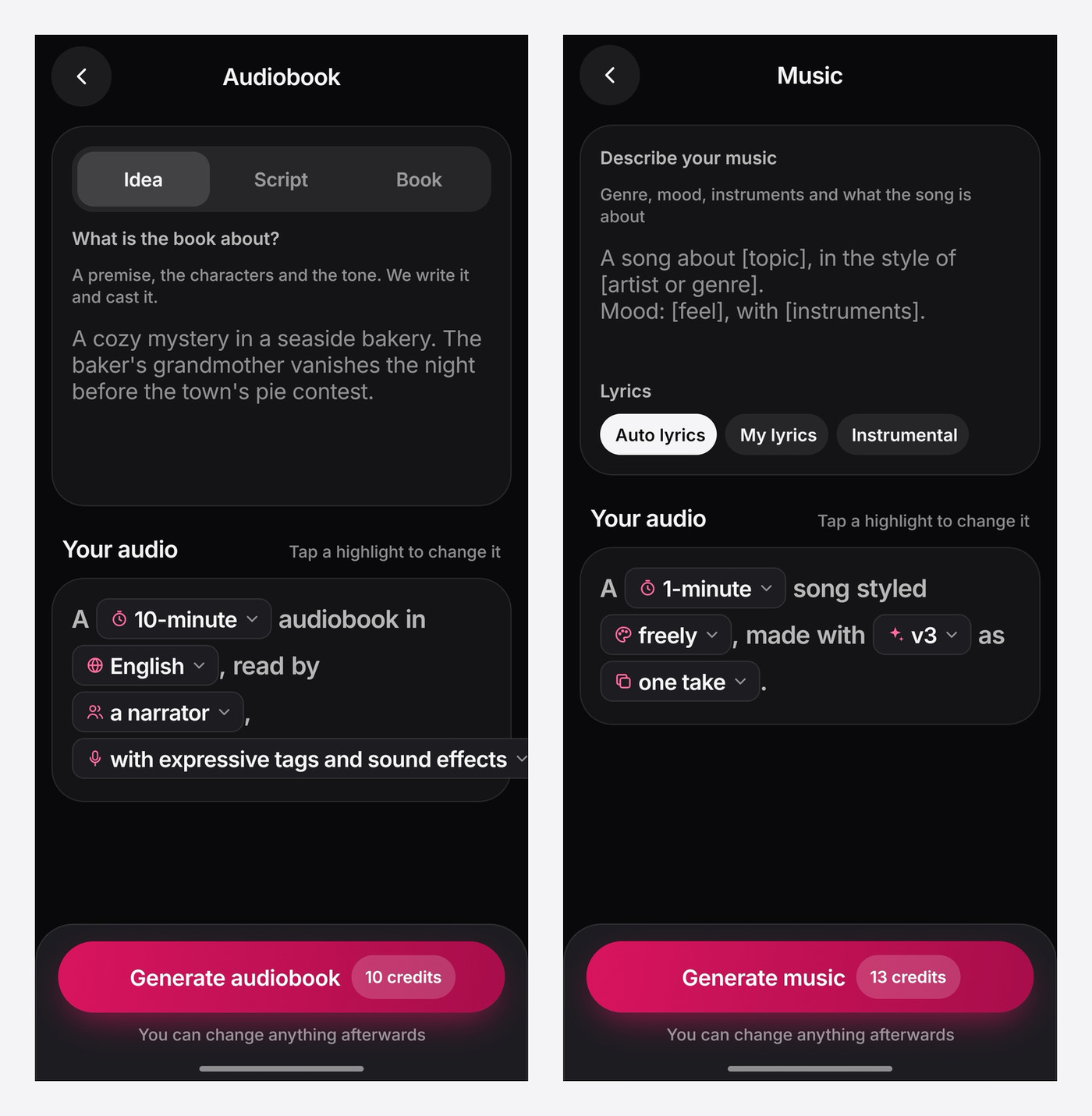
Pricing: the app is free to download and try, with paid plans for watermark-free exports, more credits and longer videos. On iOS the in-app prices on the listing were Basic at $9.99 a month, Standard at $33 a month and Premium at $99 a month, plus weekly Standard and Premium options and a 3-day free trial on those two. Fliki's website lists lower monthly prices for the same tiers (around $28 and $88 at the time of writing), so compare the pricing page with the in-app price before you subscribe. The credit figures shown on the generate buttons (7 for the sample directed voiceover, 10 for the sample audiobook, 13 for the sample song) are what the app displayed for those setups, not fixed prices.
The honest part: the store feedback is mixed. The App Store rating is 4.4 from 41 ratings, a small sample. The Google Play listing sits at 3.1 stars across roughly 980 reviews, and recent reviews on both stores complain about credits being used faster than expected and about subscription and billing clarity. One Play reviewer also notes that the desktop editor is still better for layered edits. Two of the features above are marked Beta in the app.
Why it ranks first: it is the only app here that covers script, voice choice, multi-speaker direction, captions, visuals and MP3 or WAV export in one mobile workflow.
2. CapCut (iPhone and Android)
Best for: adding an AI voiceover to a video you are already editing.
Source: store listings, a listing image and vendor pages.
CapCut is the default mobile editor for a huge number of creators, with a 4.6 rating from about 1.1 million ratings on the App Store, and 1B+ downloads and a 3.9 rating on its Google Play listing. Text to speech sits inside the editor: CapCut's own tutorial has you open a project, add text, then tap Text to speech and pick a voice. The Play listing describes it as text to speech "in multiple languages and voices", and one of the App Store listing images (below) shows a voice picker with English voices.
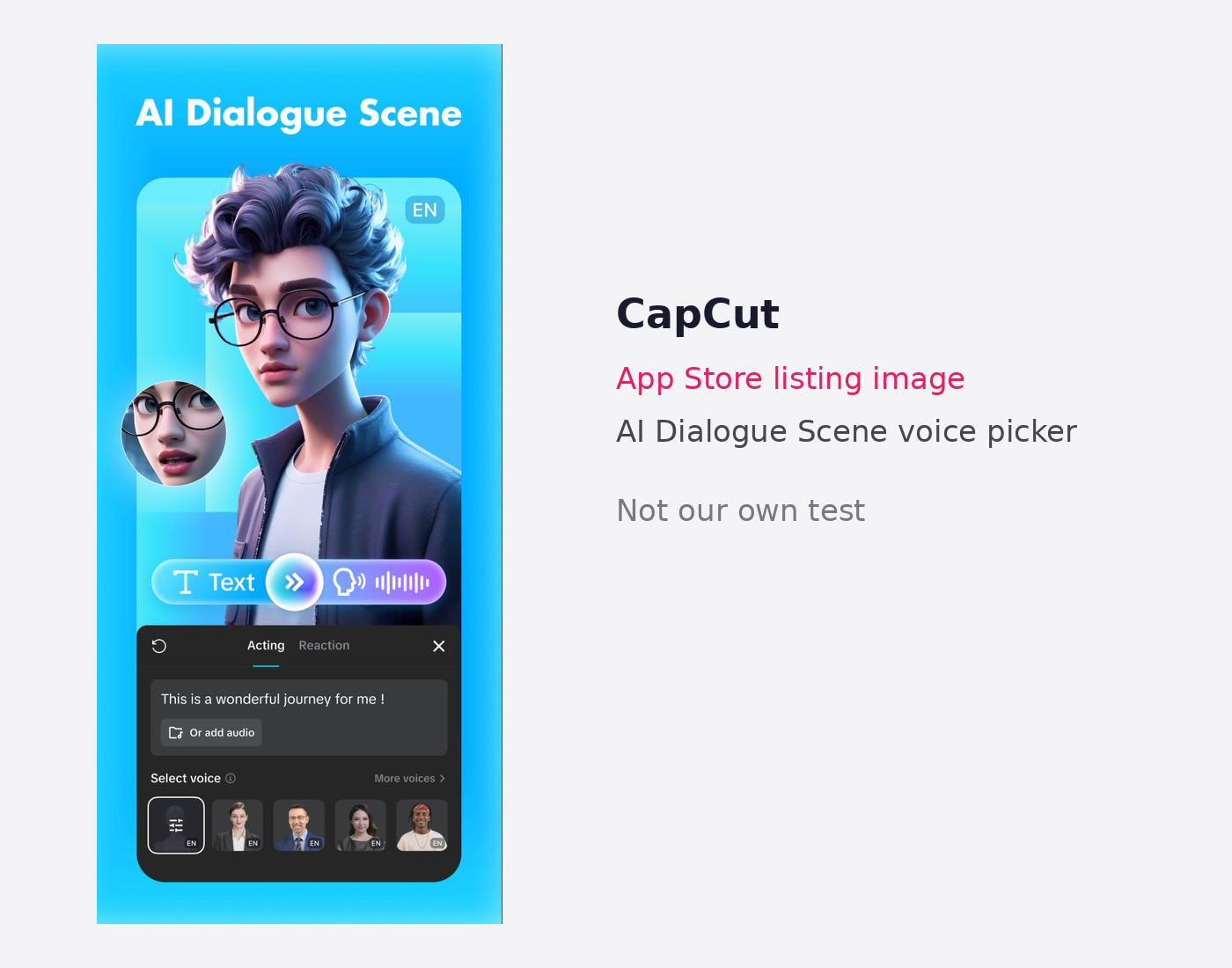
CapCut's web text to speech page claims 200+ AI voices, and says audio generated with the tool can be used commercially subject to CapCut's terms. I could not confirm whether the mobile app offers the same voice count or the same export formats, which the web page lists as AAC, FLAC, MP3 and WAV. Pricing on CapCut's pricing page starts with a free plan, then Pro at $19.99 a month and Ultra at $79 a month, with the page noting the figures are for reference. It does not say how many AI credits a voiceover uses.
Why it works: if your edit already lives in CapCut, adding a voice takes seconds. If you want the script, voice and visuals built for you, a video-first generator saves more time.
3. ElevenLabs (iPhone, Android unconfirmed)
Best for: the most natural-sounding narration and exporting audio to use anywhere.
Source: store listing, a listing image and vendor pages.
The ElevenLabs iPhone app is a voice generator rather than a video editor. It has a 4.8 rating from about 24,000 ratings, and its listing promises lifelike text to speech across 70+ languages, access to models including Eleven v3, Turbo v2.5 and Multilingual V2, saved favourite voices, and an option to share audio straight to CapCut, TikTok, Instagram and YouTube Shorts. That last feature is the point: generate the voice in ElevenLabs, then drop it into your editor. The listing image below shows the voice library, where you can also add or clone a voice.
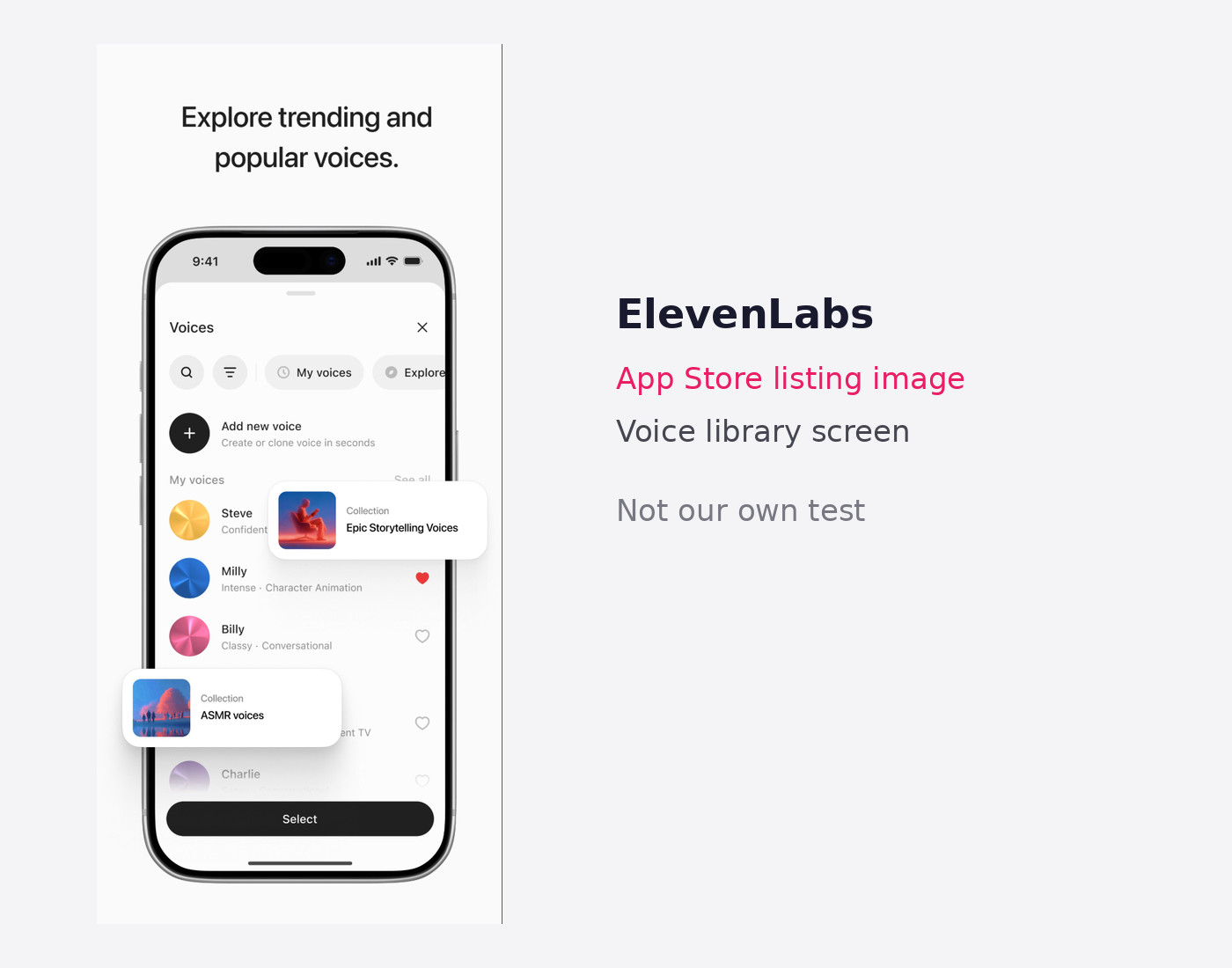
On the pricing page, the free plan includes 10k credits a month, Starter is $6 a month after a $1 first month (30k credits, with a commercial license), and Creator is $22 a month (121k credits, with professional voice cloning). I could not verify the details of an Android app, so Android users should check Google Play directly or use the web version.
Why it works: voice quality and emotional range are the strongest here. The trade-off is that you still need a separate app to build the video, and credits run down faster than most people expect.
4. Captions (iPhone, Android unconfirmed)
Best for: talking-head creators who need captions, dubbing and translation.
Source: store listing, a listing image and vendor pages.
Captions is a different kind of tool. Its App Store listing shows a 4.7 rating from about 39,000 ratings and leans on AI editing, AI dubbing into 29 languages and subtitles in 91+ languages. The vendor's pricing page lists AI voiceover and voice cloning on paid plans, but the store description does not feature text to speech by name, so treat it as a captioning and dubbing app first. In-app, the iOS listing shows Pro at $9.99 a month or $64.99 a year and a higher Max tier at $24.99. The free plan includes no AI credits.
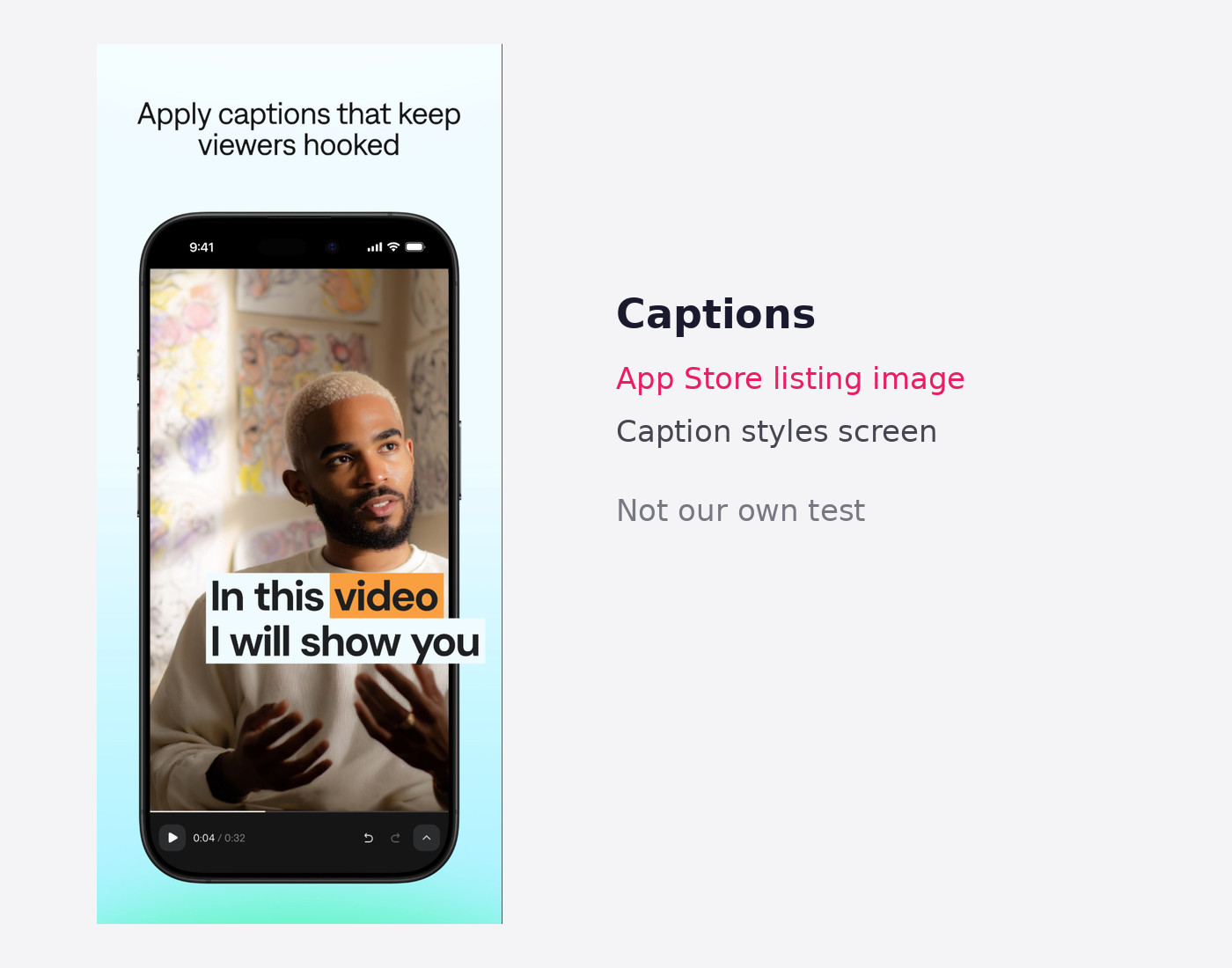
Two cautions: the pricing page says its figures reflect iOS plans, and I could not confirm an Android listing, so check availability on your device.
Why it works: it is strong if you film yourself and want captions and translations quickly. It is not the app to reach for if you want a faceless video built from a script.
5. Speechify (iPhone and Android)
Best for: listening to scripts, documents and articles, with a separate Studio product for voiceovers.
Source: store listings, a listing image and vendor pages.
Speechify is one of the biggest names in the category: a 4.7 rating from about 528,000 ratings on the App Store, and on its Android listing, 10M+ downloads and a 4.1 rating across roughly 270,000 reviews. The reader app is built for scanning pages, PDFs and web articles and listening at high speed. The voice counts are inconsistent: the Play description claims 1,000+ voices across 60+ languages, while the iPhone listing image below says 200+ voices. The iOS listing shows premium subscriptions from $139.99.
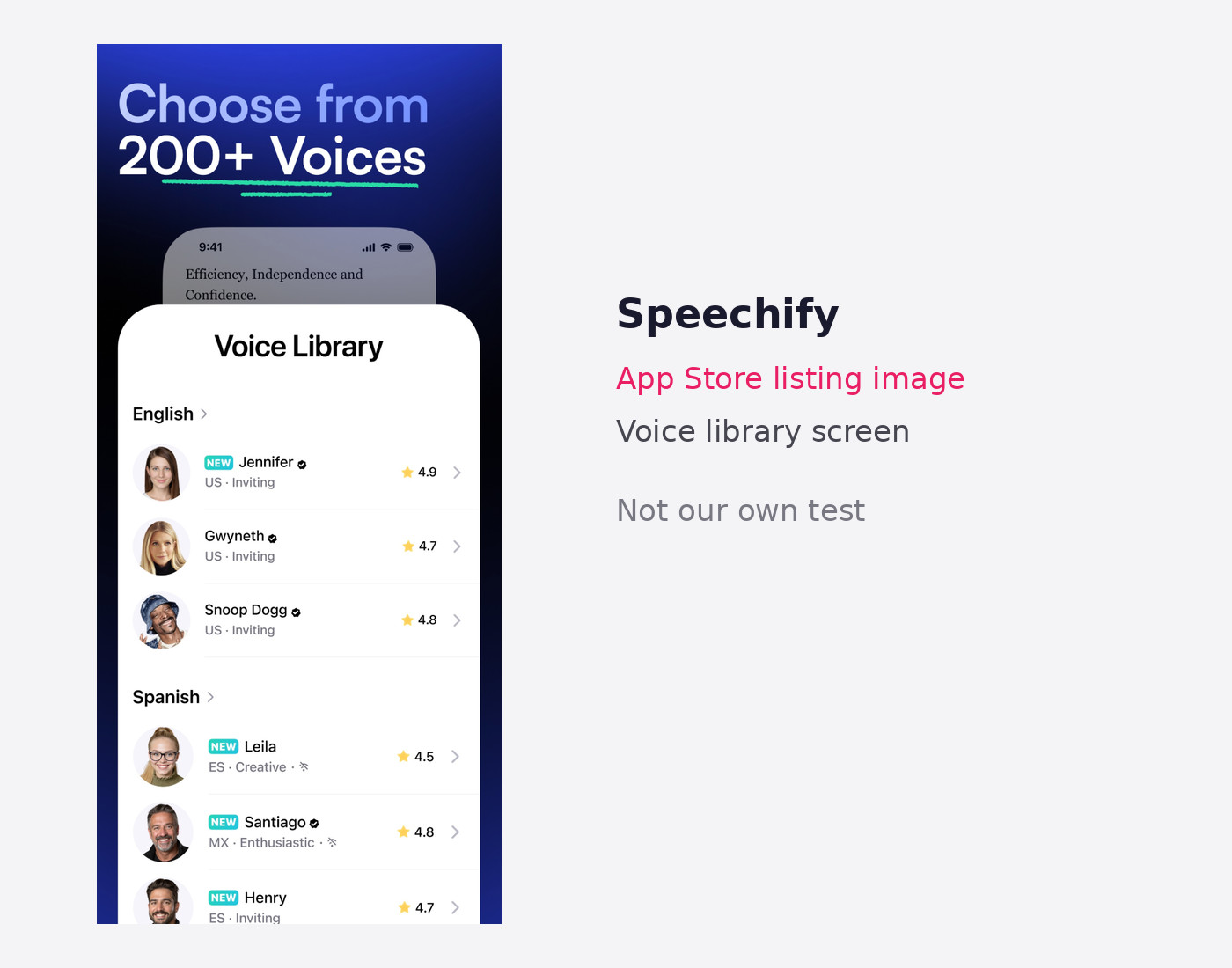
For video voiceovers, Speechify has a separate Studio product. Its Studio pricing page shows a free plan with 600 credits and no commercial usage rights, a Starter plan at $100 a year with commercial rights, and a note that downloading to MP3 needs a paid plan. I could not confirm that Studio runs inside the mobile app, so plan on the web for that part.
Why it works: great for reviewing a script out loud while you edit. For publishing, read the licensing line before you use any audio commercially.
6. NaturalReader (Android confirmed, iPhone listing changed)
Best for: converting documents to MP3 and reading long scripts aloud.
Source: store listing, a listing image and vendor pages.
The NaturalReader Android app has 5M+ downloads and a 4.4 rating from about 60,000 reviews. Its description claims 1000+ AI voices across 100+ languages and dialects, although its listing images say 200+, so treat the count loosely. It says you can convert text into downloadable MP3 files, which the listing image below highlights. There is a free plan, while some features, including voice cloning, need a subscription. On iPhone, the NaturalReader listing now appears under the Voice Dream name, and I could not load its details, so check the current listing before you pay.
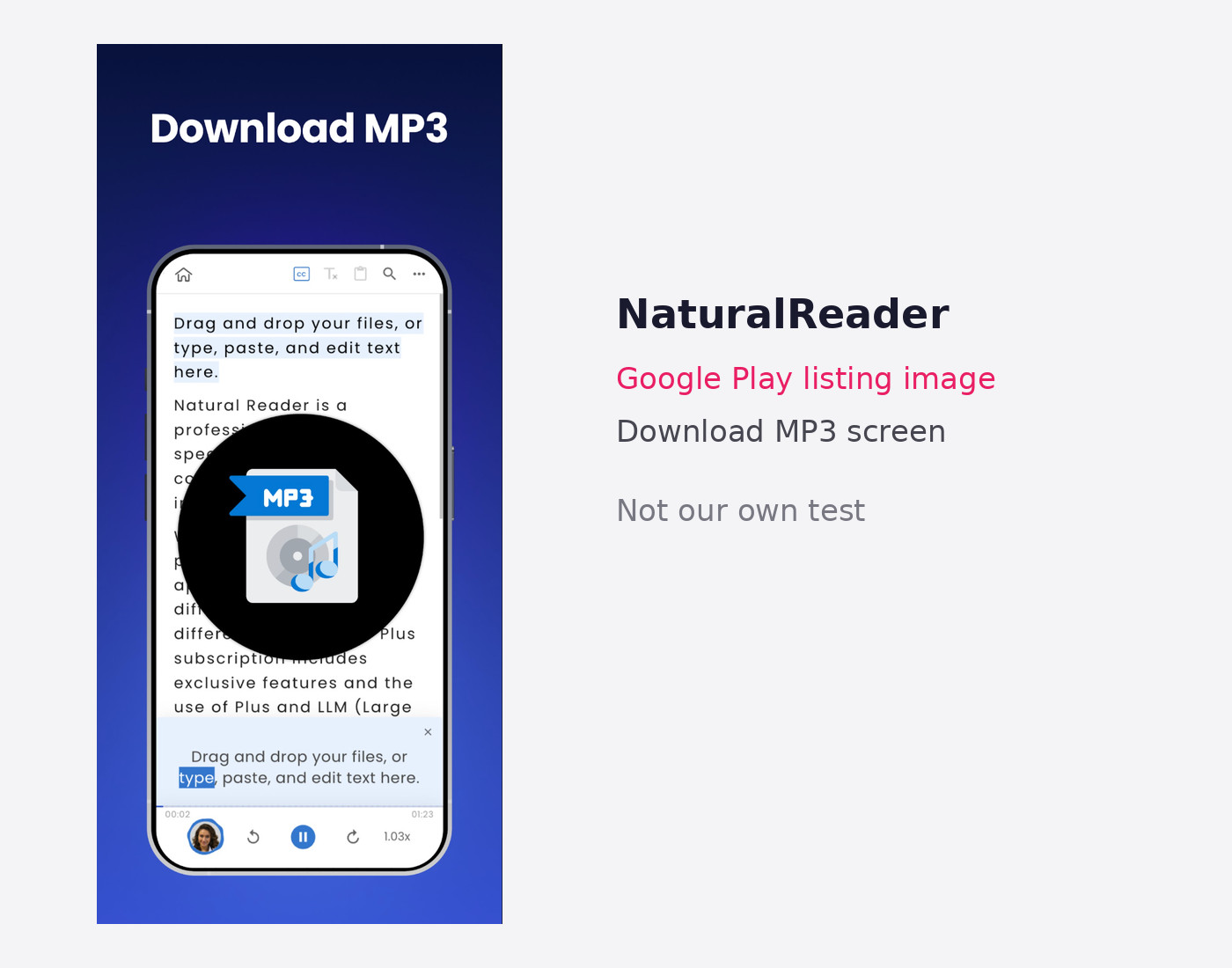
Why it works: a solid reader with MP3 conversion. It is not built for captions, visuals or short-form video, so you would pair it with an editor.
7. @Voice (Android only)
Best for: free, no-account voice clips on Android.
Source: store listing and vendor description.
@Voice is an Android reader with 10M+ downloads and a 4.3 rating across about 138,000 reviews on its Google Play page. It reads aloud with the free voices already on your device, such as Google or Samsung voices, and can record what it reads and save it as MP3, OGG or WAV. There is no account or subscription, a one-time Premium purchase removes ads, and the free version contains ads. The voices are your phone's built-in ones, so do not expect the realism of ElevenLabs or Fliki.
Why it works: the cheapest route to a usable voice file on Android. Quality depends on your phone's voice engine.
8. Built-in iPhone and Android voices
Best for: free listening and proofreading, not publishing.
Your phone already speaks. On iPhone, Apple's Spoken Content features can read the screen, selected text or what you type aloud. On Android, Google's Speech Recognition and Synthesis service has 10B+ installs and a 4.2 rating, and it powers many third-party readers. I found no Apple documentation saying iPhone saves the spoken output as an audio file, so I would treat the built-in tools as listen-only. They are useful for proofreading a script, since hearing it catches awkward sentences.
Comparison table
App | Platforms | Best for | Exports | Starting price | Store rating |
|---|---|---|---|---|---|
Fliki | iPhone, Android | Script to finished video or voiceover | Video up to 1080p; MP3, WAV | Free tier; paid from $9.99 a month on iOS | iOS 4.4 (41 ratings), Play 3.1 |
CapCut | iPhone, Android | Voiceover inside an editor | Video; web TTS lists MP3, WAV | Free; Pro $19.99 a month | iOS 4.6 (1.1M), Play 3.9 |
ElevenLabs | iPhone (Android unconfirmed) | Most natural voices | Audio, share to editors | Free; Starter $6 a month | iOS 4.8 (24K) |
Captions | iPhone (Android unconfirmed) | Captions and dubbing | Not confirmed | Pro $9.99 a month on iOS | iOS 4.7 (39K) |
Speechify | iPhone, Android | Listening; Studio for voiceovers | MP3 on paid Studio plans | Studio free; $100 a year Starter | iOS 4.7 (528K), Play 4.1 |
NaturalReader | Android confirmed | Reading and MP3 conversion | MP3 | Free plan; paid Plus | Play 4.4 |
@Voice | Android | Free voice clips | MP3, OGG, WAV | Free; one-time Premium | Play 4.3 |
All prices and ratings were checked in early November 2026 and change often, so confirm them on the store listing before you buy.
Reader apps vs video-first apps: why the difference matters
A reader app is designed to speak text to you, right now, in a pleasant voice. A video-first app is designed to produce a file you publish. That sounds like a small difference until you hit the details: reader apps may stream audio without letting you save it, may limit voices on free plans, and may restrict commercial use. Video-first apps usually give you exports but ration them with credits.
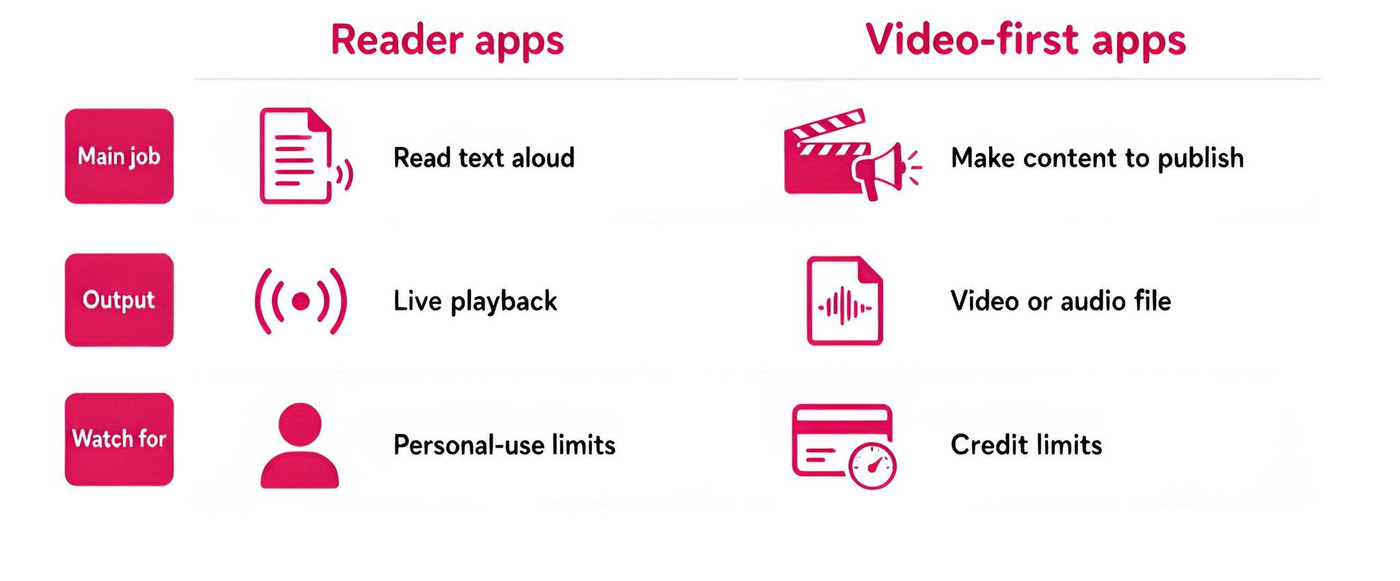
So if your goal is a YouTube Short, a Reel or a faceless explainer, start from the video-first side. Our guides to free AI voice generators and faceless YouTube niches go deeper on the voice and idea side of that workflow.
Check commercial rights before you publish
A common mistake is using a free-tier voice in a monetised video without checking the licence. A few facts from the vendor pages: Speechify Studio's free plan says no commercial usage rights, ElevenLabs lists a commercial license starting at its Starter plan, and CapCut says its text to speech audio can be used commercially subject to its terms. Reader apps are usually built for personal listening, so check their terms before putting the audio in a published video.
Platform rules are a separate question from voice licences. YouTube and other platforms have their own policies on AI-narrated content, which our guide on YouTube AI demonetization explains.
How to make a voiceover video on your phone
The workflow is similar in most video-first apps, and the diagram below shows the order that saves the most rework.
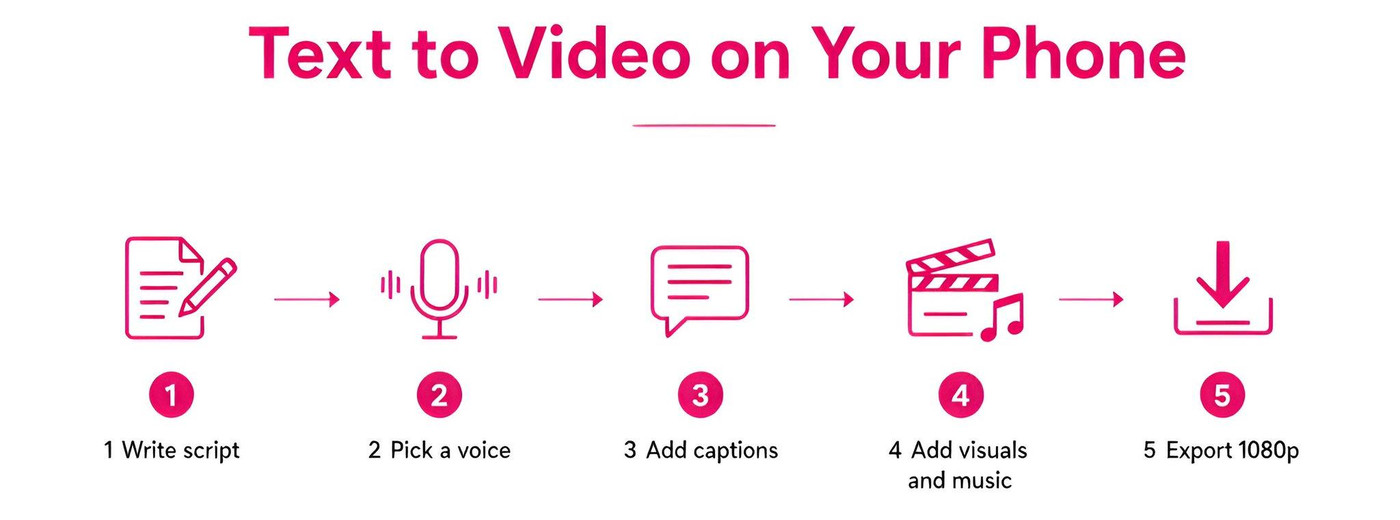
Write a tight script first. Short sentences read better out loud. Read it through once with your phone's built-in voice to catch awkward phrasing.
Pick a voice that matches the topic. Preview two or three voices on the same paragraph before committing, and keep the same voice across a series.
Add captions. Plenty of people watch short videos without sound, so animated captions help. Fliki's auto caption generator and the caption tools in CapCut and Captions all cover this.
Add visuals and music. Keep the music quiet enough that the narration stays clear.
Export and check on a real phone. Watch the final file once at full screen before you post. If you publish Shorts regularly, the AI YouTube Shorts generator is a faster starting point than building every clip by hand.
If you want the narration to sound like you, voice cloning is available in Fliki, where the voice picker has a Cloned filter, and in several of the other tools above, usually on paid plans.
How to choose
Choose by what you publish. For faceless videos built from a script, or voiceovers with more than one speaker, pick a video-first generator such as Fliki. For an existing edit, CapCut keeps everything in one place. For the best voice, generate it in ElevenLabs and move it into your editor. For talking-head content, Captions covers captions and dubbing. For listening and proofreading, Speechify, NaturalReader or your phone's built-in voices are enough.
Whichever you pick, test the free tier with your own script first, check the export format and commercial terms, and read the price on the paywall rather than the store badge. Credit limits and billing clarity are where most of the negative reviews I read came from, across several of these apps.
Bottom line
There is no single best text to speech app, but there is a best type for your job. Video creators get the most from video-first apps that produce a finished file, and the best of them are the ones that are clear about exports, credits and commercial rights. If you want to try the script-to-video route, you can start free in the Fliki app or on the web, and compare it against CapCut and ElevenLabs on the same script. That is the fairest test I can suggest.
Note: Ratings, prices and features were current as of November 2026. Fliki details come from screens captured in the Fliki 1.8.0 mobile app; the other apps were assessed from store listings, listing images and vendor pages rather than a hands-on test. Verify current pricing and licence terms before you rely on them.
FAQs
It depends on the job. For turning a script into a finished narrated video on your phone, Fliki is built for that workflow. For adding a voice inside an editor you already use, CapCut is convenient. For the most natural narration, ElevenLabs is the usual pick. Reader apps like Speechify are better for listening than publishing.
For video creators on iPhone, Fliki, CapCut and ElevenLabs all have iPhone apps and cover different needs: finished videos, in-editor voiceovers and high-quality audio. For listening to documents, Speechify is a popular choice. iPhone's built-in Spoken Content feature is free but designed for listening rather than exporting audio.
Fliki and CapCut both have Android apps for video creators. For listening, Speechify and NaturalReader have large Android user bases, and @Voice is a free Android option that can record what it reads as MP3, OGG or WAV. Check each Google Play listing for current ratings and plan details before subscribing.
Often yes, but check the licence first. Speechify Studio's free plan says no commercial usage rights, ElevenLabs lists a commercial license from its Starter plan, and CapCut says its text to speech audio can be used commercially subject to its terms. Also check YouTube's own policies on AI-narrated content.
Some apps allow it. NaturalReader says you can convert text into downloadable MP3 files, @Voice on Android can record its reading as MP3, OGG or WAV, and the ElevenLabs iPhone app lets you export audio. Speechify Studio requires a paid plan for MP3 downloads. Export options vary by plan.
Yes. Apple's Spoken Content features can read the screen, selected text or what you type aloud, even with VoiceOver off. They are designed for listening and accessibility. I did not find Apple documentation saying they save audio files, so for exportable voiceovers use a dedicated app.