Introduction
The hardest part of a presentation has always been the blank first slide. You know roughly what you want to say, but turning that into a designed, structured deck used to mean hours of wrestling with layouts, hunting for icons, and nudging text boxes a pixel at a time.
That has genuinely changed. You can now describe a presentation in a sentence, and AI will write the story, design every slide, pull in relevant visuals, and hand you an editable deck you can export straight to PowerPoint. Not an outline, an actual deck. This guide shows you how to do it well: the tools that build a full deck from a prompt, a prompt template that gets good results, the file formats that matter, and, just as importantly, what AI still gets wrong so your deck does not blow up in front of an audience. I work on content at Fliki and make a lot of these, so let's get into it.
Why make a presentation with AI
The case is practical, not magical. AI gets you a complete first draft in minutes instead of hours, which is the difference between dreading a deck and just making it. It does the design work non-designers cannot, applying a coherent theme, layout, and spacing so the result looks intentional rather than thrown together. It kills blank-slide paralysis by giving you something real to react to and edit. And it keeps things consistent, holding fonts, colors, and structure steady across every slide instead of the drift that creeps in when you build one slide at a time.
The key mental shift: AI produces a strong first draft, not a finished deck. Used that way, it saves you the tedious 80% and leaves you the valuable 20%, sharpening the message, fixing the facts, and making it yours.
Method 1: Use a dedicated AI presentation maker
The fastest route is a tool built to generate a whole deck from a prompt. I will walk through the Presentation workflow in Fliki, since it produces a real editable deck with researched data and exports to PowerPoint, then cover the other strong options below.
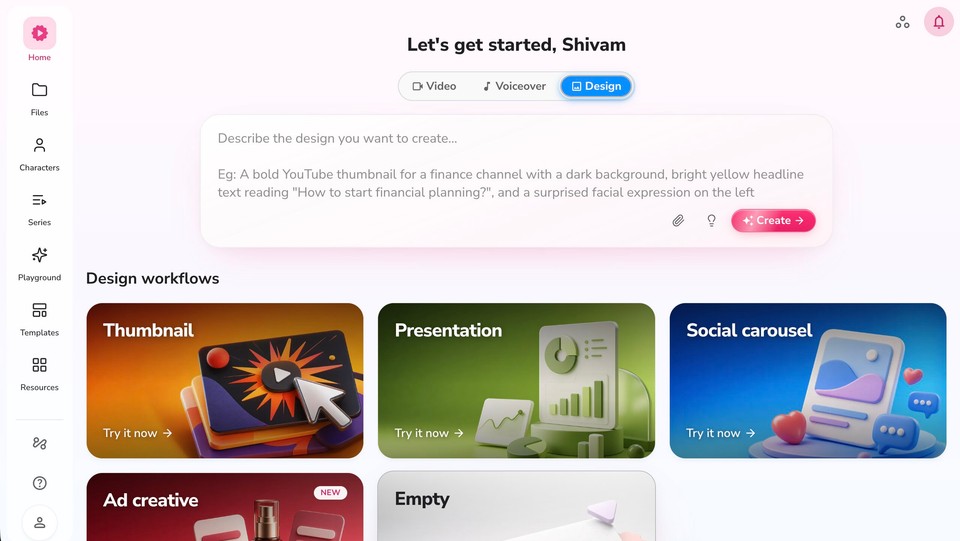
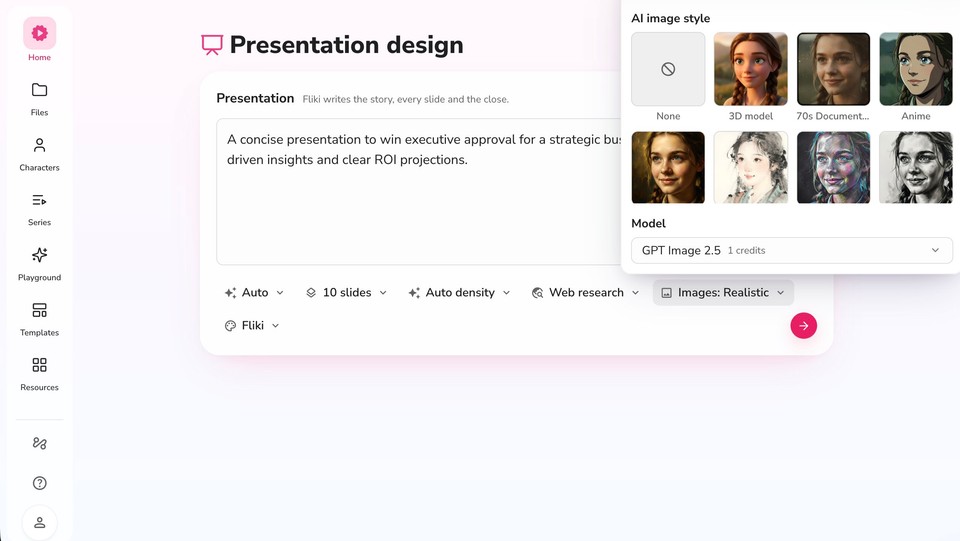
Step 1: Describe the presentation. In the Design tab, open Presentation and write what you want in plain language, for example "a concise presentation to win executive approval for a strategic business initiative, using data-driven insights and clear ROI projections." Then set a few controls: the number of slides (up to 20), and the density, which is the single most useful setting here. "For presenting" makes sparse, visual slides you speak to; "For reading" makes denser slides for a document people read on their own. Choosing the right one upfront saves a lot of editing.
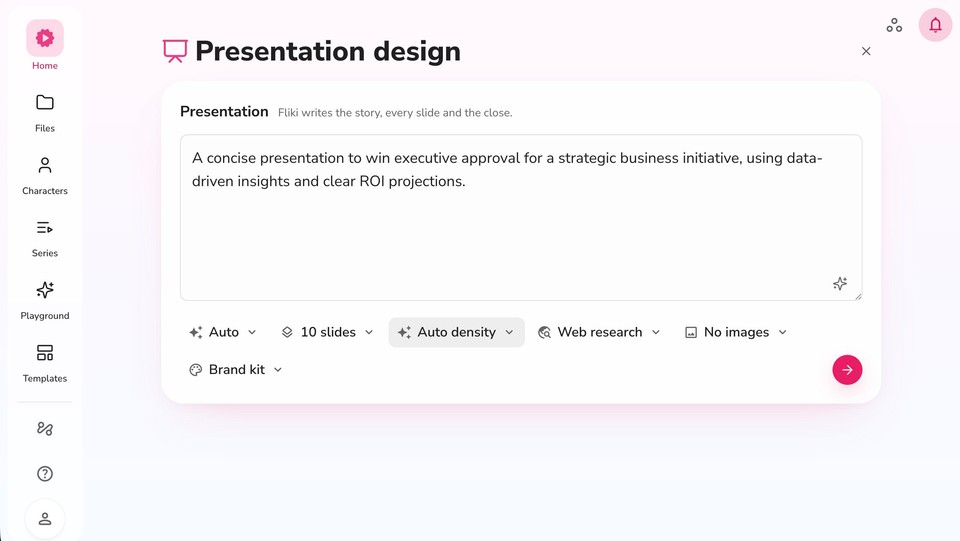
Step 2: Turn on web research and pick an image style. This is where an AI deck stops being generic. Leave Web research on and Fliki pulls in real facts and figures and cites the source on the slide, rather than inventing numbers. Choose an AI image style (or none), and select your Brand kit so the colors and fonts match your company from the first draft.
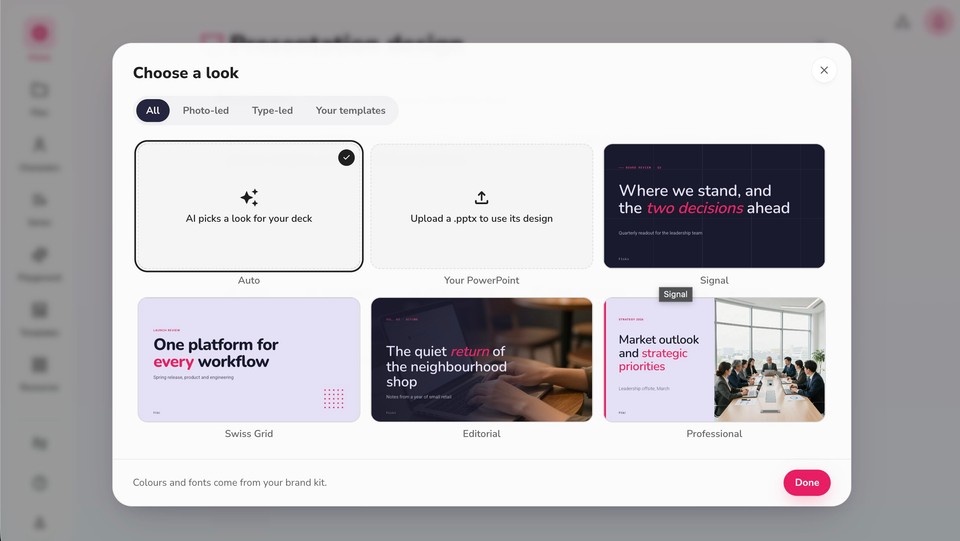
Step 3: Choose a look. You can let Auto pick a look and palette that suit your deck, choose a template like Signal, Editorial, or Professional, or upload your own .pptx to reuse its design. Colors and fonts come from your brand kit, so the whole deck stays on brand.
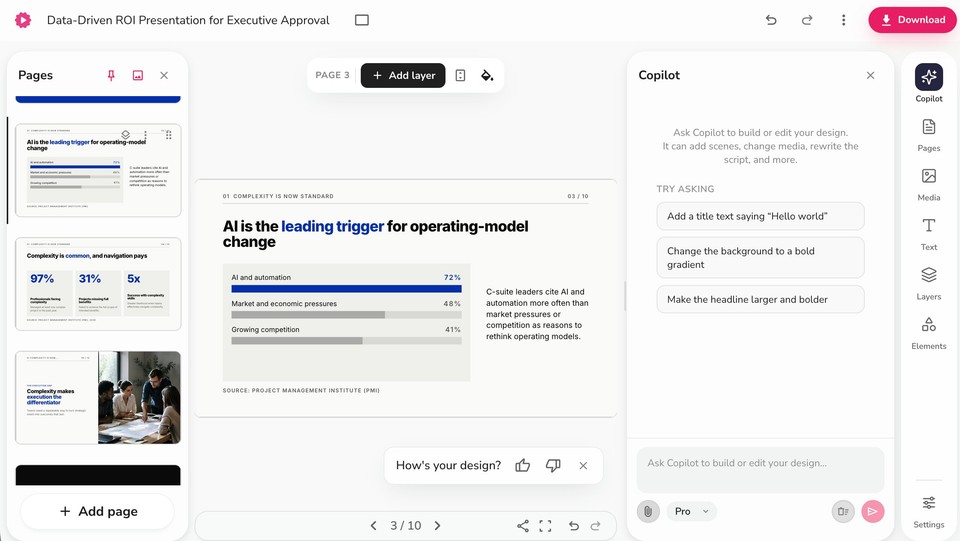
Step 4: Let it build, then edit every slide. Fliki writes the narrative and designs the deck in a minute or two. It opens in a real editor: a Pages panel for your slides, a canvas where you can edit any text, chart, or image, and a Copilot you can just talk to (for example "make the headline larger and bolder" or "change the background to a bold gradient"). This is where you tighten the story and, critically, check the facts.
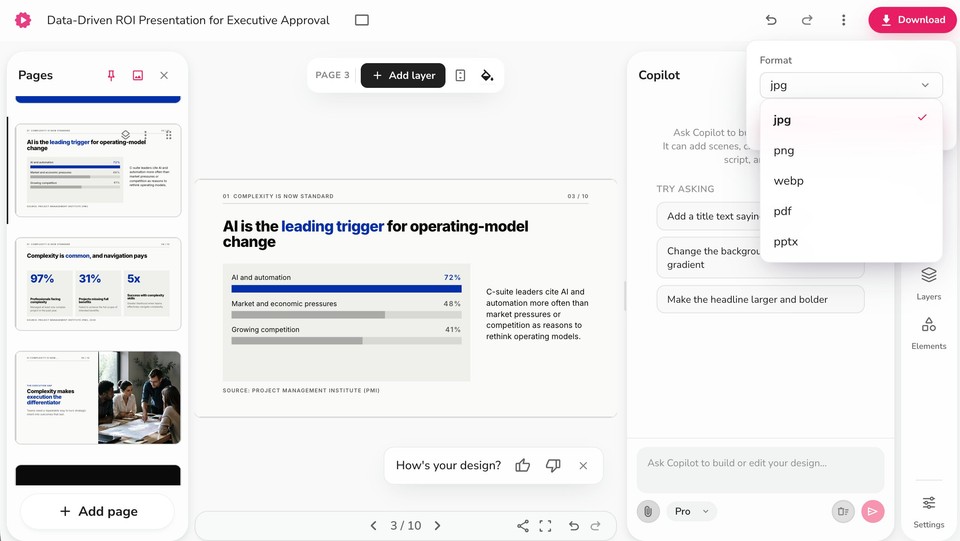
Step 5: Export to PowerPoint, PDF, or images. When it looks right, download the deck as an editable .pptx to keep working in PowerPoint, a PDF for sharing, or PNG/JPG images of individual slides. You can also embed it.
The reason I reach for this workflow is the combination most tools miss: researched, cited data instead of hallucinated numbers, your brand applied from the start, fully editable slides, real PowerPoint export, and the option to later turn the deck into a narrated video (more on that below). You can try it free without a credit card.
Method 2: Gamma
Gamma is the tool many people mean when they say "AI presentation maker." You give it a prompt, an outline, or pasted text, and it generates a polished, card-based deck fast. Its default design is genuinely good, and it exports to PDF, PPTX, PNG, and Google Slides, with a free tier that lets you generate up to 10 slides per prompt (verified on Gamma's pricing page). The one thing to watch: Gamma's format is card-and-scroll rather than classic slides, so layouts can shift when you export to PowerPoint. Test the .pptx before you rely on it, and note that free exports carry Gamma branding until you upgrade.
Method 3: Microsoft Copilot in PowerPoint
If you live in Microsoft 365, Copilot builds decks inside PowerPoint itself. You can create a presentation from a prompt or from an existing Word document, and because it is PowerPoint, the output is a native, fully editable .pptx with speaker notes and no conversion step. The catch is access: the full create-from-a-file workflow requires a paid Microsoft 365 Copilot license on top of your Microsoft 365 subscription, so it is not a free option. Verify the exact license tier on Microsoft's site, as this changes. Design is competent but leans generic, so plan to customize.
Method 4: Google Gemini in Google Slides
This one is worth a fresh look, because the old limitation is gone. Gemini in Google Slides can now generate a full, editable presentation from a prompt, not just images and text snippets. You describe the topic, audience, and design, optionally point it at Drive files, and it produces a plan you can edit before it builds the deck. It even has a "Match presentation style" option to keep things on brand. The output is native Google Slides, which you can then download as PPTX or PDF. Availability is the constraint: it is desktop and English only and requires an eligible Google Workspace or Google AI plan, so confirm your plan covers it.
Method 5: Canva Magic Design
Canva generates a deck from a topic prompt or an uploaded document inside its editor, with a huge library of templates and assets to refine it. Its standout is export range: PPTX, PDF, and even MP4 video. Two caveats: layouts can drift when you open the PPTX in PowerPoint, so check the fonts and positioning, and the best AI and brand-kit features sit behind Canva Pro. It is a strong choice if you already design in Canva.
Other tools worth knowing
A few more are solid depending on your setup. Beautiful.ai produces consistently clean, hard-to-make-ugly decks using smart auto-adjusting layouts, though it is trial-only with no permanent free tier and its designs degrade if you export to PowerPoint. Plus AI works as an add-in inside Google Slides and PowerPoint themselves, so the output is native and editable, ideal if you are committed to those apps. Presentations.ai and Decktopus are quick prompt-to-deck generators with free entry tiers. One heads-up: Tome discontinued its consumer presentation product in 2025, so despite older articles recommending it, it is no longer a current option. As always, verify pricing on each vendor's page before you commit, since this category changes monthly.
Method 6: The ChatGPT route (for content, not design)
You can also use ChatGPT or another chatbot to write the content, the outline, slide titles, bullet copy, and speaker notes, and then build the slides yourself in PowerPoint or Google Slides. This is the manual route: base ChatGPT writes text, not a designed deck, so you get the words but do the layout and visuals on your own (unless you use a slides-specific GPT or add-in). It is genuinely useful for the writing stage, and we have a dedicated guide on how to make a PPT using ChatGPT if that is the part you want help with. For a finished, designed deck in one shot, though, the native generators above will save you far more time.
A prompt template that gets good results
Whichever tool you use, the quality of the deck tracks the quality of your prompt. Vague in, generic out. Adapt this:
Create a [number]-slide presentation on [topic] for [audience]. Goal: [what the audience should think, feel, or do]. Tone: [professional, energetic, academic]. Key points to cover: [point 1; point 2; point 3]. Design: [modern, minimal, or your brand colors and fonts]. Density: [sparse, for presenting live, one idea per slide] or [denser, as a standalone document]. Include a title slide, an agenda, and a closing call to action, and add speaker notes.
Naming the audience, the goal, and the density does most of the work. It is the difference between a deck that reads like filler and one that actually argues a point.
What AI still gets wrong (read this before you present)
This is the part that protects you. AI decks fail in predictable ways, and every one is fixable if you know to look.
The dangerous one is hallucinated facts. AI will confidently invent statistics, quotes, and even citations that look real and are not. Never present a number, date, or source from an AI deck without verifying it yourself. Using a tool that does real web research and cites its sources reduces this, but does not remove your responsibility to check.
The visible one is generic design. Left untouched, AI decks share a recognizable off-the-shelf look. A few minutes applying your brand colors, fonts, and logo, or starting from a brand kit, is what makes it look like yours.
The common one is too much text. AI tends to stuff slides with paragraphs and multiple ideas. The fix is the oldest rule in presentation design, one idea per slide, championed by designers like Nancy Duarte: if the audience cannot grasp a slide in a few seconds, it is doing too much. Cut ruthlessly.
And the structural one: AI cannot judge your narrative. It does not know which point deserves emphasis, where the tension should build, or what your specific audience already believes. That judgment is yours. Treat the AI draft as clay, not a sculpture.
Best practices for a deck that lands
Pulling it together: start with a specific prompt that names the audience, goal, tone, slide count, and density. Keep one idea per slide and let visuals carry the weight. Match the density to the job, sparse when you will speak to it, denser only when it is a read-only leave-behind. Verify every fact and figure. Apply your brand. And always edit the draft; the tools give you a strong starting point, not a finished product. Do those six things and an AI deck goes from passable to genuinely good.
Which file format should you export?
Match the format to what happens next. Export PPTX when you want to keep editing in PowerPoint or Google Slides, which is the format most people should want because it keeps the deck live and reusable; just test the export from web tools for layout drift. Export a PDF for sharing, emailing, or printing, and for any "for reading" deck, since it locks the layout. Export PNG or JPG when you need individual slides as images for a document, a webpage, or social. The rule of thumb: draft and edit in PPTX, ship a PDF to readers.
Turn your deck into a video presentation
One more step worth knowing about, because it is where a static deck becomes something you can send. Once your presentation is done, you can turn it into a narrated video, with an AI voiceover or an avatar presenting each slide, which is far more engaging as an async update, a course module, or a social clip than a silent PDF. It is a genuinely common workflow now, and we cover it in our guide on how to convert a PPT to video and, more broadly, on making a video presentation with AI.
The bottom line
Making a presentation with AI is no longer a novelty, it is the fastest way to get from an idea to a designed, editable deck. Pick a native generator, write a specific prompt that names your audience and goal, and let it build the first draft. Then do the human part: verify the facts, apply your brand, cut every slide to one idea, and edit. That combination, AI speed plus your judgment, is what produces a deck that actually persuades.
If you want to generate a researched, on-brand deck and export it straight to PowerPoint, you can build your presentation in Fliki free, then turn it into a narrated video in the same place when you are ready to share it.
FAQs
It can make the full deck. Native AI presentation makers like Fliki, Gamma, Microsoft Copilot, and Google Gemini in Slides generate designed, editable slides with layouts, images, and structure from a single prompt, not just an outline. Chatbots like ChatGPT write the content, but you build the slides yourself.
Yes. Fliki has a free plan to try, Gamma's free tier generates up to 10 slides per prompt, and Canva and Google Slides offer AI features on their free or paid tiers. Free outputs are sometimes watermarked or limited, and the strongest features usually need a paid plan, so verify current limits before you rely on one.
Yes, most of these tools export an editable .pptx. Copilot and Plus AI produce native PowerPoint since they work inside it, while web tools like Fliki, Gamma, and Canva export a .pptx you can open in PowerPoint. With web tools, check the export for layout shifts before you present.
The design usually is, and the first draft saves hours. The risks are hallucinated facts, generic styling, and overcrowded slides. Treat the output as a first draft: verify every number, apply your brand, cut the text down to one idea per slide, and edit before presenting.
Be specific. State the audience, the goal, the tone, the number of slides, and whether it is for presenting live or reading. Naming the audience and the goal has the biggest impact on quality. Use the template above as a starting point.
Yes. After you build the deck, tools like Fliki can turn it into a narrated video with an AI voiceover or avatar presenting each slide, which works well for async updates, courses, and social. See our PPT-to-video guide for the steps.