
The lecture nobody finished
Picture the version of this most of us have lived. You block off an afternoon, set up a webcam, and record a forty-minute lecture in one nervous take. You watch five minutes of it back, wince at your own voice, notice the audio hum, and quietly decide it is "fine." Then next term a policy changes, one slide is now wrong, and the only way to fix it is to record the whole thing again.
If that feels familiar, the problem was never you. It was the approach. A video lecture is a different medium from a live one, and the things that make a live lecture work, presence, improvisation, a room reading your energy back to you, do not automatically survive the jump to a screen. The good news is that we have unusually solid research on what does work on video, and once you know it, making lectures gets faster, less painful, and far more effective.
This guide is for instructors, professors, and course creators who want to make video lectures students actually watch to the end. We will start with the learning science, walk through the formats and a practical workflow, and then look at how to make the whole thing dramatically faster, including where AI genuinely helps and where it does not. If you want the broader picture of teaching with video beyond lectures, our guide on creating educational videos with AI is a good companion.
What actually makes a video lecture work
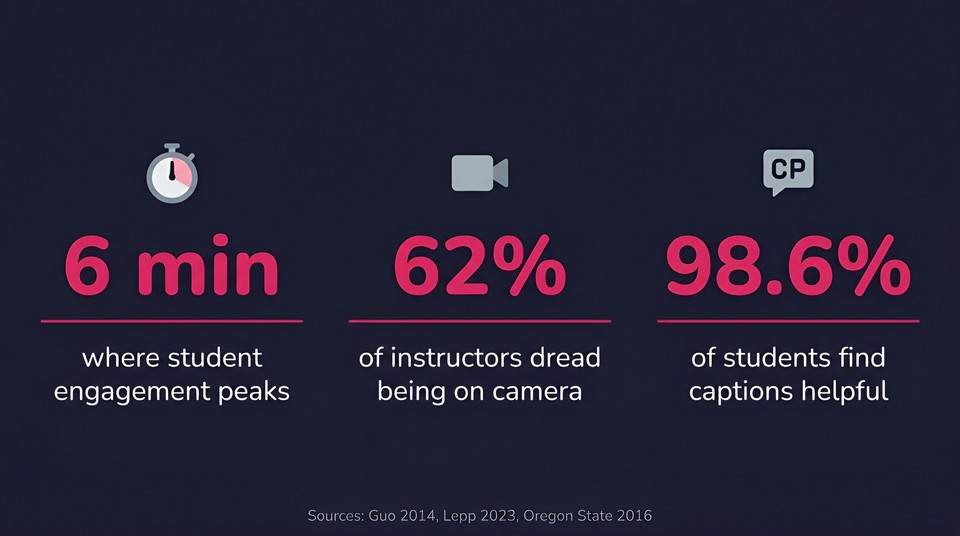
If there is one number to tattoo on your monitor, it is six minutes. In the largest study of its kind, Guo, Kim and Rubin analyzed 6.9 million video sessions across four edX courses and found that median engagement tops out at around six minutes no matter how long the video runs. A fifty-minute recorded lecture does not get fifty minutes of attention. It gets about six, then a slow drift toward closed tabs.
The fix is not to talk faster to cram it in. It is to segment. Break the fifty-minute lecture into short, single-idea modules of roughly six minutes each. This is the segmenting principle from Richard Mayer's cognitive theory of multimedia learning, and it is one of the most reliable levers you have. Cynthia Brame's peer-reviewed synthesis, Effective Educational Videos, organizes the rest of the evidence into three jobs: manage cognitive load, hold attention, and prompt active learning. Nearly everything below is one of those three in practice.
Two myths are worth clearing out first, because building on them wastes your effort. The claim that students "remember 90 percent of what they watch" comes from a fabricated retention pyramid with no basis in any real study. And the idea that you should tailor a lecture to "visual" versus "auditory" learners is one of the most tested and least supported ideas in education. Everyone learns better from a well-designed pairing of words and visuals, which is the actual finding.
From there, the practical principles are concrete. Narrate your visuals rather than covering the slide in text that competes with your voice, which Mayer calls the modality and redundancy principles. Signal what matters with headings, arrows, and pointer words. Weed out decorative clutter and background music. Speak in a warm, conversational tone, since a personal register measurably outperforms a formal one. And build in interaction, because passive watching is the weakest form of learning on Chi and Wylie's ICAP framework. The cleanest way to add that interaction is a quick question between segments. When Szpunar and colleagues interpolated short quizzes into a lecture split into five-minute chunks, students mind-wandered less, took more than triple the notes, and scored higher on the final test.
This is also why the flipped classroom works when it is done well. A meta-analysis of 114 studies by Van Alten and colleagues found a small-to-moderate positive effect on learning (Hedges' g of 0.36), and notably, the effect was stronger when instructors added quizzes to the video portion. Short chunks plus a knowledge check is not a nice-to-have. It is the mechanism.
Choosing your lecture format
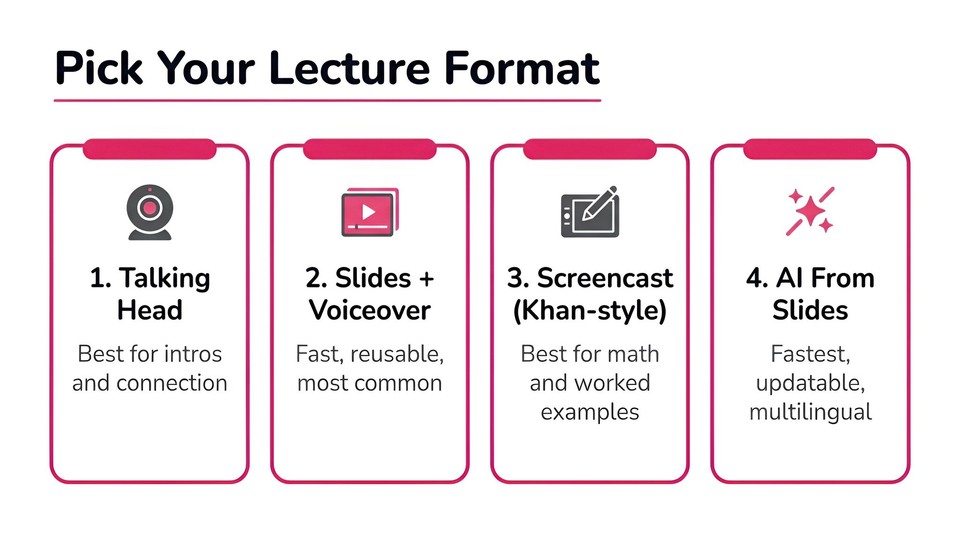
There is no single best format, only the right one for the content. Here are the five that matter and when to reach for each.
Talking head (webcam)
You on camera, talking to the lens. It is excellent for introductions, motivation, and the human connection that makes students feel taught by a person. The honest caveat, supported by recent eye-tracking work, is that a face competes for attention when students need to study a dense graph or table. The practical move is to show your face for the framing and the human moments, then cut to the content when they need to focus on it.
Slides plus voiceover
The most common format, and for good reason: it is fast, cheap, and reusable. The trap is the redundancy principle. Do not read your bullet points aloud. Let the slide show a little and your voice explain the rest.
Screencast or annotated tablet (Khan-style)
Drawing or working through a problem on a tablet while you narrate. In Guo's study, this was the single most engaging production style, which makes it the go-to for math, STEM derivations, and anything you would naturally sketch on a whiteboard.
Lecture capture of a live class
Recording the live session with a tool like Panopto or Kaltura is close to zero extra effort and captures everything. But Guo's data is blunt here: a captured live lecture is less engaging online because it is long and un-chunked. Use it as a review supplement, not as your primary asynchronous asset.
AI-generated from slides or a script
Turning a deck or script into a narrated lecture with an AI voice, and optionally an AI presenter, is the newest option, and it has become genuinely viable. It is the fastest path to short, updatable, multilingual lectures. More on the evidence and the limits below, because this is where most of the time savings live.
The step-by-step workflow
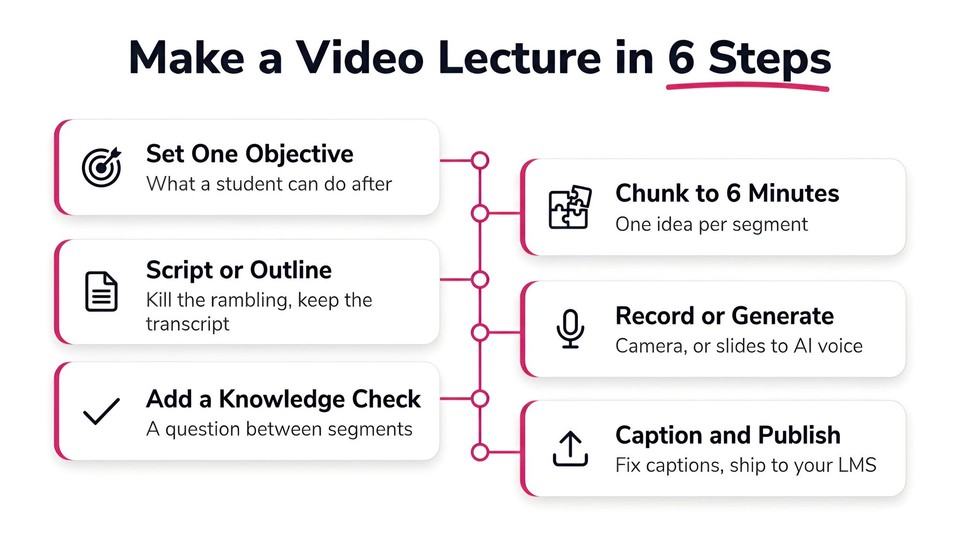
Here is the process I would hand any instructor making their first real video lecture.
1. Write one learning objective per video
Finish the sentence "after this, a student can ______." One objective per segment keeps each video short and each concept clean.
2. Chunk the lecture before you record anything
Take your fifty-minute outline and break it into six-or-fewer-minute, single-idea modules. This one step does more for engagement than any camera or microphone. It also makes each piece reusable and reorderable next term.
3. Script or outline it
You do not need a word-for-word teleprompter, but a tight outline of the key lines kills the rambling and dead air. A bonus: your script doubles as the transcript you will need for accessibility. There is a real tension to decide on here. Accessibility guidance often suggests around 130 words per minute for clarity, while the engagement research found attention actually rose with a faster, more energetic delivery. Lean energetic, but enunciate.
4. Design slides for video, not for a lecture hall
Cut clutter, use headings and arrows to signal structure, and keep words near the visuals they describe. A slide built for a projector at the back of a room is usually too dense for a laptop screen.
5. Record in a quiet room with decent audio
Kill the air conditioning hum, get the microphone close, put the camera at eye level, and look at the lens. Record in short takes rather than one anxious marathon, because short takes are far easier to fix.
6. Edit lightly and add a knowledge check
Trim dead air, keep each segment under six minutes, and drop a question between segments. An LMS quiz, a Google Form, or an in-video checkpoint all work. This is the highest-return edit you can make.
7. Caption, then publish
Auto-caption, then correct the errors, because automatic captions stumble on exactly the technical terms your lecture depends on. Publish to your LMS or course platform, or to YouTube for open content.
The equipment you actually need
Spend on audio first, everything else second. Students forgive a plain background and a modest camera, but they click away from bad sound, and the research on this is real: identical talks judged only on worse audio quality left listeners rating the speaker as less intelligent and remembering fewer facts. A dedicated USB microphone close to your mouth is the single highest-return purchase. After that, a 1080p webcam or a recent phone camera, and a light facing you rather than behind you, are plenty. For screen and slide recording, PowerPoint's built-in Record Slide Show, Loom, OBS, or Camtasia all do the job. For Khan-style work, a tablet and stylus.
The honest problem with the traditional way
Here is where I want to be straight, because if you have made lectures before, you already know the hidden costs.
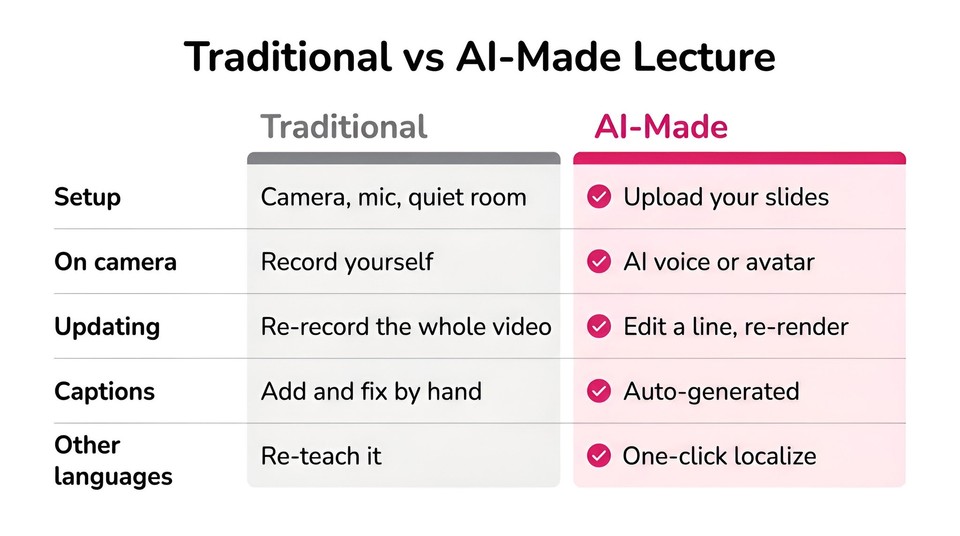
The first recording is expensive in time, and the second one hurts more. The moment a fact, a figure, or a policy changes, the traditional workflow asks you to re-record the whole video, re-edit it, and re-caption it. Most instructors quietly let content go stale rather than face that again.
Being on camera is its own barrier. In a 2023 study, nearly 62 percent of instructors reported negative feelings, hesitation, discomfort, and outright fear, about being recorded. That is not vanity. It is a real reason good lectures never get made.
Then there is the grind that surrounds the recording: chunking a long session by hand, cleaning up auto-captions to meet accessibility rules, and the near-impossibility of offering the same lecture to a section that needs it in another language. None of these are teaching problems. They are production problems, and production problems are exactly what got easier in the last two years.
The faster way: making lectures with AI
For a long time the counterargument to AI narration was the "voice principle," Mayer's finding that students learned better from a human voice than a robotic one. It is worth knowing that this has genuinely changed. Newer studies, including work summarized in Computers and Education, find no significant learning difference between a high-quality modern text-to-speech voice and a human one. What matters is warmth and clarity, not whether a human or a model produced the audio. That single shift is what makes AI-made lectures defensible on the merits, not just convenient.
The broader evidence is encouraging and honest. A 2025 peer-reviewed rapid review of AI-generated instructional video in higher education found learning outcomes comparable to instructor-made videos, alongside real gains in efficiency, scalability, and multilingual access. It also flagged the limits plainly: fully AI-generated video can contain factual or visual errors, authenticity can feel thinner, and content still needs a human expert to validate it. A professor writing in EDUCAUSE Review described using generative AI to turn one long lecture into a set of short, quiz-checkpointed micro-lectures, while stressing the same point: review everything for accuracy, and keep the human judgment.
Used that way, AI directly relieves the pains from the last section. Instead of recording, you turn your existing slide deck or a script into a narrated lecture. Instead of being on camera, you use a natural AI voice or an AI avatar presenter, which sidesteps the on-camera anxiety entirely. Instead of re-recording when content changes, you edit a line of text and re-render, which is the update superpower that changes the economics of keeping a course current. And instead of manually captioning and re-teaching in another language, you auto-caption and localize the same lecture in a few clicks.
This is the workflow I reach for most, and it is what tools like Fliki's PPT-to-video are built for. You upload the lecture deck you already have, it drafts narration from each slide's text and notes, you pick a natural voice from a large multilingual library (or clone your own so it still sounds like you), and it exports a captioned lecture video. You keep full control in the editor to fix wording, swap a visual, or regenerate a single slide's narration. The point is not that AI replaces your teaching. It removes the production tax so you can spend your effort on the parts that actually teach.
Turn your lecture slides into a video in four steps
Since this is the fastest path from what you already have, here is the actual sequence.
Upload your deck. Drop in a PowerPoint or PDF. The tool reads the text, headings, and speaker notes and drafts a narration script per slide, so you are editing rather than starting from a blank page.
Pick your voice or presenter. Choose a natural AI voice in your language, clone your own voice, or add an AI avatar to be the on-screen lecturer.
Refine and chunk. Edit any line, split the deck into short single-concept segments, and drop a knowledge check between them.
Caption, localize, and export. Auto-generate captions, translate the whole lecture into other languages if you need to, and export a 1080p file for your LMS or YouTube.
If you would rather start from a script or a topic than a deck, the same idea applies through Fliki's text-to-video and AI voiceover tools, and our walkthrough on converting a PPT to video goes deeper on the deck workflow specifically. You can try the whole thing on a free plan before committing to anything.
Do not skip accessibility
Captions are not optional for most institutions, and they help everyone. In a national study, 98.6 percent of students found captions helpful and three-quarters used them as a learning aid, the large majority of whom had no registered disability. For public universities and colleges in the United States, the Department of Justice's 2024 ADA Title II rule sets WCAG 2.1 Level AA as the standard, which explicitly includes captioning video, with compliance deadlines arriving in 2026 and 2027. This is not hypothetical: the National Association of the Deaf's cases against Harvard and MIT, filed in 2015 and settled by 2019 and 2020, centered on uncaptioned online lecture video. Caption every lecture, provide a transcript (your script gives you one for free), and review auto-captions before you publish.
Common mistakes to avoid
One long unbroken recording. Chunk it. Six minutes per idea beats fifty in one file every time.
Reading your slides aloud. Let the slide support you and your voice explain, or you overload the same channel twice.
Prioritizing camera over microphone. Fix your audio first.
No interaction. A lecture with no question is a monologue. Add a checkpoint between segments.
Never updating. Stale content erodes trust. If re-recording is the reason you avoid updates, that is a sign to switch to a script-based workflow you can edit and re-render.
Publishing raw auto-captions. They fail on the exact terms your subject depends on.
The bottom line
Making video lectures students actually watch is not about production value. It is about respecting how attention and memory work: short single-idea chunks, a conversational voice, clear signaling, and a question that makes students think. Get that right and even a simple narrated slide deck will out-teach a beautifully shot forty-minute monologue.
And you no longer have to choose between "good" and "fast." The research now supports natural AI voices for learning, the tools can turn the deck you already have into a captioned, updatable, multilingual lecture in minutes, and the update problem that made you dread editing is largely gone. If you want to feel that difference on your next lecture, turn one of your slide decks into a video for free and see how much of the afternoon you get back.
FAQs
Chunk your material into short single-idea segments of about six minutes, script or outline each one, record with good audio (or generate it from your slides with an AI voice), add a knowledge check between segments, caption it, and publish to your LMS or YouTube. Short and interactive beats long and passive every time.
Aim for roughly six minutes per segment, which is where student engagement holds up best. For a longer topic, make a short series of chunked videos rather than one long recording, and add a quick quiz between them.
Use a narrated slides-to-video workflow with an AI voice, or add an AI avatar as the on-screen presenter. Both let you produce a polished lecture without recording yourself, which also removes the on-camera anxiety many instructors feel.
Recent peer-reviewed research finds learning outcomes from AI-generated instructional videos comparable to instructor-made ones, and modern AI voices no longer measurably hurt learning. The catch is accuracy: you must review the content as the subject-matter expert, since AI can state things confidently and wrongly.
At minimum, a screen or slide recorder and a good microphone. Free options include PowerPoint's Record Slide Show and OBS. To skip recording entirely, a slides-to-video tool like Fliki turns a deck into a captioned, narrated lecture and lets you localize it into other languages.
Add accurate captions (correct the auto-generated ones), provide a transcript, and follow WCAG 2.1 AA, which US public universities are required to meet under the 2024 ADA Title II rule. Captions also measurably help students who are not disabled.