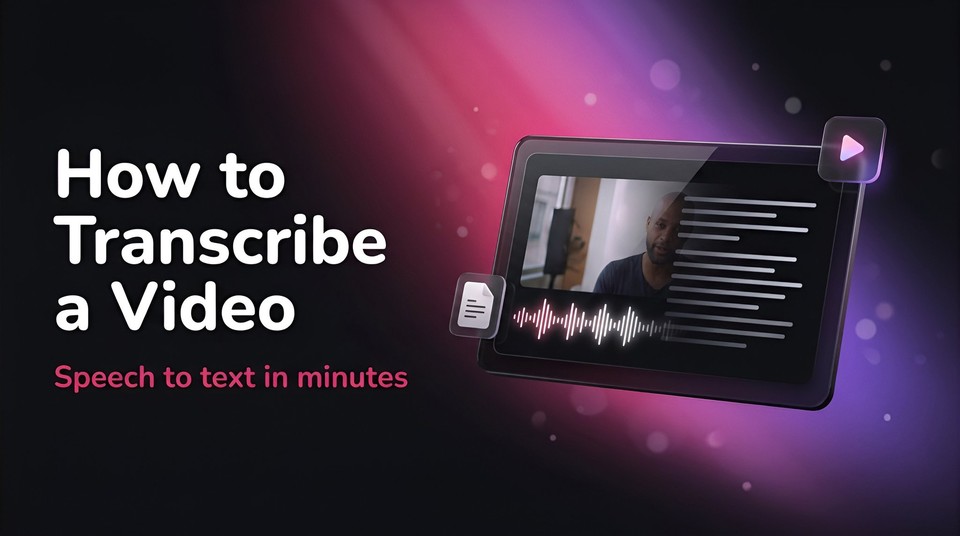
How to Transcribe a Video (Free and Paid Methods That Actually Work)
Somewhere inside every video is text you need: the captions it should have, the blog post it could become, the quote you want to pull, the meeting notes you forgot to take. Transcribing is just getting those words out of the audio and onto the page, and in 2026 it takes minutes, often for free.
The catch is that "transcribe a video" can mean two different things, and the tools split along that line. Sometimes you want a clean, readable block of text to repurpose or quote. Other times you want a timed caption file to put the words back on screen. This guide covers both, walks through every method worth using from a free YouTube trick to AI tools to professional human services, and is honest about where automatic transcription is good enough and where it will embarrass you if you do not proofread. I work on content at Fliki and transcribe video constantly, so let's make it quick.
Why transcribe a video in the first place
A transcript is one of those small assets that unlocks a lot. The obvious use is captions and subtitles, which matter more than people think: in a 2019 study of 5,616 US adults by Verizon Media and Publicis Media, 80% said they are more likely to watch an entire video when subtitles are available, and 69% said they watch video with the sound off in public. Captions start with a transcript.
Beyond captions, a transcript lets you repurpose one video into a blog post, show notes, social quotes, or an email, turning a single recording into a week of content. It makes video searchable, because search engines can read text but not speech, so a published transcript can pull in traffic the video alone never would. It gives you a record of meetings, lectures, and interviews. And it is the first step of translating or dubbing a video, since you cannot translate speech you have not captured as text. There is also an accessibility and legal angle: US accessibility rules like the ADA's 2024 Title II update point to WCAG standards that require captions for many organizations, and transcripts support that.
Automatic vs human transcription: what to expect
Almost every method below is automatic, powered by AI speech recognition. It is worth knowing what that buys you before you trust it.
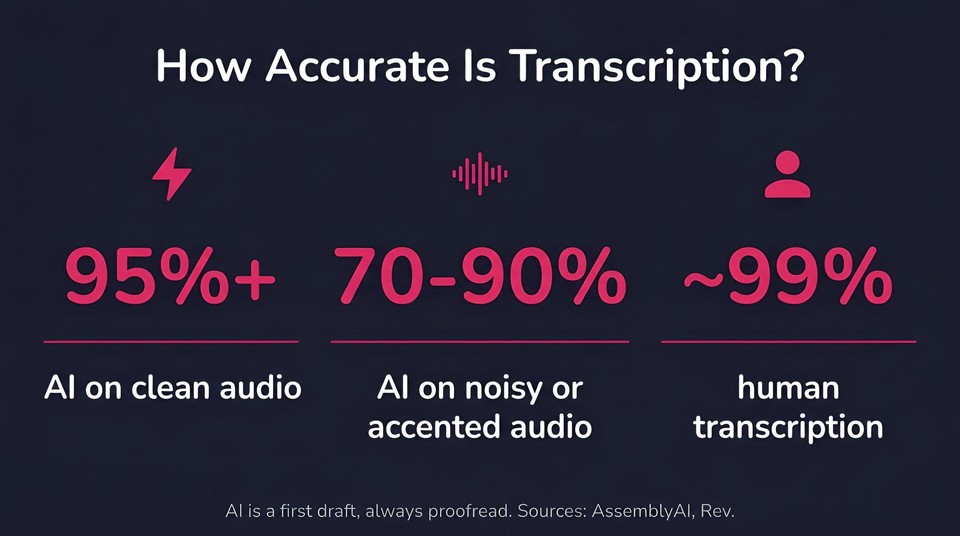
On clean, single-speaker audio, good AI transcription is genuinely excellent, routinely 95% accurate or better. The moment conditions get worse, accuracy drops. Accents, background noise, crosstalk, and industry jargon can pull real-world accuracy down into the 70 to 90% range, and the errors cluster in predictable places: proper names, brand terms, homophones, numbers, and punctuation. So the honest rule is simple: an AI transcript is a first draft, not a finished one. Always read it through and fix the handful of things it got wrong.
Human transcription is the alternative when accuracy is non-negotiable, for legal, medical, or published-quotation work. Professional services like Rev charge around $1.99 per minute for roughly 99% accuracy with a human in the loop, typically delivered within a day. For most creators and marketers, AI plus a quick proofread is the right trade: near-instant, cheap, and accurate enough once you clean it up.
Method 1: Transcribe any YouTube video for free
If the video is on YouTube, you already have a free transcript, yours or anyone else's public video.
On desktop, open the video, click the ...more below the title, and scroll to Show transcript. A panel opens on the right with the full text, timestamped and scrolling with playback; you can toggle the timestamps off and copy the text straight out. On the mobile app, tap ...more under the title and scroll to Show transcript. For your own uploads, YouTube Studio's Subtitles section lets you edit and download it (YouTube Help). Not every video has one, since the creator can disable captions, but when it exists this is the fastest free option there is.
Method 2: Transcribe your own video file with an AI tool
For a video that is not on YouTube, the general path is the same everywhere: upload the file, let the tool transcribe it, review and edit, then export as plain text or a caption file. This is what dedicated services do, and the good ones do it in a couple of minutes. I will walk through Fliki's version below, since it also handles what you do with the transcript next, but the core loop is universal.
Method 3: Microsoft Word "Transcribe"
If you have a Microsoft 365 subscription, Word can do this without another app. On the Home tab, open the Dictate dropdown and choose Transcribe, then upload an audio or video file or record live. Word returns a speaker-separated, timestamped transcript you can insert into the document (Microsoft Support). The limits worth knowing: it needs a 365 subscription and an internet connection, accepts files up to 200 MB, and caps uploaded audio at 300 minutes per month. It is strongest in English.
Method 4: Google Docs Voice Typing (with a big caveat)
Google Docs has free voice typing under Tools > Voice typing (in Chrome, Edge, or Safari). The catch is that it only transcribes your live microphone, so to transcribe an existing recording you have to play the audio out loud into the mic, which is clunky and loses accuracy, and it stops listening the moment you switch tabs. Fine in a pinch for a short clip, frustrating for anything real. Treat it as a last resort rather than a go-to.
Method 5: Dedicated transcription tools
A whole category exists for this, and they are worth it if you transcribe often. Prices change constantly, so verify on each vendor's page before you commit.
Otter.ai is built for live meetings and uploads, with AI summaries; its free tier covers a few hundred minutes a month. Descript transcribes your video and then lets you edit the video by editing the transcript, deleting a sentence of text deletes it from the footage, which is genuinely clever for talking-head content. Rev offers both AI and human transcription, so you can start cheap and upgrade to 99% human accuracy when it matters. Trint, Sonix, and Happy Scribe round out the field with strong multi-language support and collaboration features. If you want a truly free and private option and do not mind a technical setup, OpenAI's Whisper is an open-source model you can run locally, which keeps sensitive recordings off the cloud entirely.
Method 6: Meeting and mobile transcripts
If your "video" is a call, the platform probably transcribes it already. Zoom saves a transcript as a VTT file when you enable cloud recording with audio transcription on a paid plan, and Microsoft Teams offers live transcription that labels speakers and saves to the meeting.
On mobile, know that the iPhone has no native way to transcribe a video file, recent iOS updates transcribe voice memos and notes, but not arbitrary videos, so you will use an app. CapCut is a common mobile and desktop route: its Auto Captions feature transcribes your clip, and on desktop you can export the result as an SRT caption file or plain text.
The fast path: transcribe and reuse a video in Fliki
Here is the workflow I actually use, because it does not stop at the transcript. In Fliki, you transcribe a video inside the same place you would caption, translate, or repurpose it, so there is no export-and-reimport shuffle between tools.
You bring your footage into the Edit video workflow, drop in your clip, and keep the original audio. Fliki transcribes the speech automatically to power the subtitles, using the same video-to-text and audio-to-text engine behind its captioning. You pick the spoken language so it transcribes accurately, and you can review and fix any wrong words right in the editor before you finish.
The part most tools make you hunt for comes after you export. In the Download panel, open the Subtitles tab and you get two downloads:
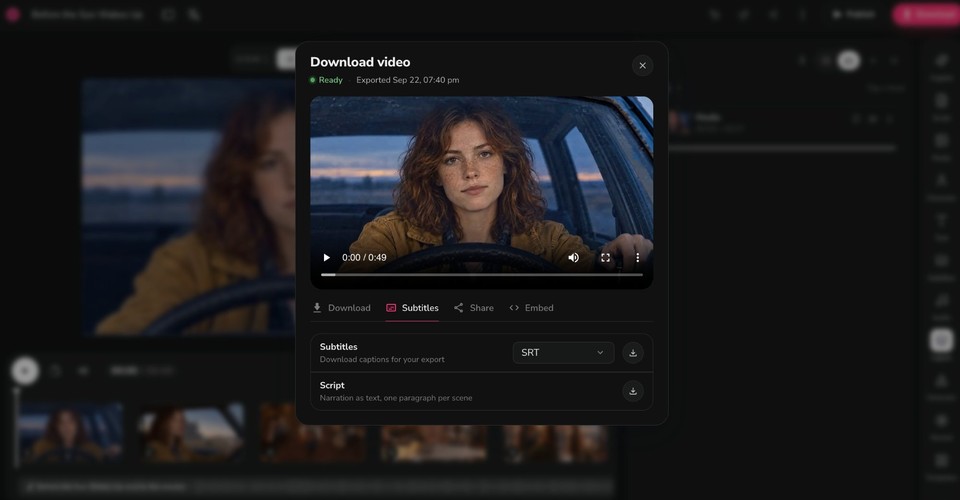
Subtitles as SRT (or VTT), the timed caption file, ready to upload to YouTube, Vimeo, or LinkedIn, or to burn into the video.
Script, the narration as clean text, laid out one paragraph per scene, which is exactly what you want for a blog draft, show notes, or quotes.
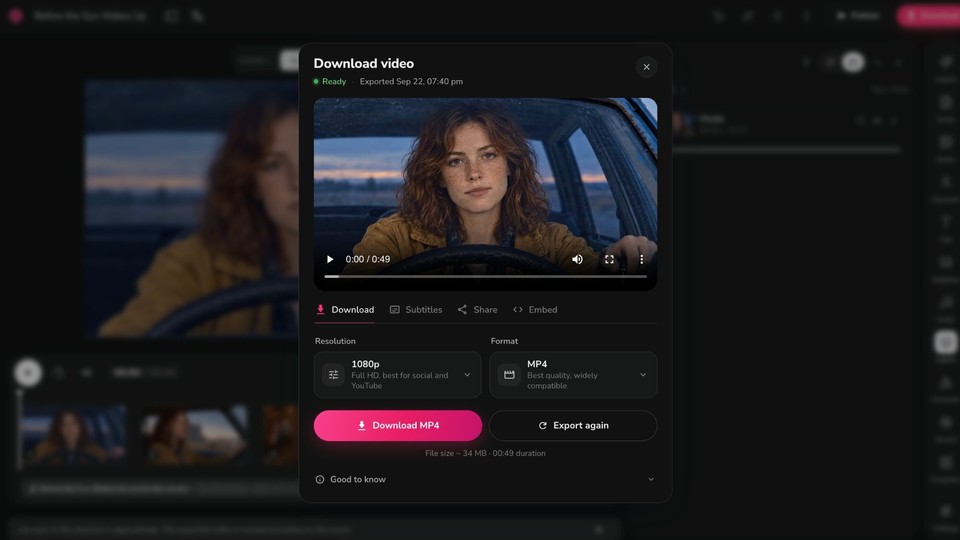
So one pass gives you both forms of the transcript: the readable prose and the timed captions. And because you are already in Fliki, the natural next steps are one click away. Turn the transcript into on-screen captions, translate it into another language, dub the video in a new voice, or feed the text into a blog-to-video repurposing flow. That is the reason I default to it: transcription is rarely the end goal, and doing it where the next step lives saves the round-trips. You can try it free now.
Plain text, SRT, or VTT: which format do you want?
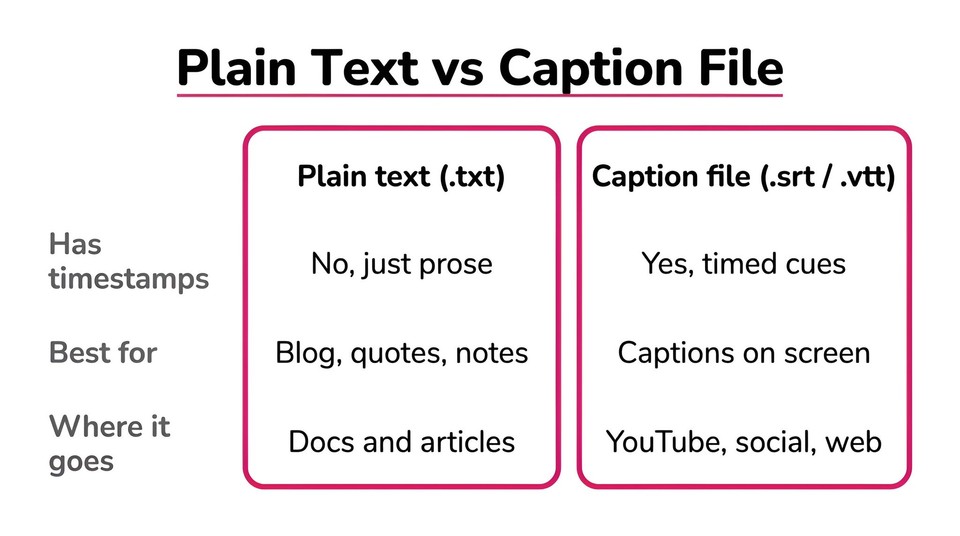
This trips people up, so keep it simple. If you want a readable transcript to quote, edit, or turn into an article, export plain text (.txt), no timestamps, just prose. If you want to put the words back on screen as captions, you want a subtitle file: .srt is the universal one that works on YouTube, social platforms, and nearly every player, while .vtt is the web-native format that HTML5 video players read directly. The practical rule: text for reading and repurposing, SRT for captioning almost anywhere, VTT for captions on a website. A good tool hands you whichever you need from the same transcript, which is why you should not have to transcribe twice.
Best practices for a clean transcript
The biggest lever on accuracy happens before you transcribe: capture clean audio. A decent microphone, a quiet room, and one person speaking at a time will do more for your transcript than any tool choice. After that, set the correct language and dialect so the engine is not guessing, and always proofread the result, sweeping specifically for names, jargon, numbers, and punctuation, which is where AI reliably slips. For interviews and panels, turn on speaker labels so the transcript reads as a conversation. Break the raw wall of text into paragraphs so a human can actually read it. And keep the timestamps only if you plan to caption or clip; drop them for a clean blog draft.
Common mistakes to avoid
The number one mistake is publishing or quoting a raw AI transcript without reading it, which is how a misheard name ends up in your article. Close behind is leaving the wrong language selected, which garbles the entire file. On multi-speaker recordings, skipping speaker labels turns a clean interview into an unreadable block. People also grab the wrong format, downloading an SRT full of timecodes when they wanted clean prose, or plain text when they needed a caption file. Do not assume 99% accuracy on a noisy or heavily accented clip, where real accuracy may be far lower. And mind privacy: think twice before uploading confidential recordings to a cloud tool, or use a local option like Whisper for anything sensitive.
What to do with your transcript
A transcript is a starting point, not a deliverable. The four highest-value things to do with it: caption the video (upload the SRT or burn the captions in) so it reaches sound-off viewers; repurpose the text into a blog post, newsletter, or social quotes to get more mileage from one recording; translate it to reach new audiences, which is far faster than re-scripting from scratch; and archive it as a searchable record of what was said. Each of these is a reason the transcript is worth more than the two minutes it took to make.
The bottom line
Transcribing a video is no longer a chore. Grab the free transcript if it is on YouTube, use Word or a dedicated tool for your own files, and remember the two forms the text can take: clean prose for reading and repurposing, or a timed SRT for captions. Whichever route you pick, proofread the result, then actually use it, caption the video, spin it into a blog post, or translate it, because the transcript is where a single video turns into much more.
If you want to transcribe and then caption, translate, or repurpose in one place, you can upload your video to Fliki free, get a clean transcript and an SRT from the same export, and take the next step without switching tools.
FAQs
If it is on YouTube, open the video, click ...more, and choose Show transcript, then copy the text. For your own files, YouTube's auto-captions, Microsoft Word's Transcribe (with a 365 subscription), and the free tiers of tools like Otter or Fliki all work. OpenAI's Whisper is free and private if you are comfortable with a technical setup.
The iPhone cannot transcribe a video file natively, so use an app. Upload the clip to a browser-based tool, or use CapCut's Auto Captions on mobile and export the text. You can also record straight into an app like Otter for live transcription.
On clear, single-speaker audio, good AI transcription is often 95% accurate or better. Accents, background noise, and jargon can drop it into the 70 to 90% range. Always proofread, especially names, numbers, and specialized terms. For guaranteed accuracy, a human service delivers around 99% for roughly $1.99 per minute.
A transcript is the full text of what was said, usually as readable prose. Subtitles are that text broken into short, timed cues that appear on screen in sync with the audio, saved as an SRT or VTT file. You often make subtitles from a transcript.
Yes. Many tools produce both from one pass. In Fliki, after you export you can download the transcript as a Script in plain text and as an SRT subtitle file, so you get the readable version and the timed captions together.
Open the video, click ...more under the title, and select Show transcript. The full text appears in a side panel that you can copy. Note the uploader can disable this, in which case run the video through an AI transcription tool instead.