Introduction
If you want to make an AI face swap video, the short answer is this: use Fliki's Swap Studio, pick Character Swap to put a new person into a clip (or Motion Swap to make a photo perform someone else's moves), upload a clip and a clear photo, and wait a couple of minutes. Fliki's plain Face Swap is photo-only, so for video you use the two video tabs. I tested all six tabs for this guide, and I will show you what worked, what did not, and what each run cost.
I work on content and marketing at Fliki, so I opened Swap Studio expecting a one-click face swap for video. What I found is more useful, and a little more nuanced. Swap Studio is a set of six focused tools, and the right one depends on whether you are changing a face, a whole person, a hairstyle, an outfit, or the motion itself.
Every example below uses AI-generated people made inside Fliki, so no real person's likeness is involved. Every credit figure is what I actually saw in the app on the day I ran it.
What is Swap Studio, and which swap do you need?
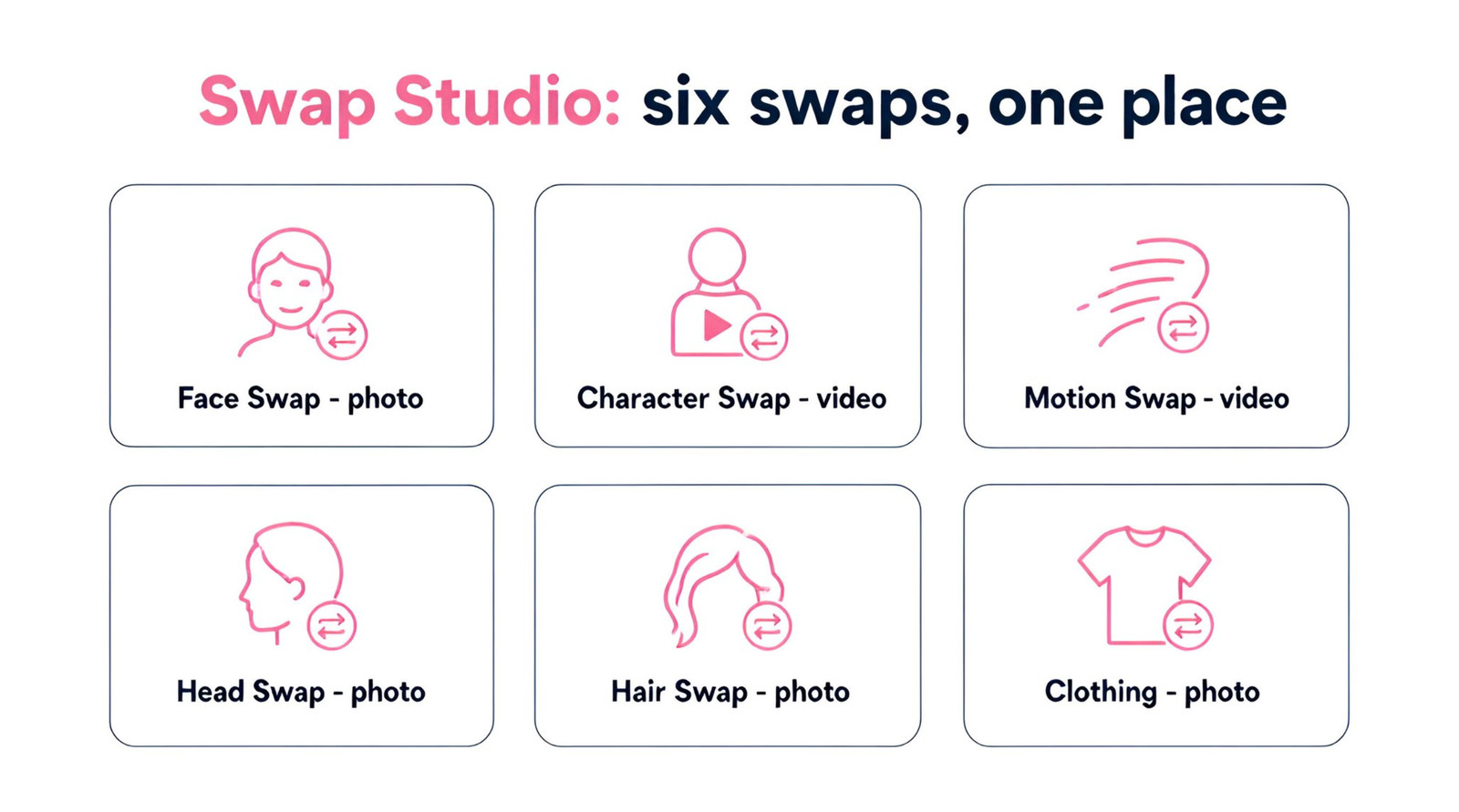
Swap Studio is a single screen in the Fliki app with six tabs: Face Swap, Character Swap, Motion Swap, Head Swap, Hair Swap, and Clothing. You open it from the home screen (look for the card with the "New" badge) or go straight to the tab you want. Each tab shows an example row at the top with three steps: your input, your reference, and the result, which makes it easy to see what a tab expects before you spend credits.
The most important thing to understand is which tabs work on photos and which work on video. Getting this wrong is the most common reason people feel a swap "did not work".
Tab | Input | What it does | Default model | Cost I saw |
|---|---|---|---|---|
Face Swap | Photo + face photo | Puts another face on the person in your photo | Nano Banana 2 | 1.5 credits per image |
Character Swap | Video (3 to 10 s) + character photo | Replaces the person in your video with your character, motion unchanged | P-Video Replace, 720p | 0.5 credits per second |
Motion Swap | Video with moves + character photo | Makes your character perform the moves from the video | Kling 2.6 Pro-Motion Transfer, 1080p | 2 credits per second |
Head Swap | Photo + head photo | Swaps the whole head, face and hair | Nano Banana 2 | 1.5 credits per image |
Hair Swap | Photo + hairstyle reference | Changes hairstyle and colour | Nano Banana 2 | 1.5 credits per image |
Clothing | Photo + outfit photo | Dresses the person in another outfit | P-Image Try-On | 0.5 credits per image |
So if your goal is a face swap video, you are choosing between Character Swap and Motion Swap. If you only need a face swapped in a still image (a thumbnail, a profile picture, a character sheet), Face Swap and Head Swap are the quick routes. I cover all six below, starting with the photo tools because they teach you how to prepare inputs for the video ones.
If you want the product-level overview first, the AI face swap feature page, the AI character swap page and the AI head swap page describe each tool in marketing terms. This guide is the hands-on version.
How to pick and upload your inputs
Every slot in Swap Studio works the same way. Click it and an asset picker opens with a search box, filters for All, Uploaded and Generated, and an "Upload media" tile at the start of the grid. You can pick anything you have already generated in Fliki, which is how I built every example here, or upload your own file. There is also a "Paste a link" option on some tabs.
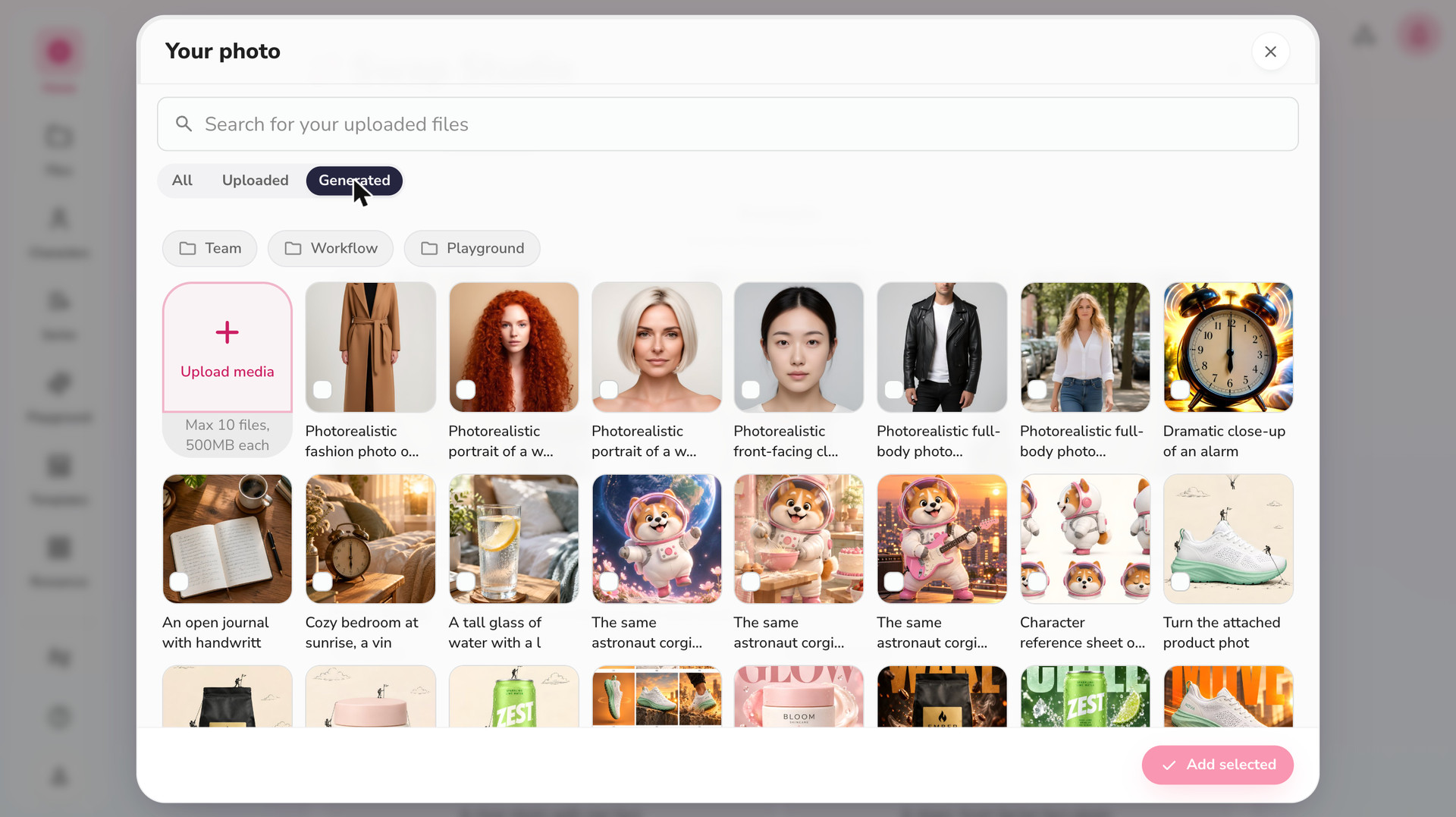
Two quirks are worth knowing. The picker lets you select only one asset per slot, so if you click a second image you will get a small message and need to deselect the first. And the order of items changes as you generate new things, so check the thumbnail in the slot after you click "Add selected" instead of trusting your memory of where an image was.
A quick input checklist
After running about a dozen swaps, these were the habits that mattered most. For photos, use one clear, front-facing face with the whole face visible, good light, and no sunglasses or hands across the face. For the reference face, a sharp passport-style photo beats a dramatic angled shot every time. For video clips, keep them between 3 and 10 seconds with one clearly visible person, and avoid fast cuts. For character photos, use a full-body shot with a neutral pose, because the tool has to invent the rest of the body when it animates.
Step by step: how to face swap on a photo
Face Swap is the simplest tab and the best place to start. It takes a photo of a person, a photo of the face you want to swap in, and gives you the same photo with the new face. This is also the foundation for most "face swap video" workflows, because you can swap the face in a still frame and then animate it.
Step 1: open the Face Swap tab
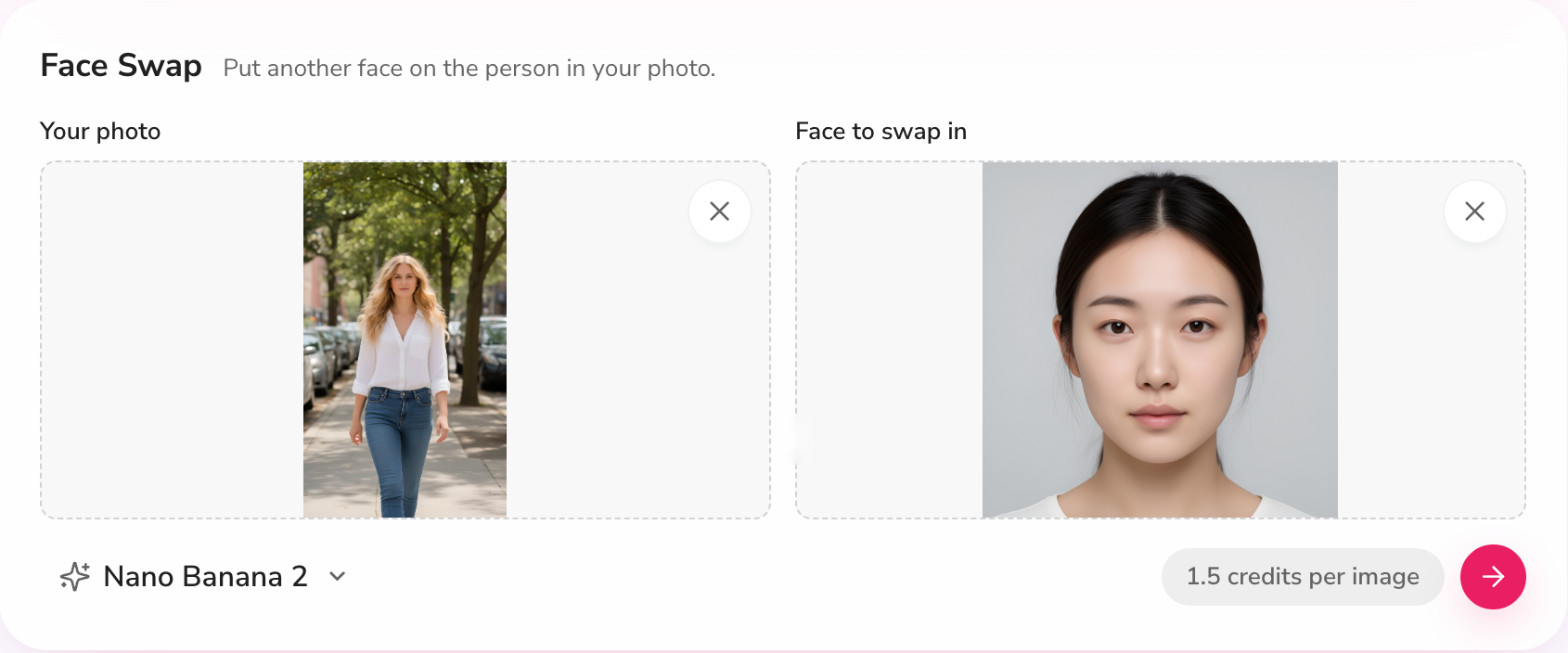
Go to Swap Studio and choose Face Swap. The two slots are labelled "Your photo" (a clear photo with one face) and "Face to swap in" (a sharp, front-facing face photo).
Step 2: add your two photos
I used a full-body street photo of an AI-generated woman as the base, and a front-facing portrait of a different AI-generated person as the face to swap in.
Step 3: choose a model
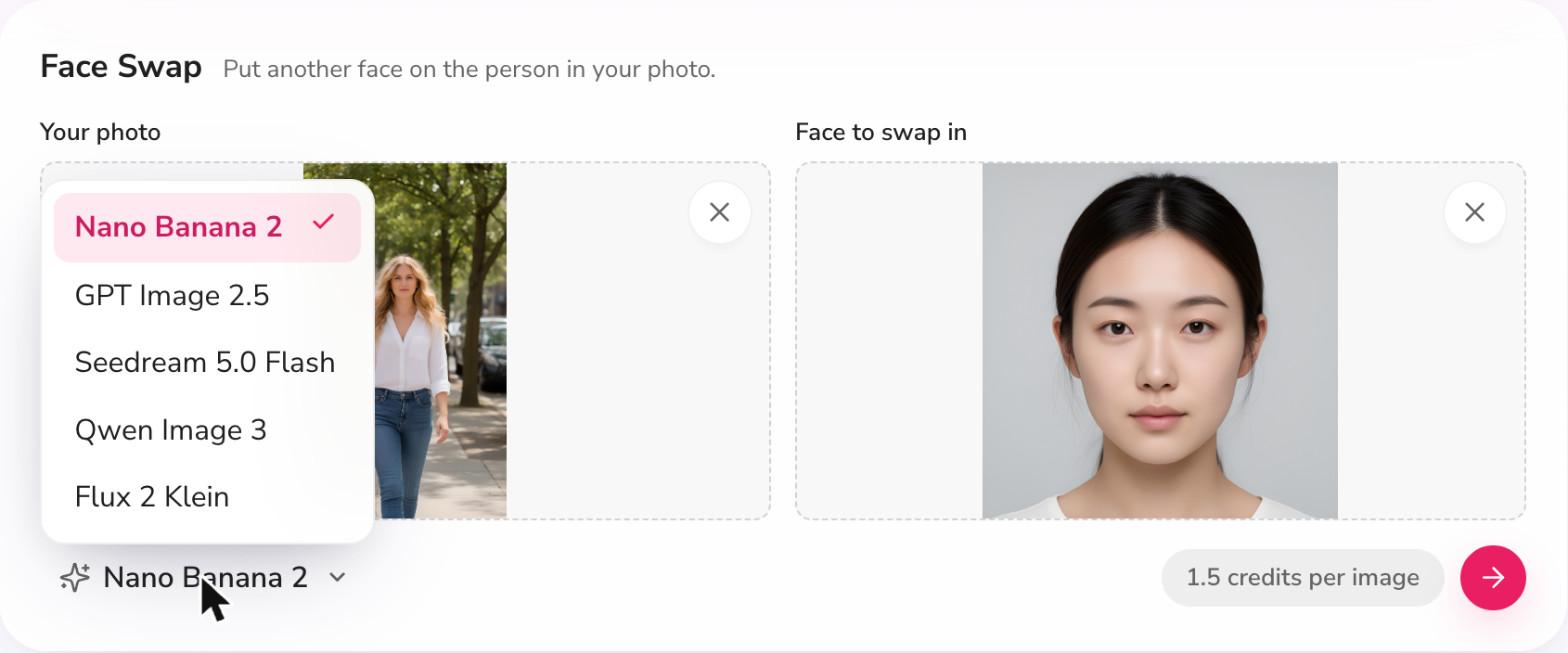
The model menu at the bottom left lists five options: Nano Banana 2 (the default), GPT Image 2.5, Seedream 5.0 Flash, Qwen Image 3 and Flux 2 Klein. I stayed on the default for the main run because it is the one most people will use, and the price is shown right next to the run button, so you always know the cost before you click.
Step 4: run it and check the result
Click the arrow button. The face swap finished in roughly 15 seconds for me, and the result appears below the card.
The result kept everything about the original photo, including the street, the white shirt, the jeans and the walking pose, while the face became the new person's. Look closely at the hairline and the jaw when you check your own result. If the lighting on the new face does not match the photo, try a reference face that was shot in similar light.
Head Swap, Hair Swap and Clothing: the other photo tools
These three tabs share the same simple pattern, a base photo plus a reference, and they are the quickest way to explore variations of a character before you commit to a video. I ran each of them on the same street photo so you can compare.
Head Swap
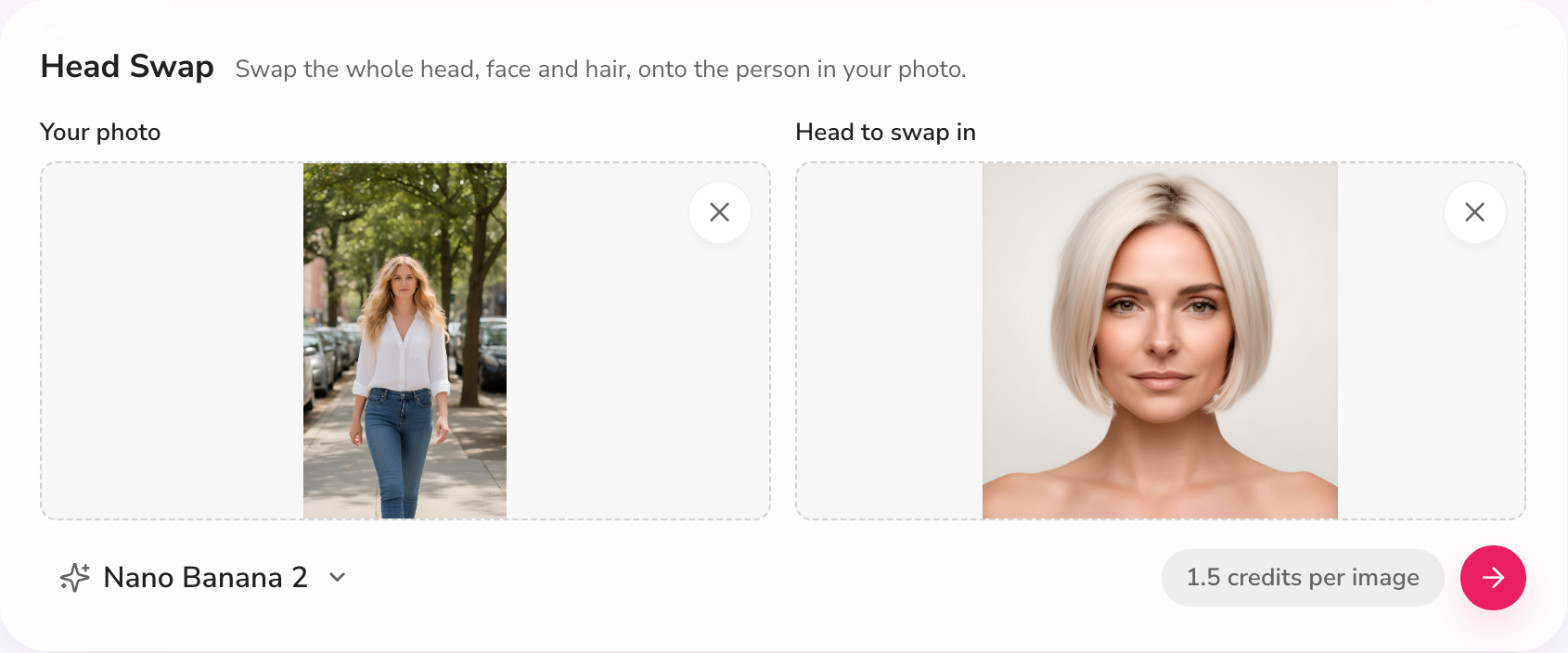
Head Swap replaces the whole head, including hair and head shape, which is different from Face Swap, which keeps the original hairstyle. It needs a photo where the whole head and hair are visible. I used a front-facing portrait of a woman with a platinum bob, and the run took about 30 seconds at 1.5 credits.
Hair Swap
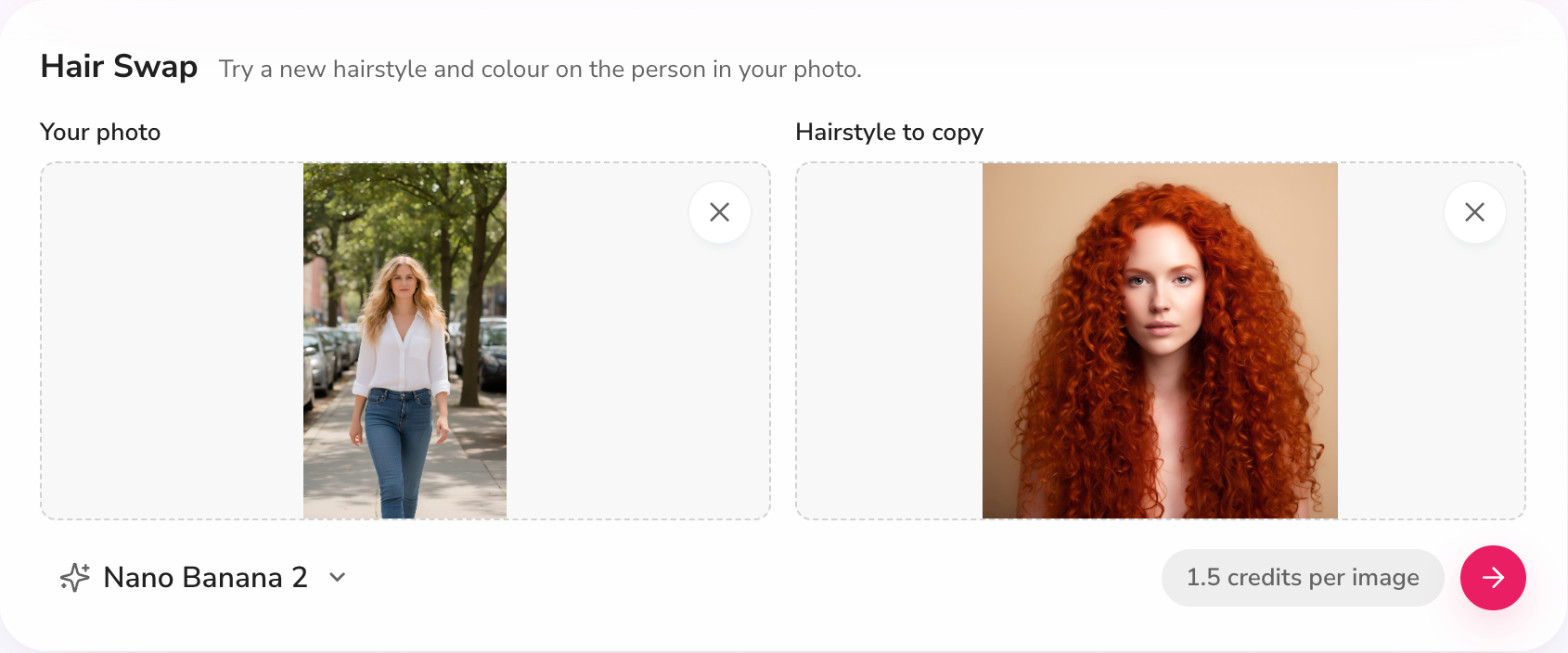
Hair Swap changes hairstyle and colour while keeping the face. You supply the photo and a hairstyle reference. I used a portrait of a woman with curly copper-red hair as the reference, and the swap produced a convincing curly red style on the person in the street photo. The hair framed the face naturally and the shirt collar was untouched.
Clothing
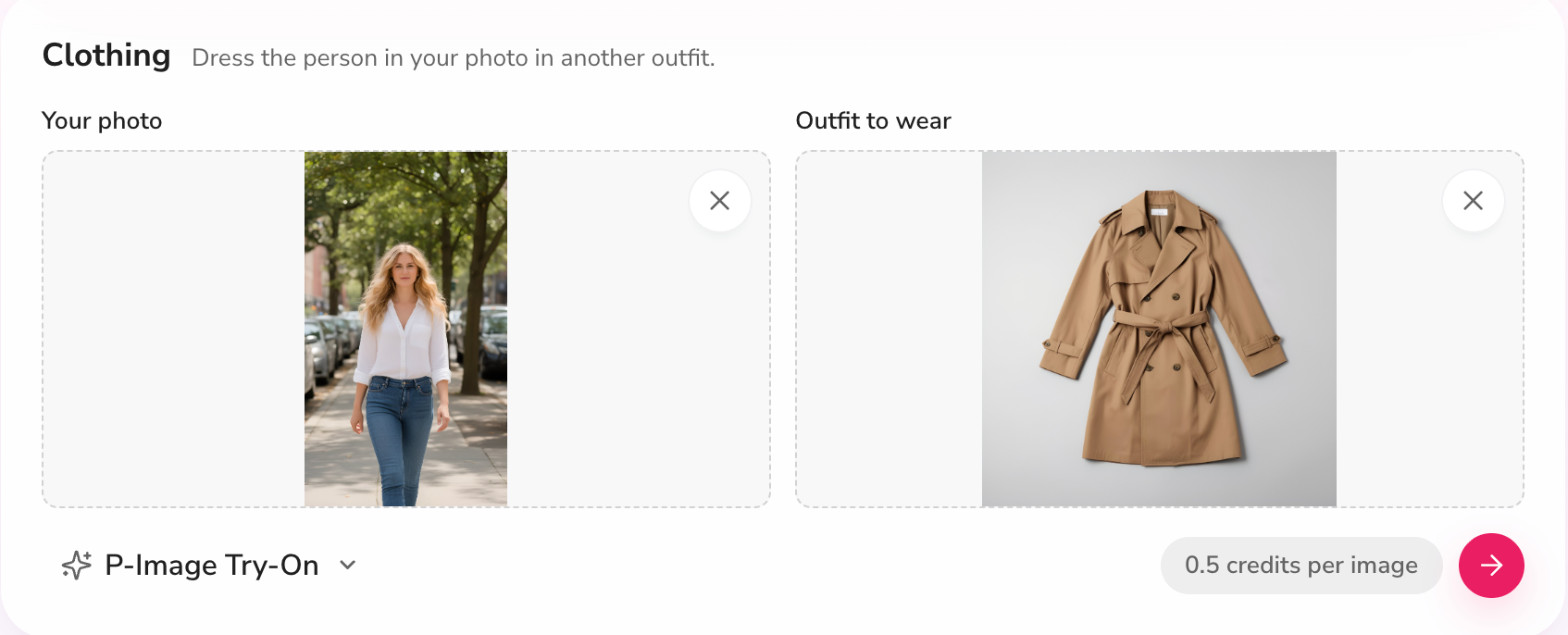
Clothing is the cheapest tab at 0.5 credits per image. You supply your photo and a photo of the outfit, worn or laid flat. I generated a flat-lay photo of a camel trench coat in Fliki for the outfit slot.
Here are all four photo results side by side, starting with the Face Swap from the previous section.
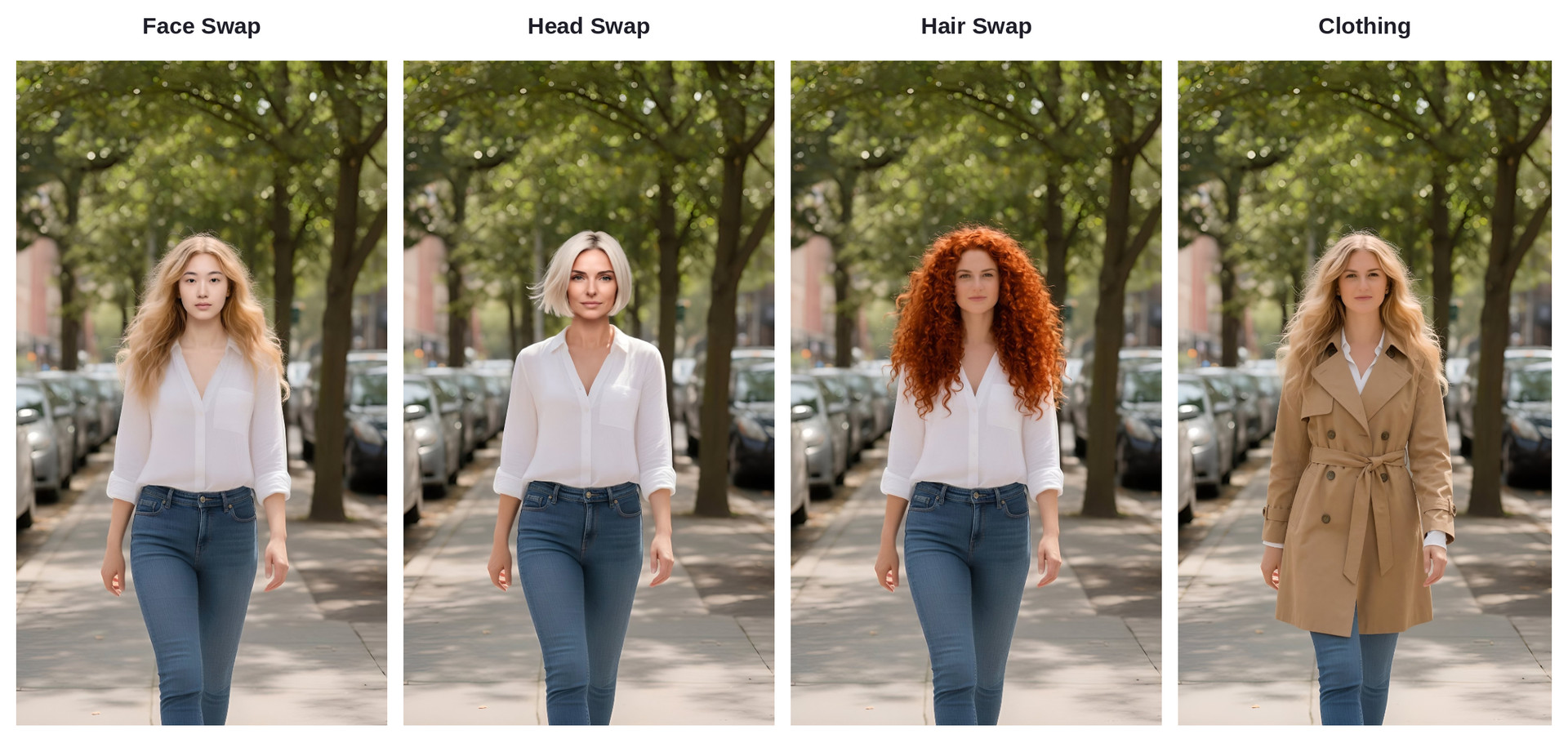
The trench coat kept the belt, collar and buttons from the flat-lay photo and fell naturally over the original shirt and jeans. In my runs, Clothing was the most reliable of all six tabs, and the cost was the lowest, so it is a good place to start if you are testing the tool for the first time.
Character Swap: the tab for face swap videos
This is the tab most people want when they search for a face swap video. Character Swap takes a short video and a photo of your character, and replaces the person in the video with that character while the motion stays the same. The video must be 3 to 10 seconds long, with one clear person, and the character photo should be full-body.
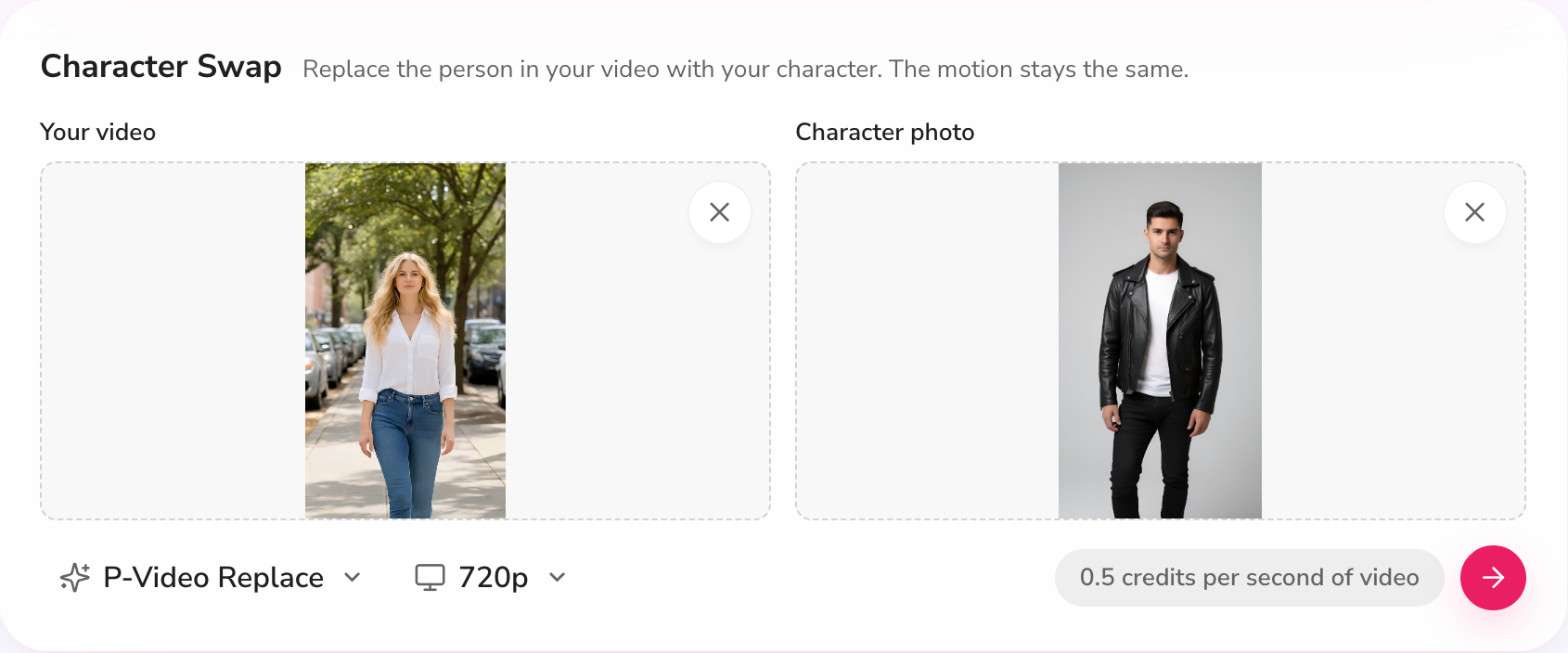
Pricing is per second of video at 0.5 credits, so a 5-second clip costs 2.5 credits. It uses P-Video Replace at 720p. When you run it, the result area shows "Swapping, this takes a few minutes", and in my runs it took roughly one and a half to two minutes.
My first attempt: outfit changed, face stayed
I want to be upfront about this one, because I think it will save you credits. For my first test, I used a clip of an AI-generated woman walking down a street and a full-body photo of a man in a black leather jacket as the character.
The result changed the outfit to the leather jacket and black trousers, but the original face and hairstyle stayed. In other words, I got a partial swap, not a face swap. Here are four frames from the result.
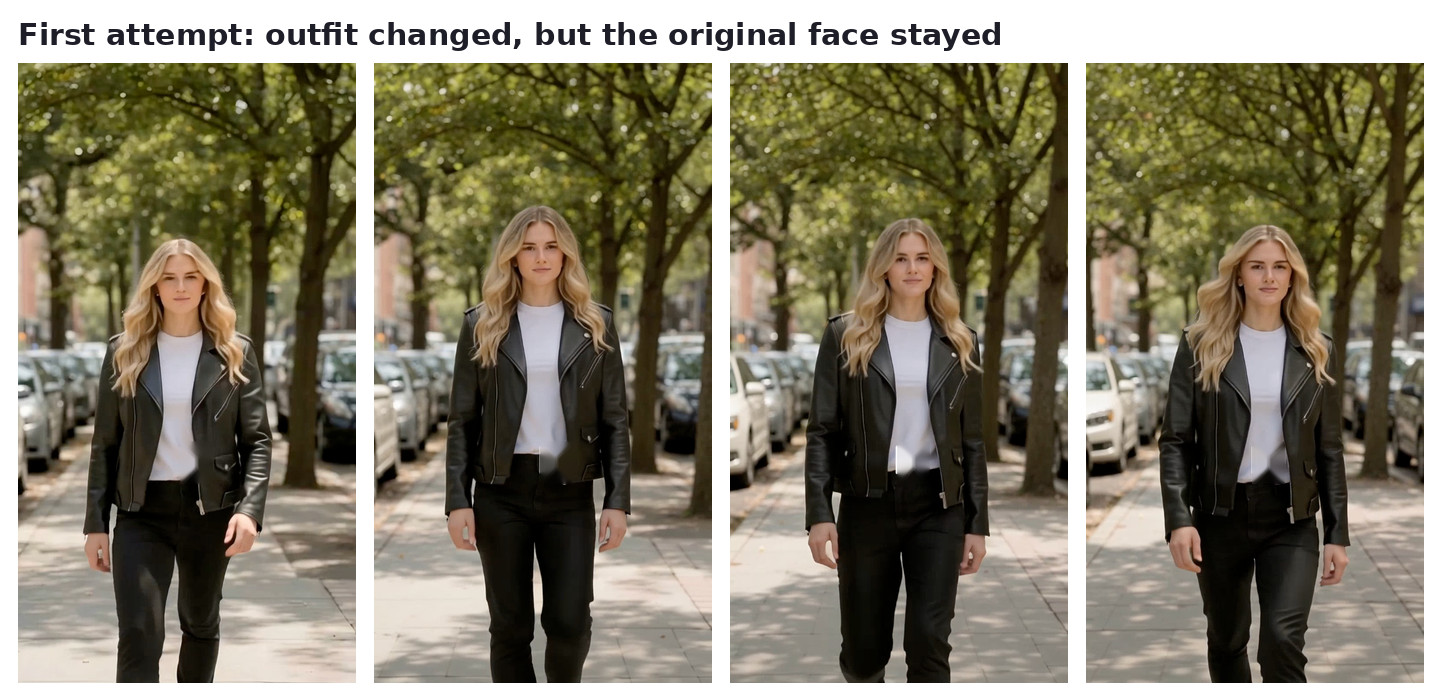
I will not pretend I know the exact cause, but my guess is the large gap between the two people (a woman with long blonde hair and a man with short dark hair) pushed the model to match the clothing and keep the head. If you get a partial swap, change one thing at a time: try a character photo that is closer in framing to the person in the clip, and make sure the face in your character photo is large and sharp.
My second attempt: a full swap
For the second test I used a clip of a man dancing in a white studio and a full-body photo of an AI-generated woman in a green blazer. This time the whole person was replaced.
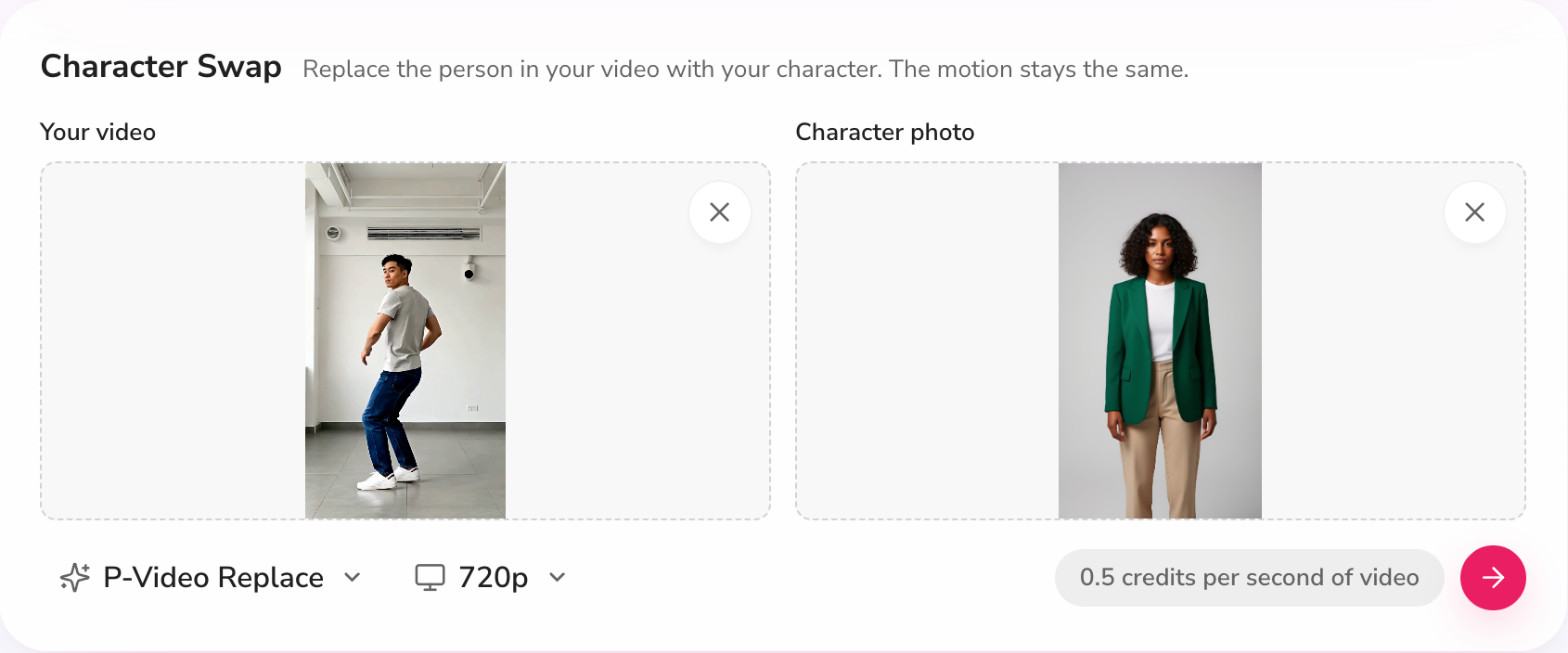
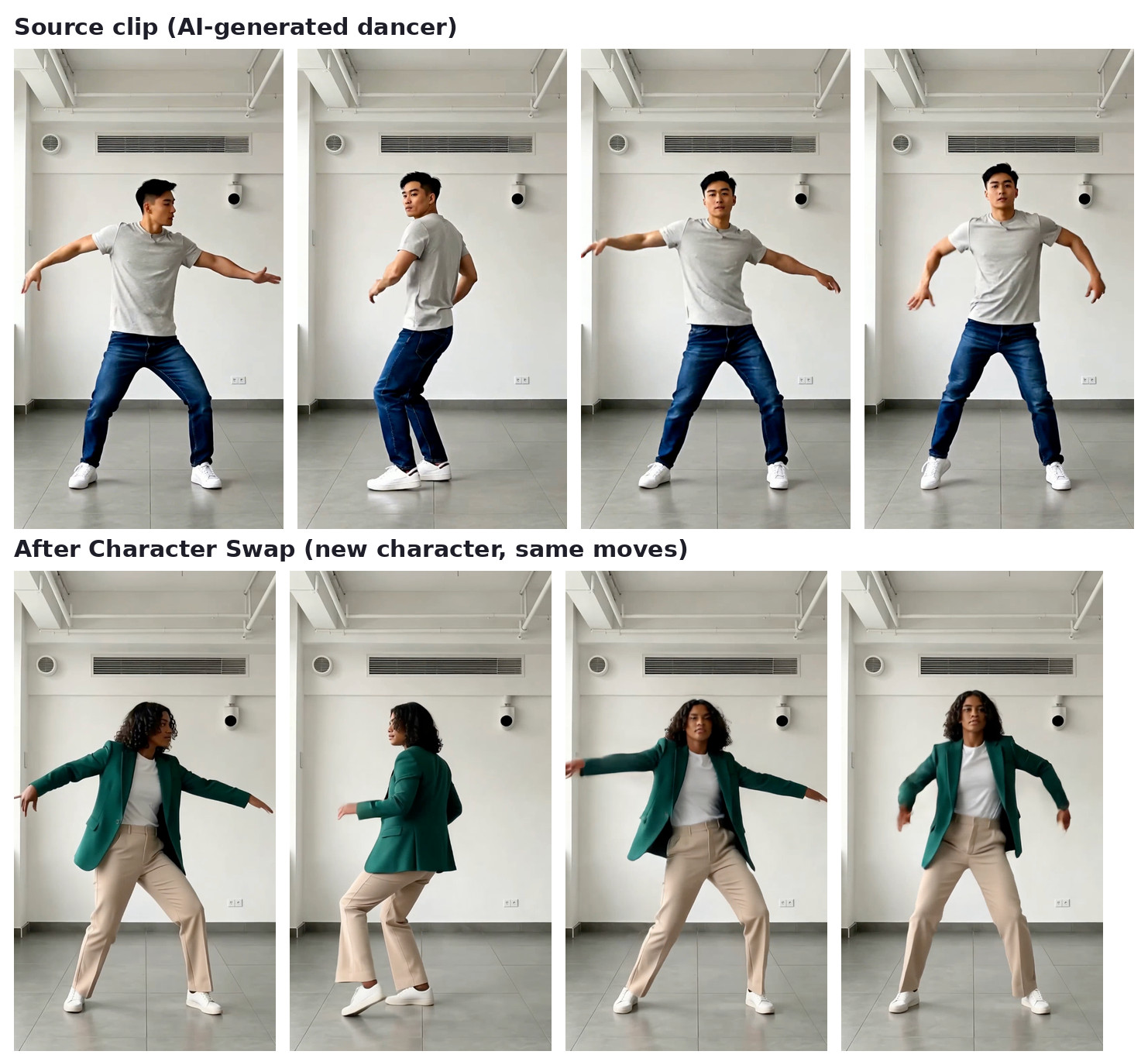
The new character kept the dancer's moves and timing, and her face, hair and outfit came from my photo. The studio, the lighting and the camera framing all stayed exactly as they were, which is the main reason to pick Character Swap over Motion Swap. It was a clear success and the cost was 2.5 credits for the 5-second clip.
So the honest summary is that Character Swap can produce a full swap, but the result depends heavily on how well your clip and your character photo match. I would budget for two or three tries on any important clip.
Motion Swap: when you want the moves, not the face
Motion Swap flips the question. Instead of replacing a person in a video, you give it a video that has the moves you want and a character photo, and the character performs those moves. It is the right tool for dance clips, gestures and any action where the motion matters more than the original person.
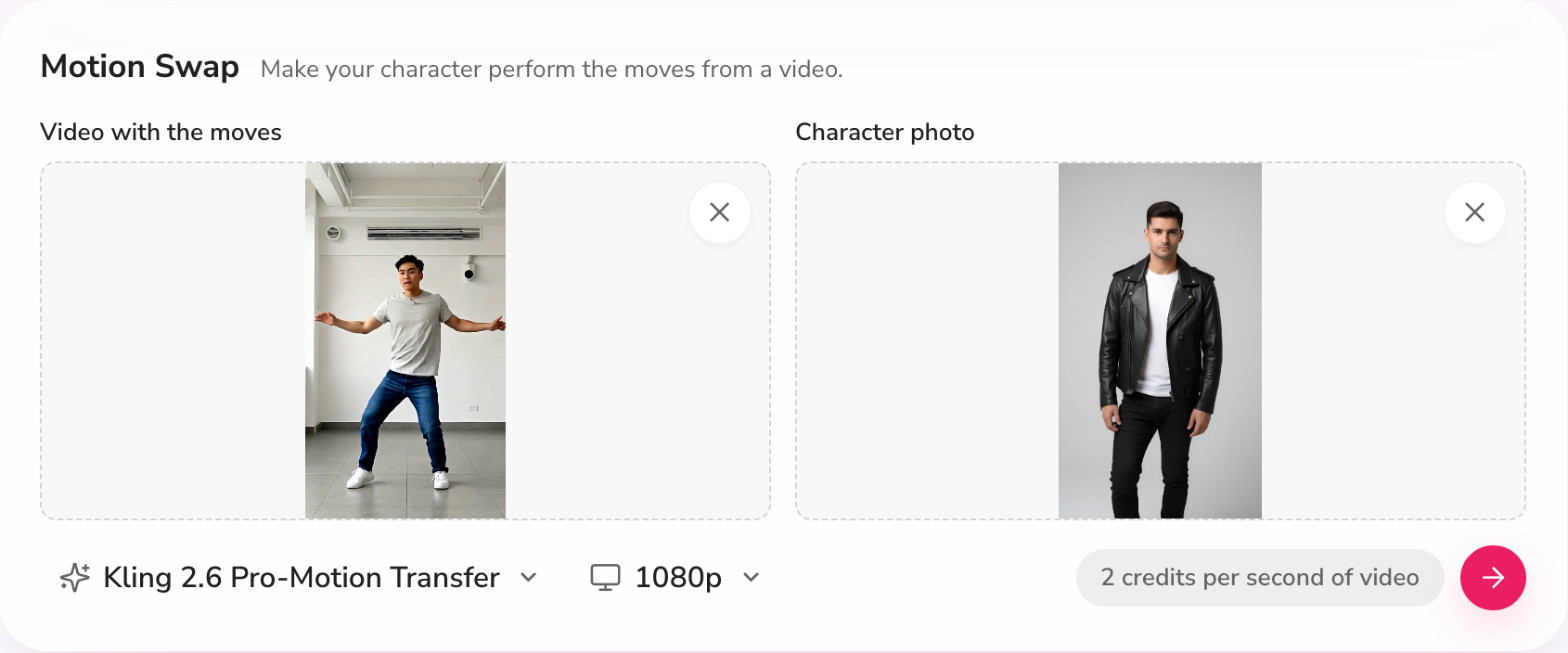
It uses Kling 2.6 Pro-Motion Transfer at 1080p and costs 2 credits per second, so my 5-second clip cost 10 credits. It was the slowest tab, at around three and a half minutes. Here is what came out.
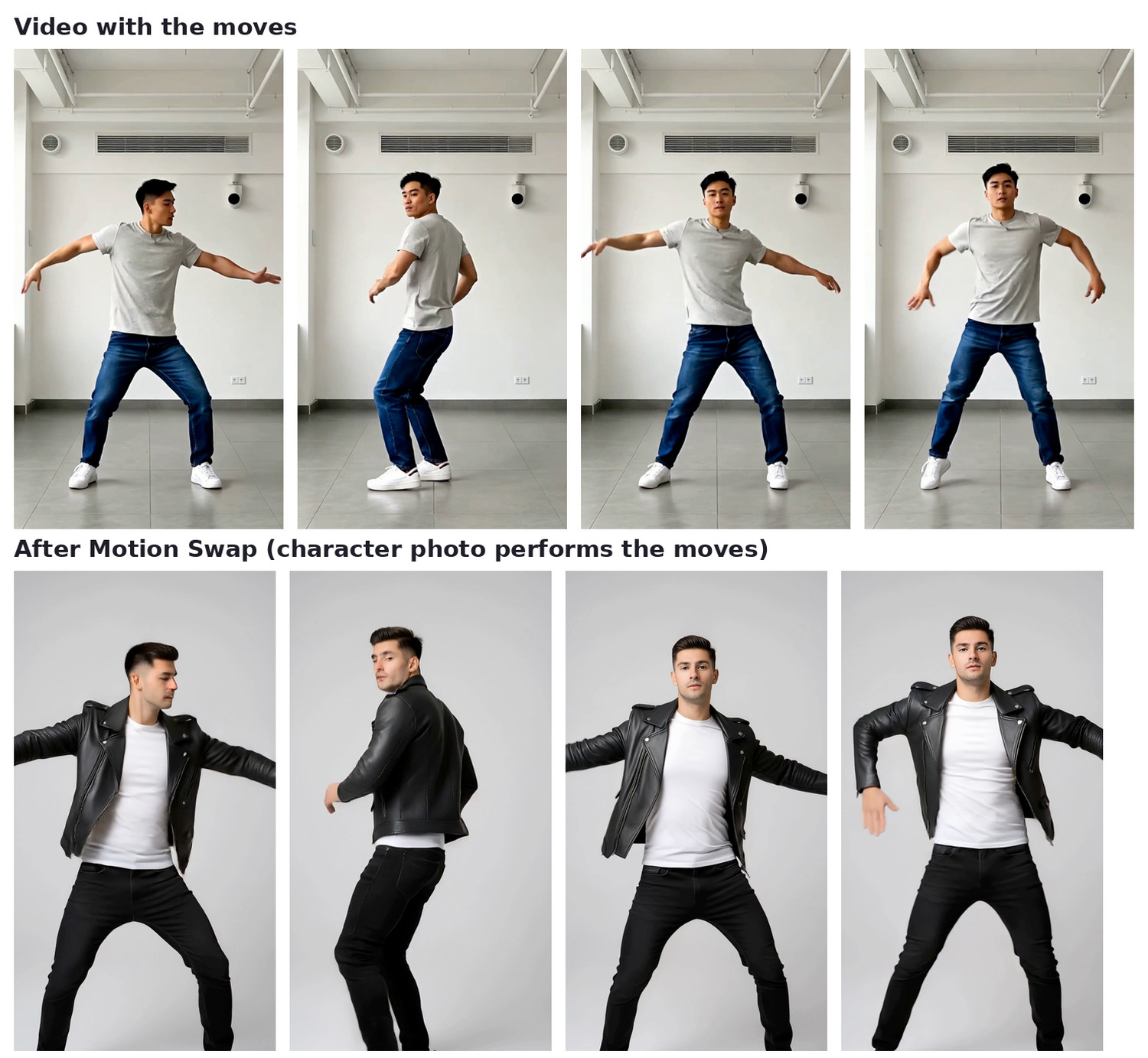
The motion transferred well, including the turn and the wide stance in the final frame. The character's jacket and face stayed consistent through the clip. If you are choosing between Character Swap and Motion Swap for a face swap video, a simple rule works: use Character Swap when you want to keep the original scene and timing, and Motion Swap when you want a clean, consistent character performing the moves in a new setting.
A repeatable workflow for a face swap video
If you are putting this together from scratch, here is the process I would follow now that I have run all six tabs.
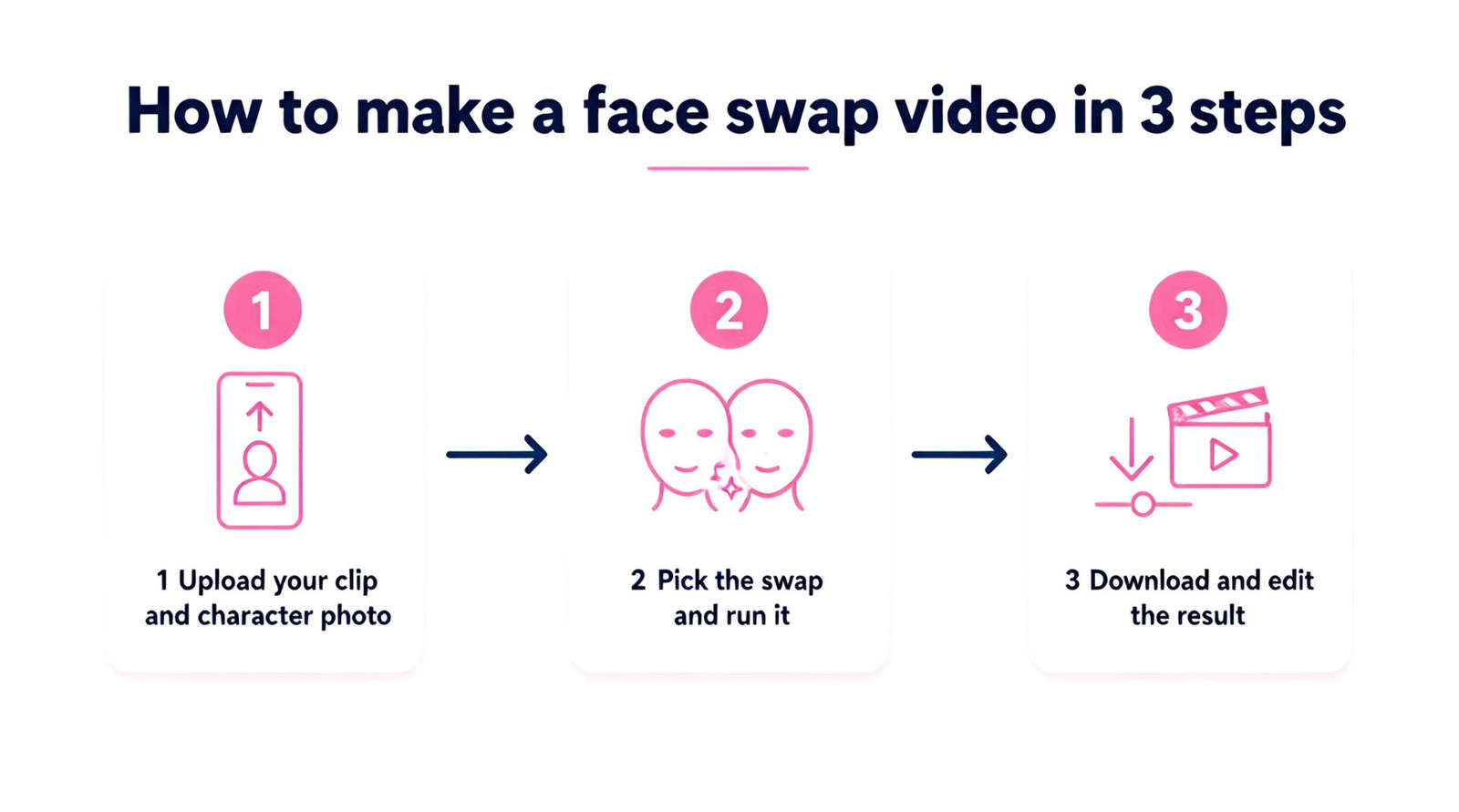
Generate or choose your character photo. If you do not have one, create it in the AI avatar tools or with an image model in Fliki.
Test the face on a still first. A 1.5-credit Face Swap or Head Swap tells you quickly whether the face will hold up, before you spend more on video.
Run Character Swap or Motion Swap on a short clip, 3 to 5 seconds, and judge the result before doing a longer one.
Download the result and edit it. You can drop it into a bigger video, add voiceover and captions, and use the AI lip sync generator if you want your character to talk.
For the editing side, my guide on how to make AI videos walks through the full pipeline, and the post on making an AI twin is useful if you want a consistent version of yourself across videos.
Troubleshooting: why a swap did not work
These are the problems I ran into, or that came up while I was testing, along with the fixes I would try first.
Problem | Likely cause | What to try |
|---|---|---|
Outfit changed but the face did not | Clip and character photo are too different in framing | Use a character photo with a larger, sharper face and similar framing to the clip |
Face looks pasted on | Lighting mismatch between the two photos | Choose a reference face shot in similar light, front-facing |
Result changes the background | Motion Swap builds a new scene around your character photo | Use Character Swap if you need to keep the original scene, or pick a character photo with the background you want |
Hair looks wrong after a face swap | Face Swap keeps the original hair | Use Head Swap or follow up with Hair Swap |
Clip rejected | Video length outside 3 to 10 seconds, or more than one person | Trim the clip and use one clear person |
Consent, disclosure and the rules that apply
A face swap tool is only as good as how you use it. The rule I follow, and the one I would recommend to anyone, is simple: only swap in faces you created, own, or have clear permission to use, and tell your audience when content is synthetic. That is why every example in this guide uses AI-generated people.
The rules around this are moving quickly, so treat the following as a starting point and not legal advice. The EU AI Act’s Article 50 says anyone publishing realistic AI-made or AI-edited video, audio or images must make clear the content is synthetic. Evidently artistic or fictional works get a lighter, non-intrusive version of that duty. The text of Article 50 is worth reading in full, and the page lists 2 August 2026 as the application date, though you should check the current status of any amendments before relying on it.
In the United States, the TAKE IT DOWN Act of 2025 targets non-consensual intimate imagery, including AI-generated imagery, and puts removal duties on platforms. I could not load the bill page while writing this, so please read the bill record on Congress.gov yourself for the exact duties and dates.
Platforms have their own rules too. YouTube asks creators to disclose realistic altered or synthetic content through the "AI use" setting when uploading, for example when a real person appears to say or do something they did not. Minor edits and clearly unrealistic content are exceptions. The details are in the YouTube help page on disclosing altered or synthetic content. If you want a technical way to mark your own content, look at the provenance standard from the C2PA.
What can you use these swaps for?
The legitimate uses are broader than the headlines suggest. In my own testing, these are the ones that felt practical.
Marketing teams can keep one consistent AI character across dozens of ad variations by swapping the character into different clips, instead of reshooting. Creators can try different looks for a character in minutes with Hair Swap and Clothing before committing to a video. Teachers and trainers can build a recurring on-screen presenter and place that person in different scenes. And small brands can test product-in-outfit ideas with the Clothing tab at half a credit a try before booking a photoshoot.
If you are comparing tools for this kind of work, my post on HeyGen vs Higgsfield vs Fliki compares them on features and pricing, and the Fliki pricing page shows the current plans and credit allowances.
How much does an AI face swap video cost?
On the Fliki side, the costs are easy to estimate from the numbers in the app. A single photo swap is 1.5 credits for Face, Head and Hair, and 0.5 for Clothing. A 5-second Character Swap is 2.5 credits and a 5-second Motion Swap is 10 credits. My testing for this guide, including the AI-generated inputs, came to a few dozen credits in total.
Plan allowances and prices change, so check the pricing page before you decide, and do not rely on any figure in a blog post, including this one, for competitor pricing.
The bottom line
Fliki's Swap Studio is not a one-click face swap for video, and I think that is the honest way to describe it. It is a set of six tools, three of which (Face, Head, Hair) and one more (Clothing) work on photos, and two of which (Character and Motion) work on video. Character Swap gave me a partial swap on my first try and a clean full swap on my second, and Motion Swap gave a strong result at a higher cost.
If you want to try it, start with a 1.5-credit Face Swap to test your face photo, move to a 3 to 5 second Character Swap, and only then commit to anything longer. You can open Swap Studio in the Fliki app and run your first swap in a few minutes.
Written by Shivam Aggarwal, who works on content and marketing at Fliki. All tests were run in the Fliki app in October 2026 using AI-generated people, and the credit costs, timings and tab features were current as of October 2026. Verify current pricing and policies before you rely on them.
FAQs
Open Fliki's Swap Studio and choose Character Swap. Upload a 3 to 10 second clip with one clear person and a full-body photo of your character, then run it. It costs 0.5 credits per second and takes a couple of minutes. For photos only, use the Face Swap tab instead.
Free options exist, but they usually add watermarks, limit resolution or cap clip length. Fliki shows the credit cost next to every Swap Studio run, for example 0.5 credits per second for Character Swap, so check the current plan allowances on the pricing page before you start.
Character Swap replaces the person in your video with your character and keeps the original scene and motion. Motion Swap takes a video with moves and makes your character photo perform them in a new scene. Character Swap costs 0.5 credits per second and Motion Swap 2.
Yes, you need a photo of the person to swap in and a short video of the person to replace. In Fliki you add both to Character Swap. A photo-only face swap is a separate tab and produces a still image, not a video.
It depends on whose face you use and how you publish it. Use faces you created, own or have clear permission for, and disclose synthetic content. Rules such as EU AI Act Article 50 and platform policies on YouTube apply. This is not legal advice, so check the rules where you publish.
In my tests a photo face swap took about 15 seconds and a head swap about 30 seconds. A 5 second Character Swap took roughly one and a half to two minutes, and a 5 second Motion Swap around three and a half minutes. Times will vary with demand.