Introduction
An AI b-roll generator reads your script or transcript, finds the moments that need a visual, and fills them with stock footage or clips generated from a text prompt, usually placed on the timeline for you. The best one depends on where your video starts: a script, raw footage, or a long recording you are cutting into shorts.
That last detail matters more than most roundups admit. A tool that is brilliant at turning a podcast into shorts can be clumsy at building a faceless explainer from a blank page, and the reverse is true too. So instead of one winner for everyone, this guide ranks ten tools for the job most readers actually have, then tells you plainly where a competitor beats Fliki.
I work on content and marketing at Fliki, so you should weigh my ranking with that in mind. I have tried to make it checkable: every price and capability below comes from the vendor's own pages or help docs as of October 2026, and I flag the places where those pages disagree with each other.

What AI B-Roll Actually Is (and What It Is Not)
B-roll is the supporting footage you cut away to while the main story continues. No Film School defines a-roll as the main footage that tells the primary story, and b-roll as the supplemental footage that supports it. In a talking-head video, a-roll is you speaking to camera. In a faceless video, the narration is the a-roll and everything you see is b-roll.
AI changed two things about it. First, tools can now pick b-roll for you by reading the transcript, so the hours of scrubbing a stock library shrink to a review pass. Second, you no longer have to settle for whatever a library happens to contain, because several tools can generate a clip from a prompt. Those two ideas are independent, and the tools below mix them differently: some only match stock, some only generate, and some do both.
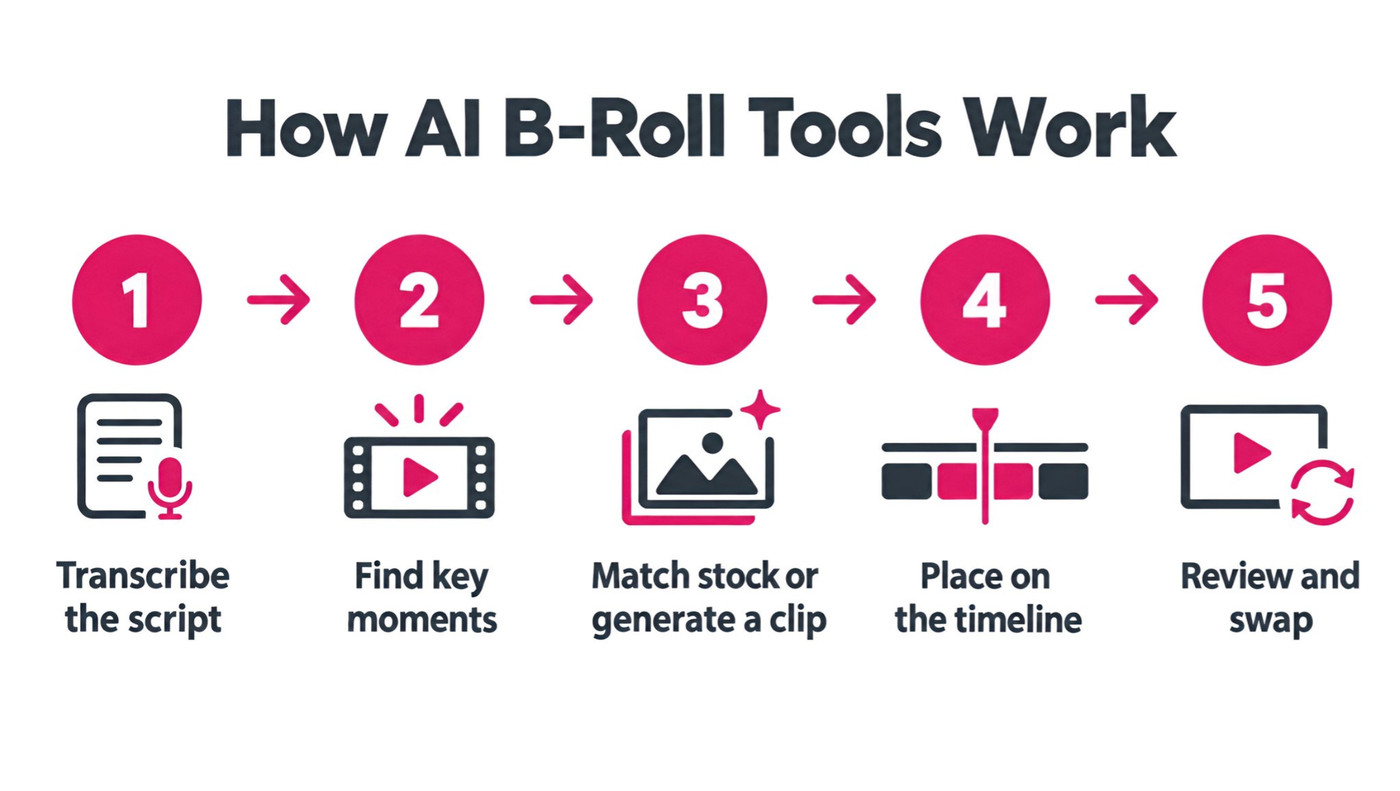
Under the hood the workflow is the same almost everywhere. The tool transcribes the audio, decides which lines deserve a visual, fetches or generates a clip, drops it on the timeline, and leaves you to swap anything that misses. The quality gap between tools mostly comes from steps three and five: how good the footage is, and how painless it is to replace a bad match.
How I Evaluated These Tools
I started with what already ranks. The top results for this keyword are mostly the vendors' own tool pages, plus a few roundups that rarely say how they tested anything, and several of those pages quote retention or time-saving numbers without a source. I left those numbers out of this article.
Then I checked each tool against five questions. Does it place b-roll automatically, or only give you a library? Is the footage stock, generated, or both? What does the plan that includes it actually cost, and what are the free-plan limits? Does the vendor say anything about commercial use? And what does it do badly?
One honest limit: I did not run the same script through all ten tools. This is a comparison built from vendor pricing pages, product pages and help documentation, which I read in October 2026, plus my own test of AI-generated b-roll frames in Fliki, shown later. Where a vendor's pages contradict each other, I say so instead of picking a number.
Quick Picks
-
Best for faceless videos built from a script: Fliki.
-
Best all-in-one browser editor: Kapwing.
-
Best for turning long recordings into shorts: OpusClip.
-
Best for captions plus stock b-roll in one pass: Submagic.
-
Best for podcast and interview editing: Descript.
-
Best for YouTubers cutting raw footage: Gling.
-
Best for custom cinematic shots: Runway.
The 10 Best AI B-Roll Generators
1. Fliki: Best for Faceless Videos Built From a Script
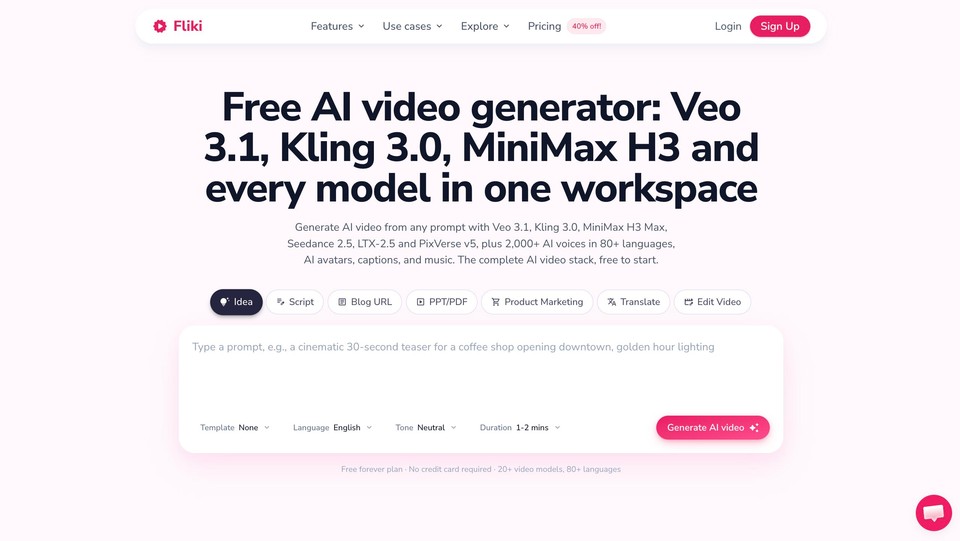
Fliki's approach is to start from the words. You paste a script, blog post or idea, and the editor pairs each scene with footage, either from its stock library or from AI-generated clips, while it also builds the voiceover and captions. Its product pages describe the editor as reading the transcript to pair scenes with stock and generating fresh AI b-roll on request, and you can animate a still into a clip with image-to-video, which Fliki's AI video generator page lists at up to 20 seconds per clip, chainable into longer videos.
The models behind the AI clips are a real strength. Fliki's pages list Veo 3.1, Kling 3.0 Pro, MiniMax H3 Max, Seedance 2.5, LTX-2.5, PixVerse v5 and others, so you can try a different engine when one gives you a rubbery result. That matters because every generator has shots it handles badly, and having several in one workspace beats subscribing to them separately.
Pricing (billed monthly, per the live pricing page): Free with 3 credits a month, 720p export and a watermark. Standard is $28 a month ($21 a month billed yearly) with 180 credits and commercial rights listed. Premium is $88 a month ($66 a month billed yearly) with 600 credits, and it is the plan that lists AI video clip generation. Stock footage works on the lower tiers, which is worth knowing if you only need stock matching.
Pros: script to finished video in one place, both stock and generated footage, several video models, voiceover and captions included. Cons: AI video clips sit on the top plan and draw on credits, the stock library's sources and licence terms are not spelled out on the pages I read, and creators who mainly repurpose long recordings into shorts will find the specialists below go deeper on that job.
Why it ranks first: if your video starts as text, no other tool here covers script, voice, stock, generated clips and captions without leaving the editor. If your video starts as raw footage, start at number 2 or 3 instead.
You can try it through the script to video or text to video workflows, and the video editor is where you swap or retime any clip.
2. Kapwing: Best All-in-One Browser Editor
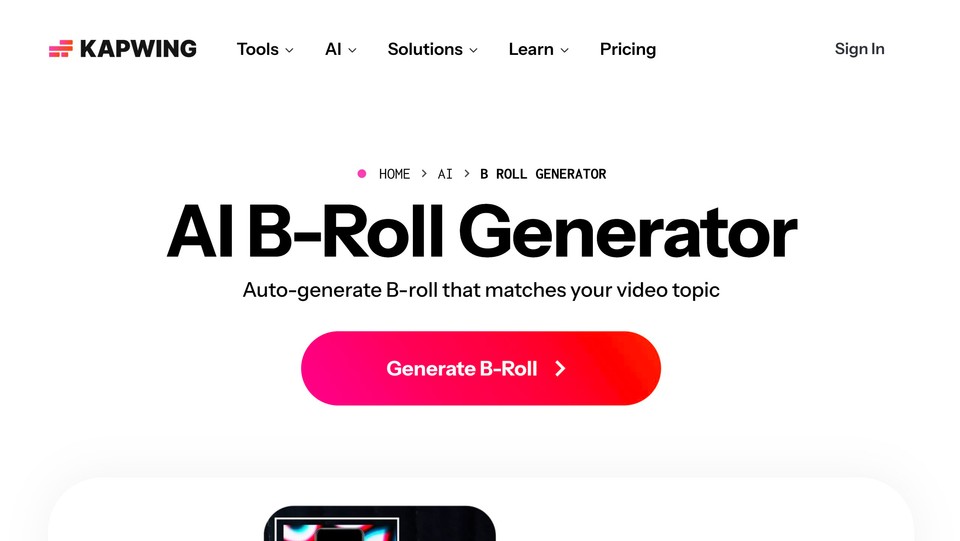
Kapwing's Smart B-roll reads your transcript and places clips synced to the narration. According to its b-roll generator page, stock comes from iStock, Pexels and Pixabay, and generated clips come from MiniMax, Veo and Seedance models alongside images. It needs speech in the project to work, and you find it in the Images tab.
Pricing: the pricing page lists Free with 10 credits, a watermark, 720p and a 4-minute export limit. Pro is $16 a month with 1,000 credits, no watermark and 4K, and Business is $50 a month with 4,000 credits. The page does not say which plan unlocks b-roll, though the b-roll page recommends Pro.
Pros: both stock and generated footage, a full timeline editor around it, a usable free tier for testing. Cons: generated clips consume credits, and licence terms are not stated on the b-roll page, so read the terms before commercial use.
3. OpusClip: Best for Turning Long Videos Into Shorts
OpusClip is built for repurposing, and its b-roll feature fits that: it analyses the clip, inserts b-roll automatically, and lets you move, trim or regenerate each insert. Its help documentation describes two modes. AI image b-roll is generated from a prompt, and stock video comes from Pexels for now, with Storyblocks and Getty listed as planned.
Pricing: the pricing page lists Free with 60 credits and a watermark, but no AI b-roll. Starter is $15 a month with limited b-roll, and Pro is $29 a month, or $174 a year, with unlimited stock and AI video b-roll. One flag: the pricing page and help doc word the Starter cap differently, "per month" in one place and "per day" in the other, so confirm before you buy.
Pros: automatic placement inside a repurposing workflow, both modes, free regeneration per its help doc. Cons: on lower tiers the AI b-roll is still images rather than video, and stock currently means one library.
4. Submagic: Best for Captions and Stock B-Roll Together
Submagic's Magic B-rolls inserts clips based on the transcript, and it uses stock footage rather than generating anything. Placement is automatic and editable. Its pricing page lists Starter at $19 a month ($12 a month yearly), Pro at $39 ($23 yearly) with Storyblocks b-rolls, and Business at $69 ($41 yearly). There is no free plan listed, only a trial.
Pros: fast for short-form creators who want styled captions and b-roll in a single pass. Cons: stock only, so unusual topics may get generic matches, and Storyblocks footage sits on higher tiers. The popularity and accuracy figures on its site are vendor-stated, and I did not rely on them.
5. Descript: Best for Podcasts and Interviews
Descript lets you generate visuals from scratch or reimagine your own clips, and it includes a stock library, as its generative b-roll page describes. I could not confirm automatic placement, so treat it as a generate-then-place tool where you control timing by hand, which suits editors who already cut by transcript.
Pricing: Hobbyist is listed at $16 or $24 a month and Creator at $24 or $35, depending on billing cycle, with the Creator plan listing an unlimited royalty-free stock library and the latest AI video models. The page does not label which figure is annual, so check live. Cons: more manual than the auto-placement tools above.
6. Gling: Best for YouTubers Cutting Raw Footage
Gling's core job is removing silences and filler words from raw YouTube recordings, and b-roll is a side feature. Per its b-roll page it generates the clips rather than matching stock, and the pricing page lists AI b-roll on every tier including Free. Plus is $20 a month, or $10 a month yearly.
Pros: cheap, and it fits a workflow you may already use. Cons: generated only, with no documented stock matching or auto-placement, and licence terms are not stated.
7. Captions (by Mirage): Best for Mobile-First Creators
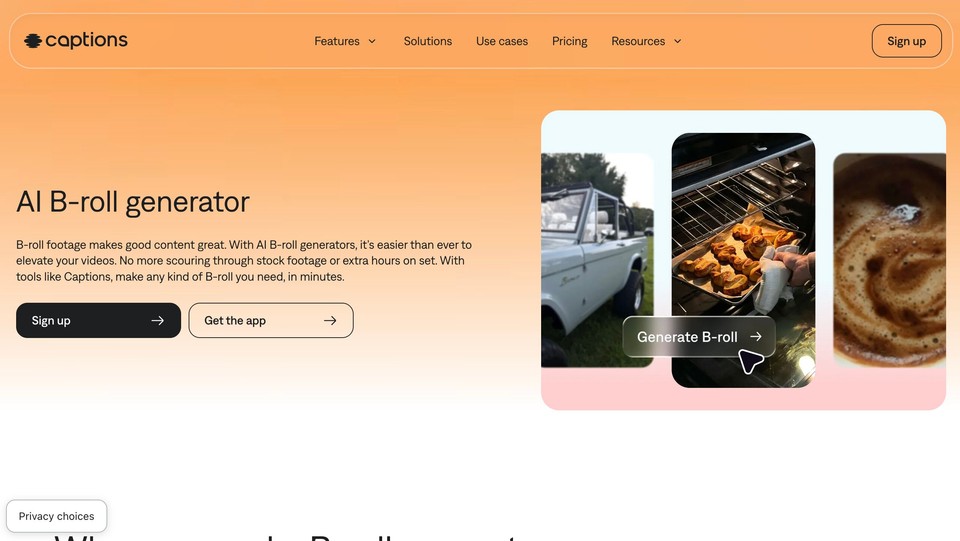
The company behind Captions rebranded to Mirage in September 2025, but the Captions app continues. Its b-roll page says you describe a clip instead of searching a library, though it does not clearly separate stock from generated footage. The iOS plans on its pricing page list Max at $24.99 a month with 500 credits including generative b-roll.
Cons: the pricing page showed iOS plans only, free-tier watermark and export limits were not stated, and the stock-versus-generated line is blurry. Good for phone-first creators, harder to evaluate for everyone else.
8. VEED: Best If You Already Edit in VEED
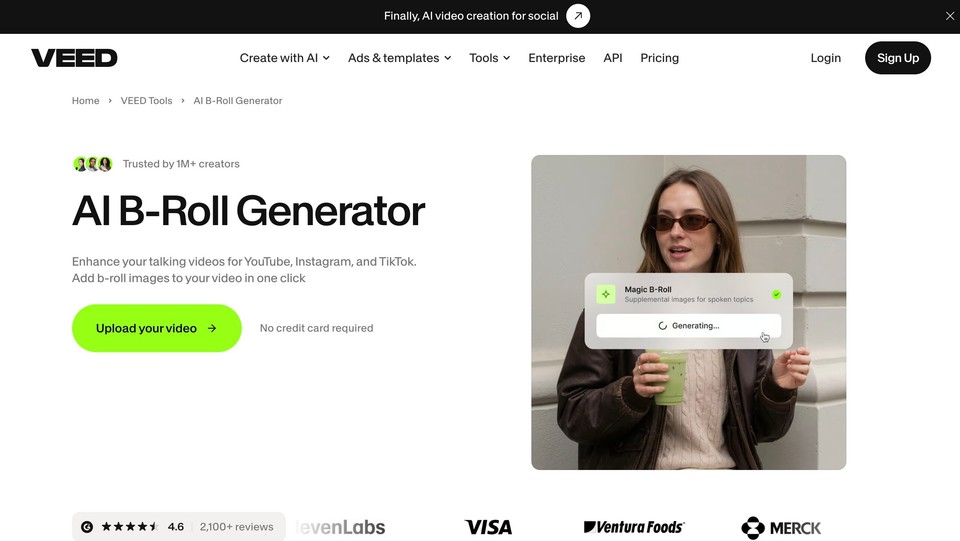
VEED's AI b-roll generator transcribes the speech and generates custom still images, placing them on the timeline with animation on by default. Its help article says Free and Lite plans get one use while Pro is unlimited. It does not generate stock video, so expect animated stills rather than moving footage. I could not read plan prices from VEED's pricing page, so check it directly.
9. Runway: Best for Custom Cinematic Shots
Runway is not an auto-placement tool. It is where you go when you need a specific generated shot that no stock library has. Its pricing page lists Standard at $15 a month ($12 yearly) with 625 credits, and Gen-4.5 at 60 credits per 5-second clip, which works out to roughly ten clips a month on Standard. Its usage-rights help article says what you create is yours to use without non-commercial restrictions from Runway, on every plan including Free.
Pros: the most control over how a shot looks. Cons: credits go fast, and you place every clip yourself.
10. Adobe Firefly: Best for Designers Already in Adobe
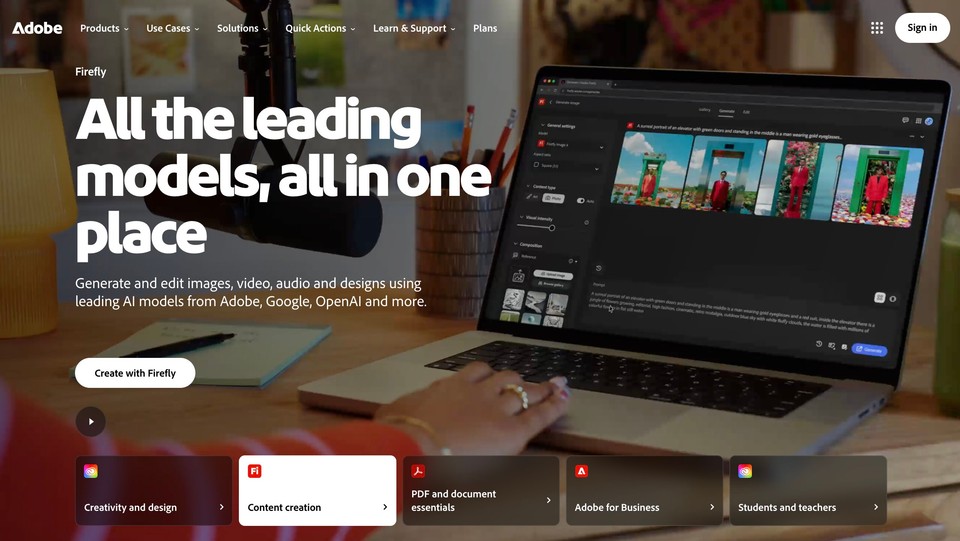
Firefly generates video from text or images, with no documented auto-placement in the pages I read. The plans page lists Standard at $9.99 a month with 2,000 credits, enough for up to twenty 5-second videos, and says outputs can be used commercially. The Firefly model is trained on licensed and public-domain content, which is its main pitch, but IP indemnification applies only to eligible enterprise customers, and partner-model outputs are your responsibility.
Honorable Mentions
BigVU's Auto B-Roll selects stock from your script and suits talking-head creators, with automatic b-rolls on its AI Pro plan at $19 a month. Vmaker places stock from Pixabay, Pexels, GIPHY and Getty, but its pricing pages contradict each other, so I left prices out. InVideo AI offers third-party video models from $20 a month. Storyblocks is the option when you want a conventional stock library with stronger licensing terms, with annual plans starting around $21 a month and an indemnification clause on its business tier.
Names I Left Out on Purpose
Sora appears on many older lists, but OpenAI discontinued the Sora web and app experience on April 26, 2026, per its help center notice. I also left out CapCut: its own b-roll guidance describes a manual stock library, and I could not verify an AI b-roll feature on its pages.
Comparison Table
|
Tool |
Footage type |
Auto-placed |
Starting paid price |
Best for |
|---|---|---|---|---|
|
Fliki |
Stock and AI clips |
Yes, per scene |
$28/mo (AI video clips on $88/mo Premium) |
Faceless videos from a script |
|
Kapwing |
Stock and AI clips |
Yes |
$16/mo Pro |
All-in-one browser editing |
|
OpusClip |
AI images, stock, AI video on Pro |
Yes |
$15/mo |
Repurposing long videos |
|
Submagic |
Stock |
Yes |
$19/mo |
Captions plus b-roll |
|
Descript |
AI clips and stock |
Not confirmed |
$16 to $24/mo |
Podcasts and interviews |
|
Gling |
AI clips |
Not documented |
$20/mo |
YouTube raw footage |
|
Captions |
Generative (type unclear) |
Not documented |
$24.99/mo (iOS) |
Mobile creators |
|
VEED |
AI stills, animated |
Yes |
Check VEED |
Existing VEED users |
|
Runway |
AI video |
No |
$15/mo |
Custom shots |
|
Adobe Firefly |
AI video |
No |
$9.99/mo |
Adobe users |
Pricing verified October 2026 from each vendor's own pages. Plans change often, so confirm before you buy.
Stock vs AI-Generated B-Roll: Which Should You Use?
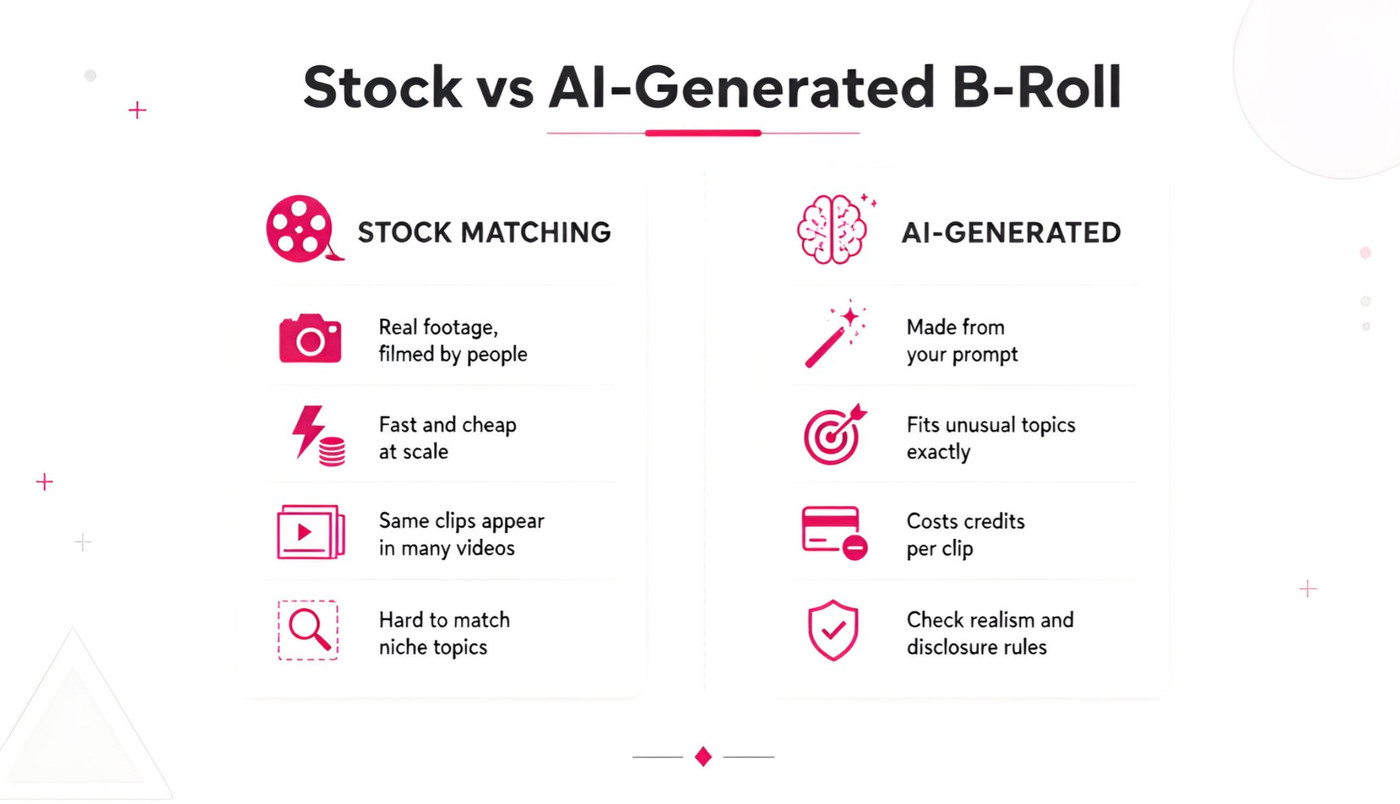
Most good workflows use both. Stock is fast, cheap at scale and filmed by real people, which is why it still wins for generic establishing shots like a city street, a laptop on a desk, or hands typing. The downside is sameness: the same popular clips appear in thousands of videos, and niche topics often return nothing useful.
Generated footage solves the niche problem. If your script is about small coffee roasters feeling a price spike, you can ask for exactly that image. The trade-offs are credits per clip, occasional visual glitches, and disclosure rules covered in the next section.
To see what the generated side looks like in practice, I took one script line, "Coffee prices are climbing and small roasters feel it first," and generated three b-roll frames with Z Image Turbo in the Fliki playground, one for each beat of the sentence. The model costs 0.05 credits an image, and the descriptions of the prompts were deliberately plain: a close-up, a human moment, a supply detail.

Two things stood out. Specific, physical prompts (beans pouring, steam rising, dust in backlight) produced frames I could drop into a video with no edits, while anything involving readable text would have needed a different model, since Z Image Turbo is described as weaker at text. The lesson holds for any tool: describe a concrete shot, not a concept, and use stills to storyboard before you spend credits on motion. Fliki's AI image generator is a cheap way to do exactly that.
Rights, Disclosure and Monetization
Three rules are worth knowing before you publish AI b-roll. First, the US Copyright Office's January 2025 report on copyrightability concluded that purely AI-generated material is not protected and that prompts alone do not give enough control to count as authorship. Practically, b-roll you generate is usable but not something you can easily stop others from copying, while your narration, edit and arrangement carry the human authorship.
Second, YouTube asks creators to disclose realistic content that was generated or meaningfully altered with AI, such as a realistic scene that never happened. Fantastical or obviously unrealistic visuals and minor edits do not need it, and disclosure alone does not limit monetization.
Third, monetization depends on originality more than on whether AI touched the footage. YouTube renamed its repetitious-content policy to inauthentic content in July 2025, and mass-produced videos built on generic templates without the creator's own insight are not eligible. A video that is only AI b-roll over a generic script is the risky shape; your own narration, opinions and structure are what keep it safe. Our guides on YouTube AI demonetization and whether AI-generated videos monetize go deeper.
How to Choose the Right Tool
Pick by where your video starts. If you begin with a script, article or idea, you want a tool that builds the whole video, which points to Fliki, with InVideo AI worth a look at similar price points. If you begin with a recording, you want automatic placement over your own footage, which points to OpusClip, Kapwing or Submagic. If you need one specific shot that does not exist anywhere, use Runway or Firefly and place it yourself.
Then check three practical things: whether the plan with b-roll also removes the watermark, whether the daily or monthly caps match your output, and what the licence says about commercial use. These are the details vendors bury, and they decide whether a cheap plan is actually cheap.
Common Mistakes With AI B-Roll
The first mistake is accepting every automatic match. Tools match keywords, not meaning, so a line about "growth" can return a plant time-lapse, and a quick review pass catches these in minutes. The second is cutting too often: b-roll should support a point, so let a shot breathe for a few seconds unless the pacing of the format demands otherwise.
The third is ignoring consistency. Mixing glossy generated clips with dated stock in the same video makes the edit feel stitched together, so pick a look and prompt toward it. The fourth is skipping the disclosure and licensing checks above, which cost nothing to do and can cost a channel a lot if ignored. For a wider walkthrough of building a video this way, see how to make AI videos, or compare engines in our list of the best AI video generators.
Bottom Line
For videos that start as text, Fliki is the most complete option on this list, because script, voice, stock, generated clips and captions live in one editor. For videos that start as footage, Kapwing, OpusClip and Submagic are better fits, and Runway or Firefly are the right call when you need one specific shot. Whichever you choose, treat the automatic placement as a first draft, review it, and check the licence. You can try Fliki's b-roll workflow free, and the pricing page shows what each plan includes.
Written by Shivam Aggarwal, who works on content and marketing at Fliki and tested AI-generated b-roll frames in Fliki for this guide. Pricing and features were current as of October 2026. Verify current pricing and licensing terms with each vendor before you rely on them.
FAQs
An AI b-roll generator reads your script or transcript, identifies the moments that need a visual, and fills them with stock footage or clips generated from a text prompt. Most tools place the footage on your timeline automatically, and you review or swap any shot that does not fit the point being made.
Several tools have free tiers, but they are limited. Kapwing and Fliki offer free plans with watermarks and low credit allowances, and Gling lists AI b-roll on its Free plan. OpusClip's free plan does not include AI b-roll. Expect to upgrade if you want watermark-free exports or regular use.
Generally yes, if you follow the rules. YouTube asks you to disclose realistic AI-generated scenes, and its inauthentic content policy targets mass-produced, templated videos. AI b-roll under your own original narration and insight is the safer pattern. Always check each tool's licence terms for commercial use.
Stock b-roll is real footage from a library, fast and cheap but often generic and repeated across many videos. AI-generated b-roll is created from your prompt, so it fits niche topics exactly, but it costs credits per clip and can contain visual glitches. Many creators mix both in one video.
For supporting visuals like establishing shots, objects and abstract concepts, often yes. For anything that depends on authenticity, such as real products, real people or real events, no. Audiences and platforms expect genuine footage there, and the US Copyright Office says purely AI-generated material is not protected by copyright.
For faceless videos that start from a script, an all-in-one tool like Fliki is a strong fit because it handles the voiceover, stock footage, generated clips and captions in one editor. If you start from existing recordings instead, Kapwing, OpusClip or Submagic place b-roll over your own footage.