Introduction
If you want to make a TikTok Shop video with AI, the honest answer has two halves. Yes, TikTok allows AI-assisted content, and tools like Fliki can turn a product page into a finished video in a few minutes. But TikTok's own seller rules say a shoppable video you post needs real footage of the real product, so a fully AI-generated clip is not the thing to upload to your Shop listing.
I work on content and marketing at Fliki, and I wanted to test that tension rather than gloss over it. Fliki recently added a Product video workflow, so I ran it on a real Amazon listing (a pair of noise-cancelling headphones), then read the TikTok Shop US Academy pages line by line to see what the output can and cannot be used for.
This guide covers what TikTok actually requires, how the Product video workflow works step by step, where it fits in a TikTok Shop routine, and where it does not. It is a fit guide, not a pitch: some of the best uses of the tool are off TikTok entirely.
What TikTok Shop actually requires from videos
The rules below come from the TikTok Shop US Academy, the seller-facing documentation at seller-us.tiktok.com, and I checked each page directly. They were current when I read them in October 2026, and TikTok updates these pages often, so re-read them before you build a workflow around any single line.
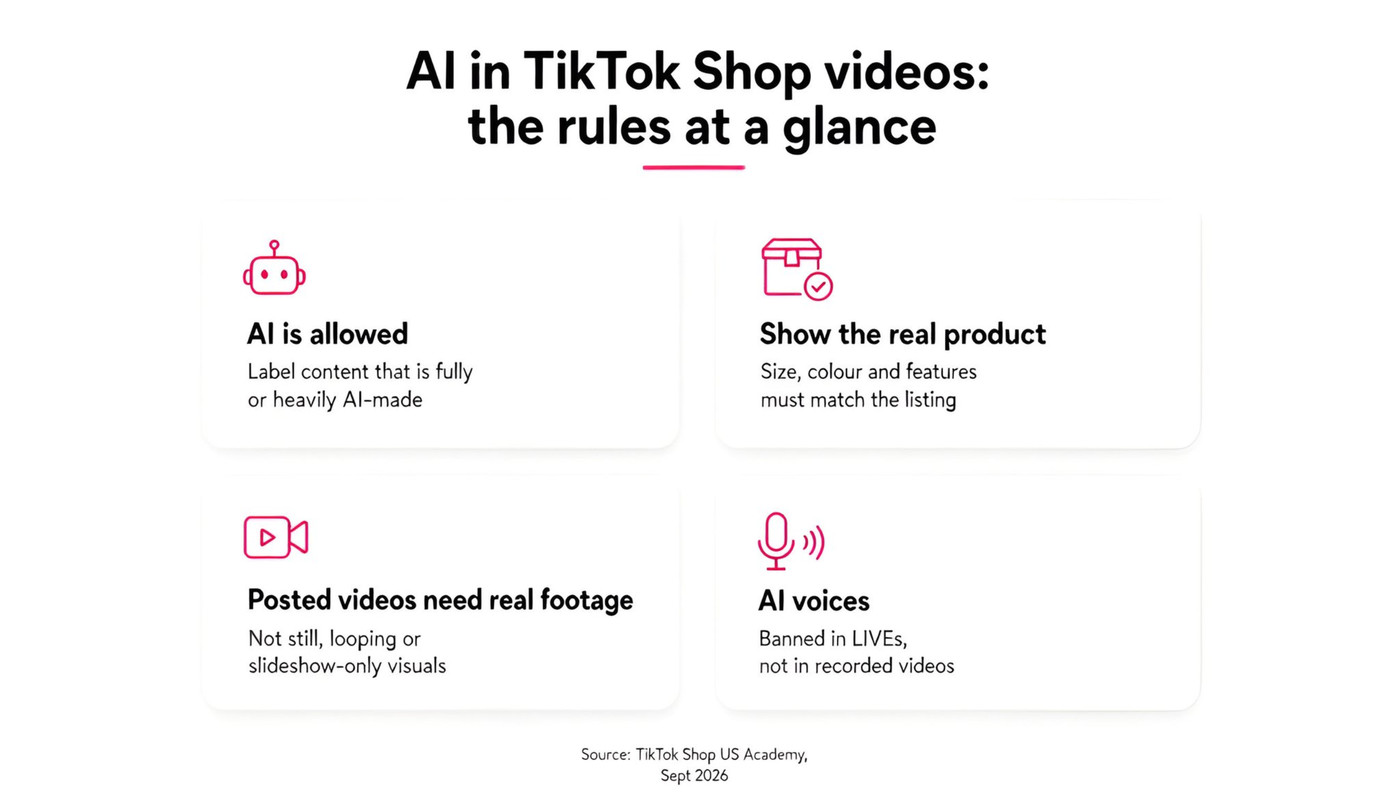
Four points matter for anyone using AI:
AI content is allowed, with a label. TikTok's AI content policy (dated September 2026 on the Academy) asks creators to label content that is fully or heavily AI-generated. Using AI as a tool is not what gets videos into trouble.
The video must show the real product. Size, colour and features have to match the listing. AI may not change how the product looks, turn a flat product into a fake 3D or rotating one, or add effects that misrepresent it.
Posted shoppable videos need real footage. The video requirements page (updated September 2026) asks for real camera movement, people and the physical product, and it rules out visuals that are still, looping or slideshow-only. A video built purely from stills with motion effects will fall short.
AI voices are banned in LIVEs, not in recorded videos. This is the most misunderstood line. The restriction on AI voices applies to live streams. A recorded video with an AI voiceover is a different case, subject to the footage and labelling rules above.
The practical reading: AI can write the script, produce the voiceover, build the structure and speed up editing, but the pictures that carry a TikTok Shop listing should come from your real product. That shapes how I would use Fliki, covered below.
What Fliki's Product video workflow does
Product video is a workflow inside Fliki that starts from a product page and produces an editable video, not a locked clip. You open it from the home screen under video workflows, where it sits next to Script to video, Explainer video and Blog to video.

There are two tabs, Informational and Promo, and they behave differently enough that it is worth choosing deliberately.
Informational: reviews, launches, promos and comparisons
The Informational tab is built around the facts of a product. You paste up to five product links: the product's own page first, then any reviews or rival products you want to compare. The form describes it as best for physical products with official product photos. You then pick a type (Review, Launch news, Promo or Comparison), a duration (30 seconds, 1, 2 or 3 minutes), a style, an aspect ratio (16:9 or 9:16), optional notes, whether to apply your brand kit, and a voice.
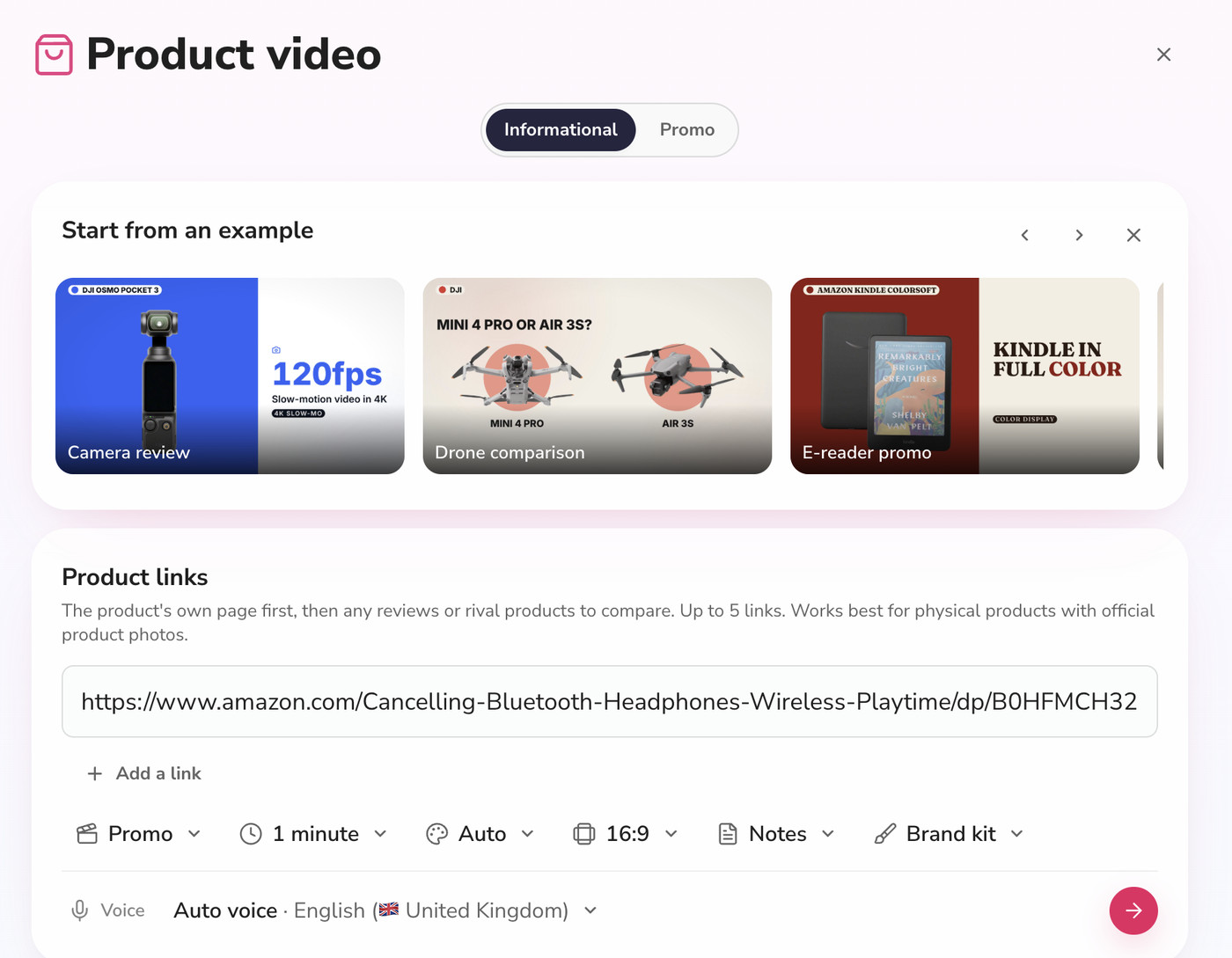
The style picker offers ten looks: Auto, Paper, Studio, Clean, Cobalt, Editorial, Pop, Glow, Pastel and Swiss. Auto picks the one that suits your product and tone, and it is a sensible default while you are learning what each does.
Promo: a short ad-style video with a visual direction
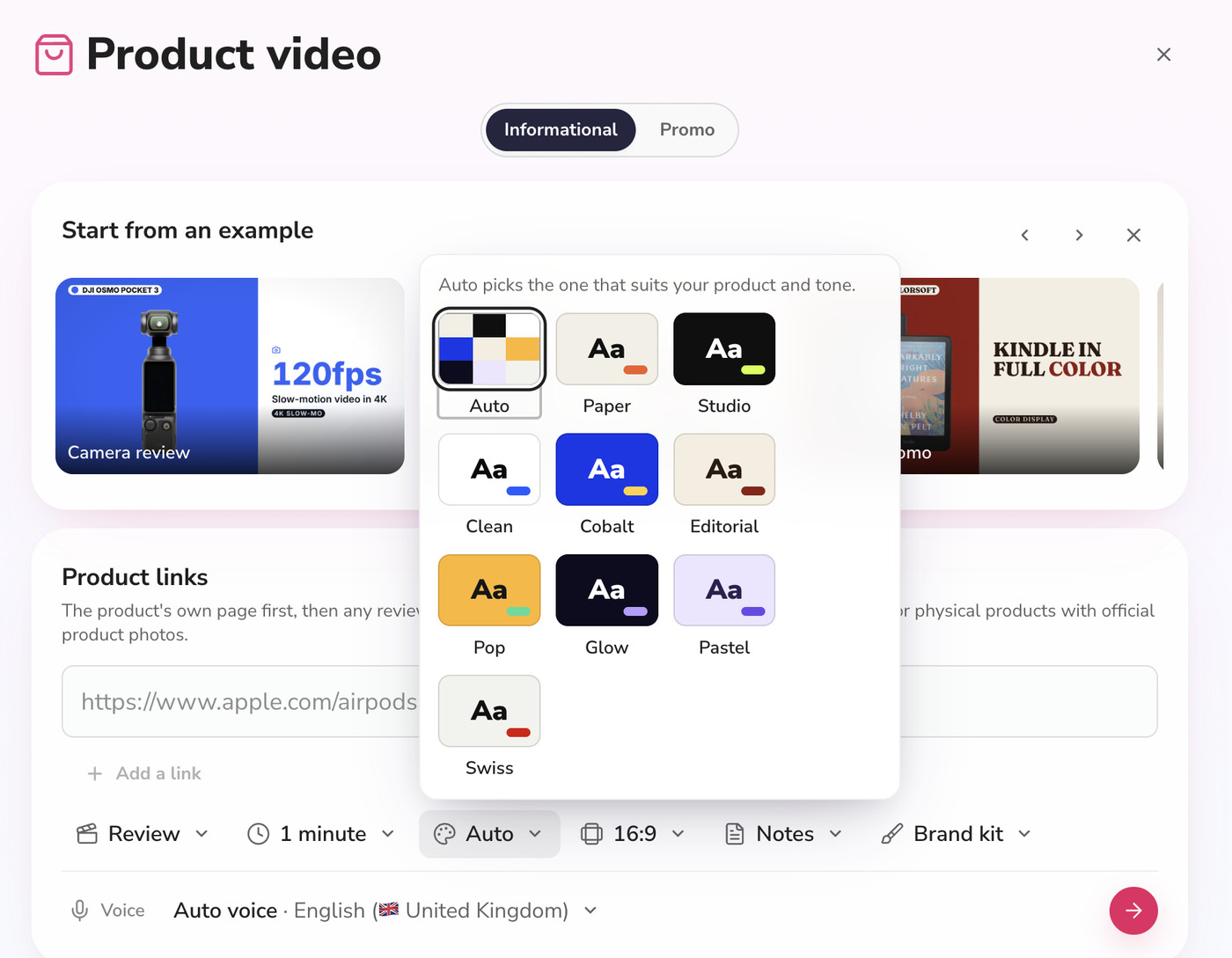
The Promo tab is aimed at a short, designed ad. You give a product link or upload product images, add a short brief (for example the feel you want and any colours), and choose a Look. The brief box is optional, so a link alone is enough to start.
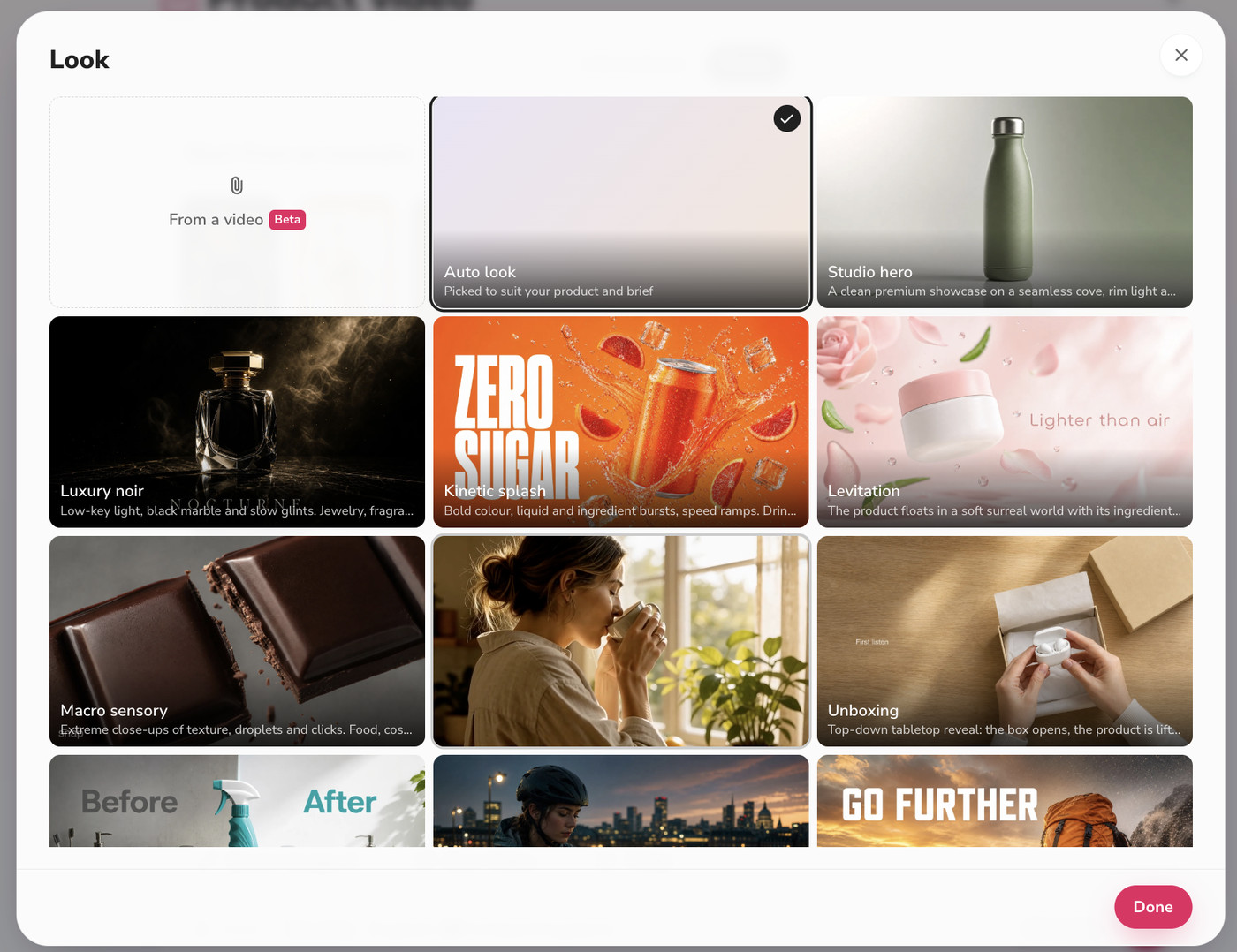
The Look picker is where this tab earns its keep. Options include Auto look, Studio hero, Luxury noir, Kinetic splash, Levitation, Macro sensory, Unboxing, Before/After and a Beta option that starts from a video you already have. Each one is a different visual treatment of the same product.
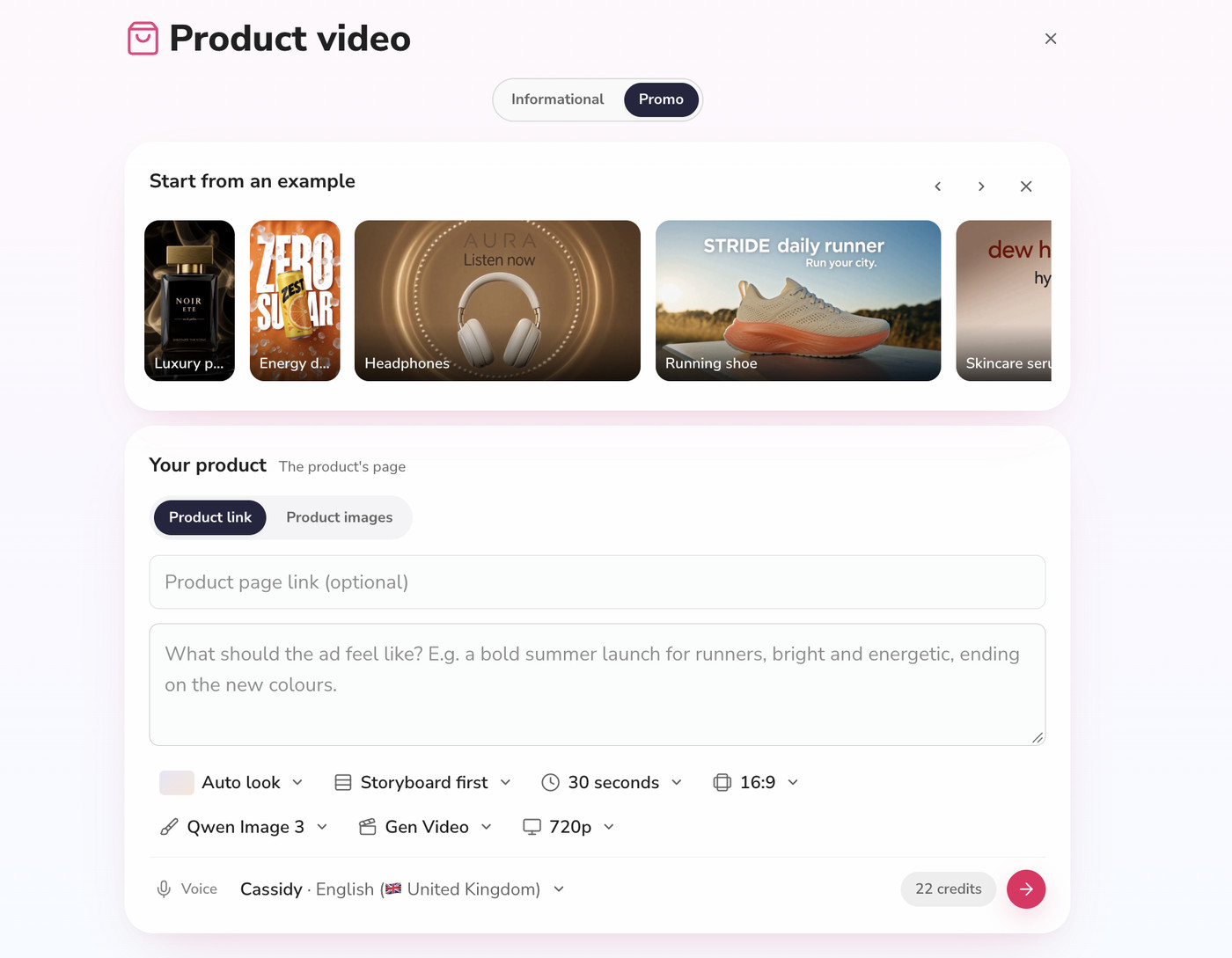
Under the brief you can also toggle Storyboard first, set the length (30 seconds in my run), choose the aspect ratio, pick an image model (I left it on Qwen Image 3), choose how scenes are animated (Gen Video) and set the resolution (720p). A credits indicator beside the send button showed 22 credits for the 30-second Promo setup I had configured. Credit costs change with the options you pick, so check the indicator before you press go rather than trusting a number from an article.
How I made a product video, step by step
For the test I used the Informational flow with a single Amazon listing for a pair of hybrid noise-cancelling Bluetooth headphones, a 1 minute setting, 16:9 and the Auto style. Here is the sequence.
Paste the product link. I added the Amazon listing URL as the first link. You can add up to five, but for a first run a single product page keeps the script focused.
Choose a type and length. I used Review. Launch news and Promo suit announcements and offers, and Comparison is for putting two products side by side.
Pick a style, ratio and voice. Auto style, 16:9 and the default English voice. For TikTok you would normally switch to 9:16, which I did not test in this run.
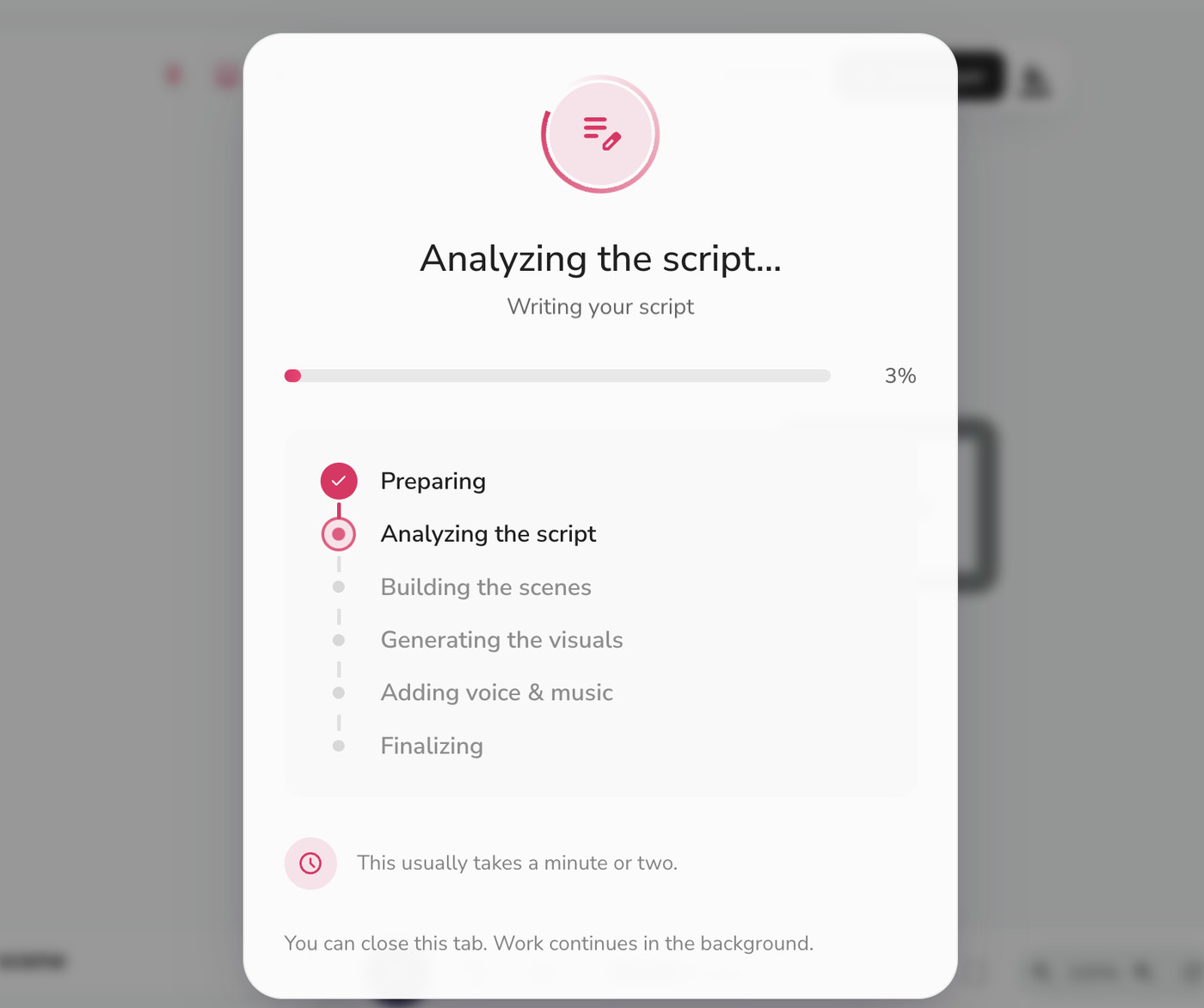
Send it and wait. A progress panel walks through preparing, analysing the script, building the scenes, generating visuals, adding voice and music, and finalising. It says it usually takes a minute or two, and that you can close the tab while work continues in the background.
Edit in the Fliki editor. The finished video opens in the editor with a Copilot panel and tabs for Script, Media, Character, Text, Subtitles, Audio, Layers and Settings.
What came out
The result was a 39-second video in 10 scenes, written from the listing's own claims. The script opened with a hook about quiet on a noisy commute, then moved through noise reduction, microphones, battery life, charging speed, comfort and the price, and closed by pointing viewers to the next video. The visuals used the cut-out product photo from the listing on a clean branded layout with on-screen stat callouts.
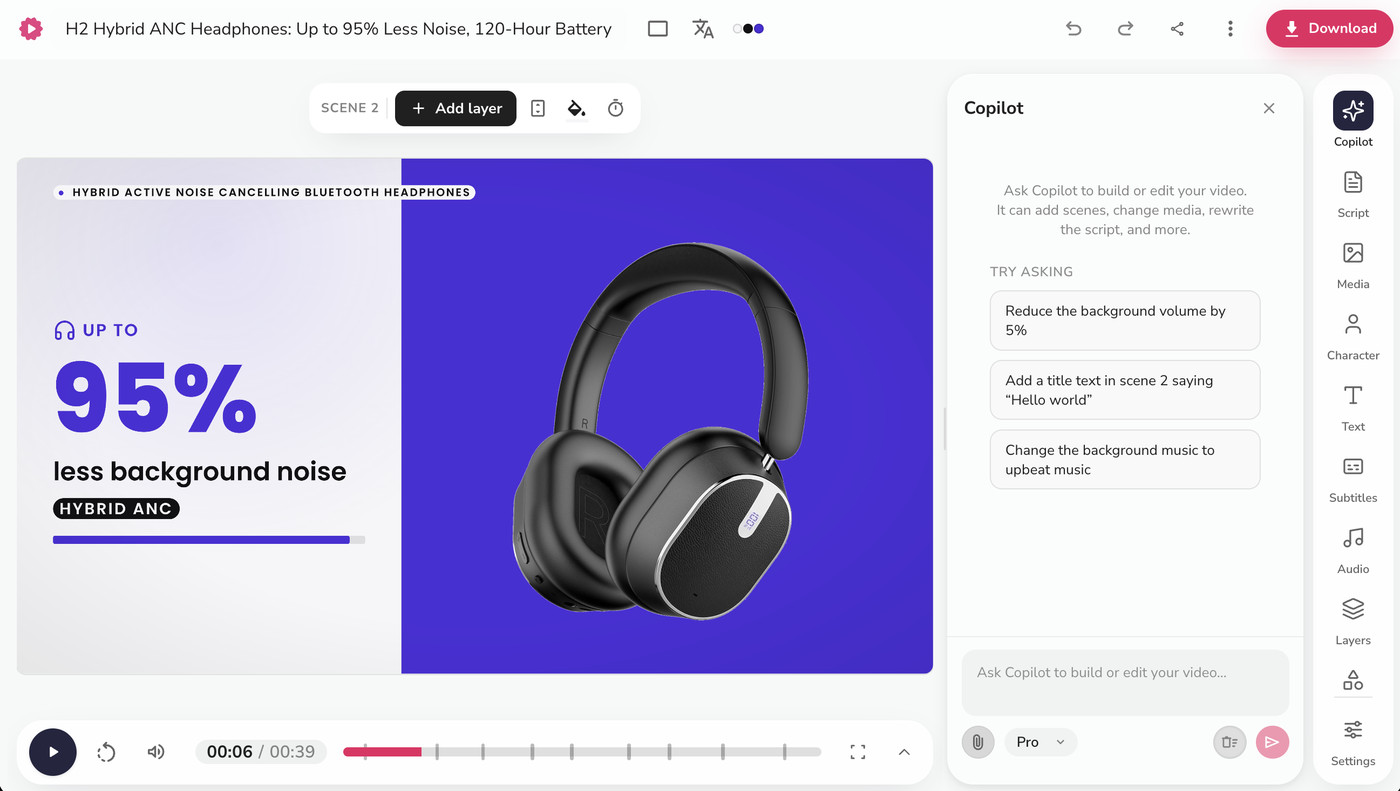
Two notes on quality. First, the content is only as accurate as the page you feed it, so I checked every spec in the script against the listing before treating it as final. Second, the visuals are built from the product photos on the page, which is helpful for explainers and review-style content but is exactly why this output is not a replacement for filmed footage on TikTok Shop.
Export
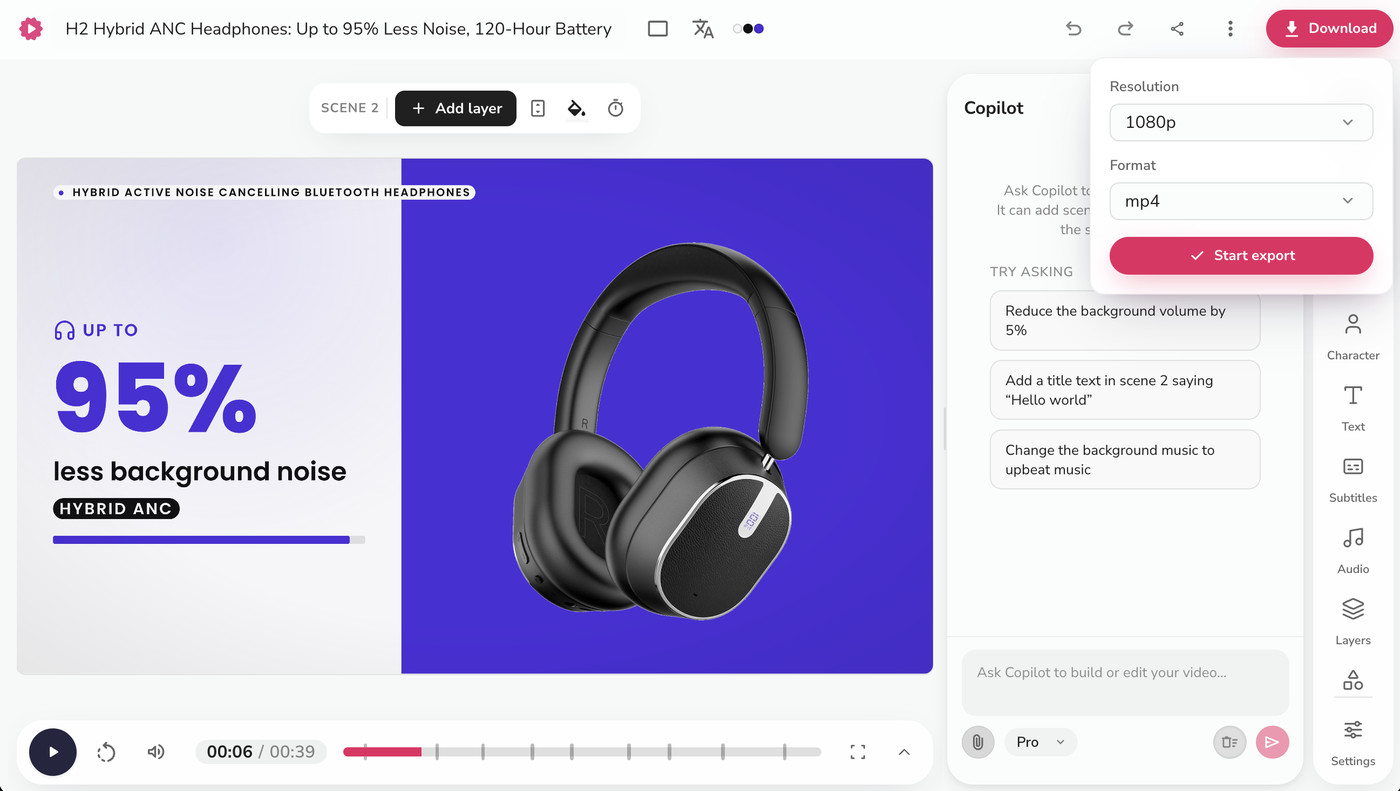
Exporting is a normal editor export. I used 1080p and mp4, then clicked Start export.
Where it fits in a TikTok Shop routine
Given the rules, here is how I would split the work between AI and real footage.
Use it for the parts TikTok does not require to be filmed. The script and hook, the voiceover on recorded videos, the captions and the video structure are all fair game. A Product video gives you a tested script outline in minutes, which is often the slowest part of making product content.
Use it for the channels around the Shop. A product explainer for your website or product page, a review-style video for YouTube, an email or Instagram asset, and a launch announcement all work well, because none of them are subject to TikTok's shoppable video footage rule. Our text to speech and auto caption generator cover the voice and captions on top. For ideas on this side, see our guide on product videos that boost ecommerce sales.
Use the Promo tab for ad concepts. If you run paid ads, an AI-generated look can be a fast way to test visual directions before you commission a shoot. Check TikTok's ads help center for the specifications and policies for the placement you plan to use, since paid ads have their own rules separate from organic Shop videos.
Blend it with real footage for the Shop itself. My recommended routine is a hybrid: film short clips of the real product, generate the structure and voiceover with Fliki, swap your own clips into the scenes, add captions and a hook, then label anything heavily AI-made before posting.
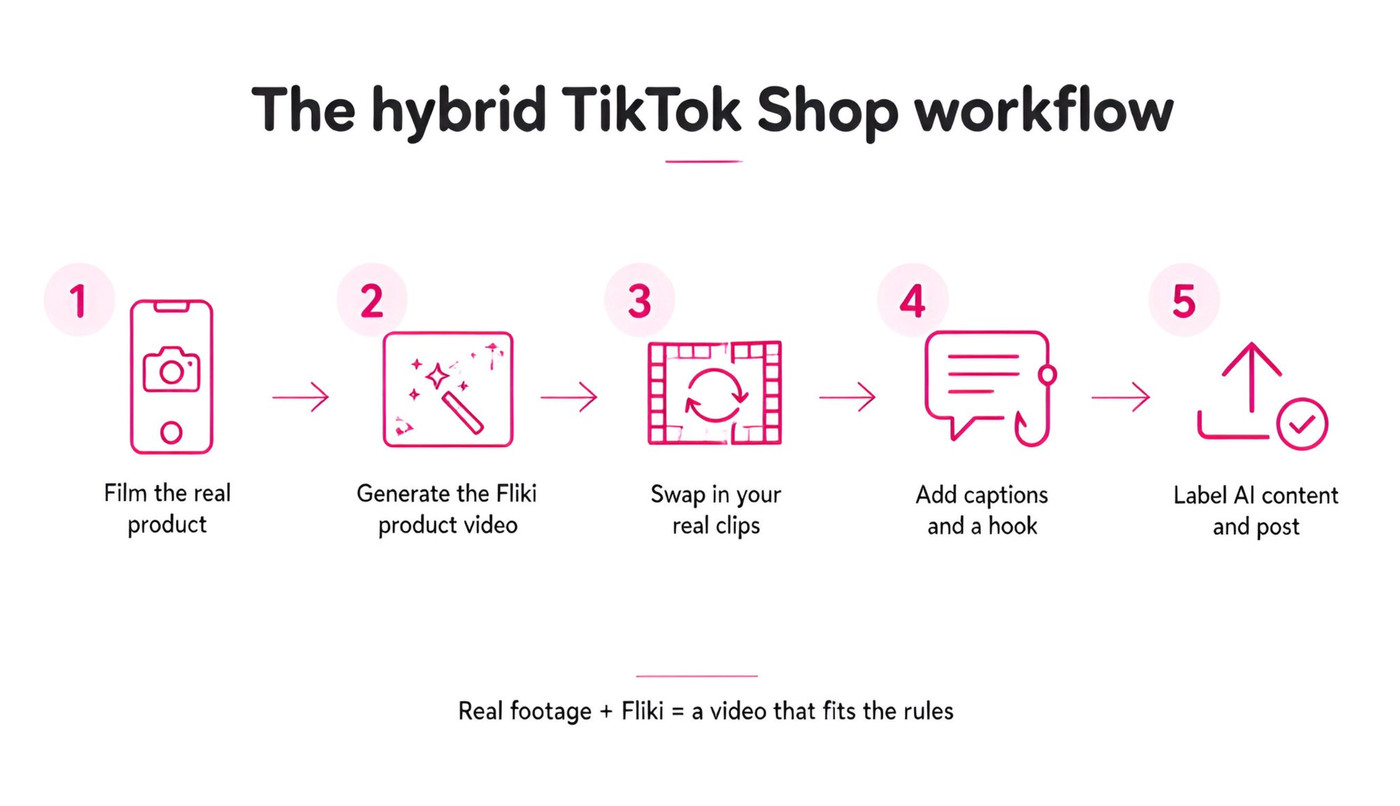
The editor makes this practical because every scene is replaceable. You can upload your own clips in the Media panel, rewrite the script in the Script panel and let the Subtitles panel handle captions. If you already know your format, our AI TikTok video generator page covers the vertical workflow, and TikTok video size covers dimensions and safe zones.
Who this is good for, and who it is not
It is a good fit if you sell physical products and need a lot of explainer or review content quickly, if you already have product photos and a listing page, or if you want a script and voiceover draft you can then pair with your own footage.
It is a poor fit if you were hoping to publish a fully automated, no-camera video straight to a TikTok Shop listing. Based on TikTok's published rules, that route risks the video being rejected or the account being flagged, and I would not build a business on it.
It is also not the right tool when authenticity is the whole point. Creator-style videos where a real person tries the product usually convert because they are real, and AI is better used around them than in place of them.
Tips for better product videos
A few things I would do differently on a second run:
Start from the cleanest product page you have, ideally your own, with accurate specs and good photos. The script mirrors the page, so mistakes on the page become mistakes on screen.
Keep the first run short. Thirty seconds to a minute is easier to review, and TikTok viewers expect a fast hook anyway.
Use the Notes field to steer tone and to say what to include or leave out, for example a claim you cannot support or a competitor you do not want mentioned.
Switch to 9:16 for TikTok and re-check the caption placement in the editor, since I tested in 16:9 and cannot vouch for how each style handles a vertical frame.
Check the credits indicator before you generate, especially on the Promo tab where the image model, video generation and resolution all change the cost.
Common mistakes to avoid
The biggest mistake is treating AI generation as a way around the real-footage requirement. The second is trusting the generated script without checking it against the listing, because specs like battery life and compatibility are exactly what viewers screenshot when they are wrong. The third is forgetting the label: if a video is fully or heavily AI-made, TikTok asks you to say so.
The bottom line
Fliki's Product video workflow is a fast way to turn a product page into a script, voiceover and structured video you can edit, and it suits explainers, reviews, launches and ad testing. For TikTok Shop specifically, pair it with real footage of the real product, keep AI to the script, voice and editing layer, and label heavily AI-made content. If that is the routine you want, you can try it free at app.fliki.ai, and our AI video ad generator and ecommerce explainer video maker pages show more of what is possible. Before you publish, read the current TikTok Shop Seller Center rules yourself, and see how to make money with TikTok Shop for the commercial side.
Written by Shivam Aggarwal, who works on content and marketing at Fliki and ran this workflow on a real product listing. TikTok rules and Fliki features were checked in October 2026. Verify current TikTok policies and credit costs before you rely on them.
FAQs
AI-assisted content is allowed, and TikTok asks you to label content that is fully or heavily AI-generated. But posted shoppable videos need real footage of the real product, so use AI for the script, voice and editing and film the product itself.
According to the TikTok Shop US Academy, AI voices are banned in LIVEs, not in recorded videos. A recorded video with an AI voiceover can be fine if it also meets the real footage and labelling rules. Re-check the policy before publishing, as it changes.
The video should show the real product, with size, colour and features matching the listing, and include real camera movement and people rather than still, looping or slideshow-only visuals. AI must not alter how the product looks.
You paste up to five product links or upload product images, choose a type or Look, length, style, ratio and voice, then send it. Fliki writes the script, builds the scenes and opens the result in the editor, where you can change anything and export 1080p mp4.
The progress panel says it usually takes under five minutes and often a minute or two, and work continues in the background if you close the tab. My 39-second test video with 10 scenes then needed a short review pass in the editor.
Yes, the workflow offers 16:9 and 9:16. My test run used 16:9, so check caption placement and framing in the editor when you switch to 9:16.