Introduction
An Amazon product video is a short clip that plays on your product detail page or inside a Sponsored ad, and the hard part is rarely the filming. It is working out which of Amazon's video placements you are making it for, because the length, file size, aspect ratio and audio rules are different for each one, and a clip built for one gets rejected or wasted in another.
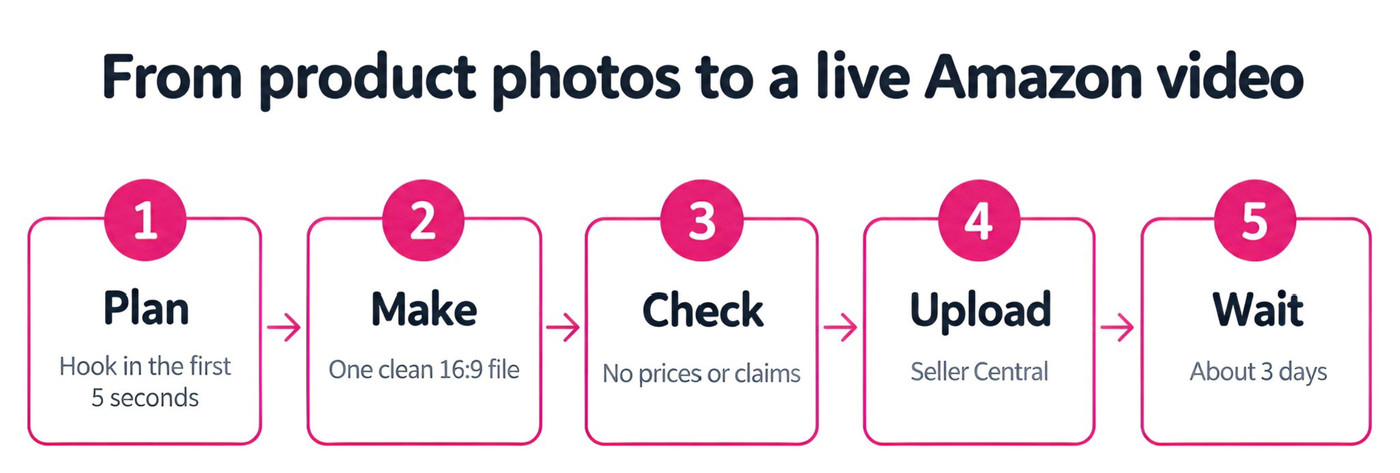
The short answer: pick the placement first, plan a hook for the first five seconds, make one clean 16:9 file with no prices, offers or unprovable claims, then upload it through Seller Central (listing video) or the Amazon Ads console (Sponsored ads) and wait for review. A listing video is usually approved in about three days.
I work on content and marketing at Fliki, so I make product videos for a living. For this guide I checked Amazon's current specs, tried to build an Amazon listing ad in Fliki's Product video workflow, and noted where it worked and where it did not. You will get the specs in one table, a step-by-step process, a shot list, the rejection traps, and an honest look at Amazon's own free tool.
The three places an Amazon product video can run
Most guides lump everything under "Amazon video", but there are three distinct placements, and they live in different tools. Knowing which one you are making for decides almost every other choice.
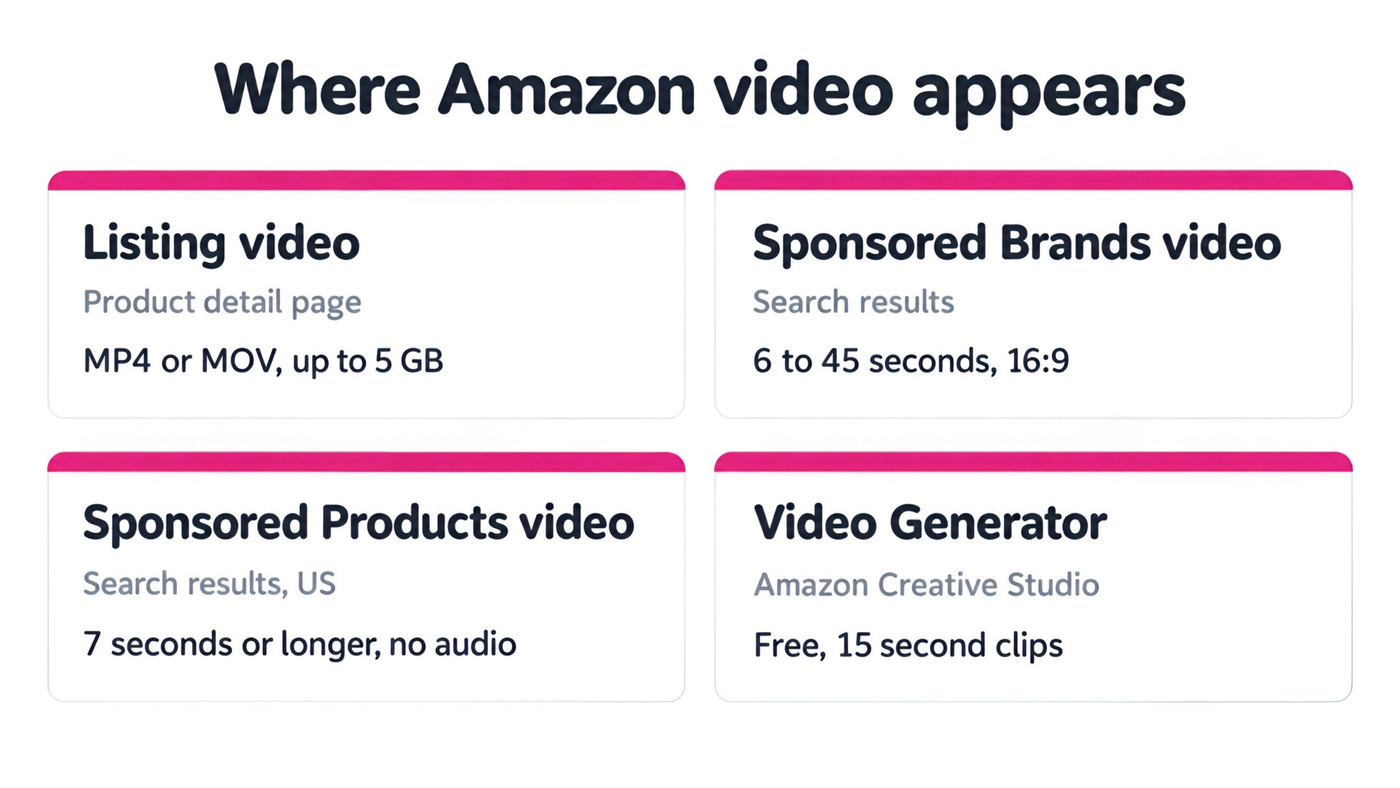
Listing video sits on the product detail page, in the image carousel. It is free to upload and it is the one that works on every visit to your page, whether the shopper arrived from search, an ad or a link you shared. Amazon says product pages with a first shoppable video saw an average 24% sales lift, with toys at 32.7% and apparel at 30.5% (Amazon Sell blog). That is Amazon's own promotional number with no methodology attached, so treat it as a reason to test rather than a promise.
Sponsored Brands video is a paid ad that plays in search results. It has the strictest technical spec of the three and it starts muted, so your first seconds have to work with no sound.
Sponsored Products video is the newest. Announced in November 2025, it adds feature videos inside your existing Sponsored Products campaigns, with up to three clickable feature thumbnails shown to shoppers. Amazon reports a 67% higher click-through rate and a 9% higher conversion rate versus ads without video, and says shoppers who watch five seconds or more are twice as likely to buy within seven days (Amazon Ads guide). Again, those are Amazon's figures.
There is also a fourth thing worth knowing about: Amazon's own free Video Generator, which I cover below. And a separate Premium A+ video placement exists for brand representatives, which I leave out because it has its own eligibility rules.
Amazon product video specs (checked October 2026)
This is the table I wished existed when I started. The listing numbers come from Amazon's seller blog, and the ad numbers come from the Amazon Ads spec pages, including the Sponsored Brands video specs. Amazon changes these, so check the linked pages before you export.
Spec | Listing video | Sponsored Brands video | Sponsored Products video |
|---|---|---|---|
Length | 30 to 90 seconds recommended (1 to 12 minutes allowed) | 6 to 45 seconds (20 or less recommended) | 7 seconds or longer |
Format | MP4 or MOV | MP4 or MOV, H.264 or H.265 | MP4 or MOV |
Max file size | 5 GB | 500 MB | 500 MB |
Aspect ratio | 16:9 is the safe choice | 16:9 only | 16:9 now (9:16 announced for 2026) |
Resolution | Up to 1080p | 1280x720, 1920x1080 or 3840x2160 | 1920x1080 recommended |
Audio | Allowed, no unlicensed music | Starts muted. AAC, MP3 or PCM | No audio (stripped on upload) |
Where you upload | Seller Central | Amazon Ads console | Amazon Ads console |
The row that catches people out is file size. A listing video can be up to 5 GB, but the same file will fail as an ad because the ad limit is 500 MB. If you plan to reuse one master across placements, export the smaller ad version separately.
Two more details from Amazon's ad specs are worth writing on a sticky note. Sponsored Brands needs a video bitrate of at least 1 Mbps (4 or more is recommended) and a frame rate between 23.976 and 30 fps. And for Sponsored Products, the product should fill at least half the frame, with a feature title of up to three words and a description of up to six words.
How to make an Amazon product video, step by step
1. Pick the placement first
Decide whether this video is for the listing, for Sponsored Brands, or for Sponsored Products before you write a single line. If it is for the listing, you have room to teach: 30 to 90 seconds, sound on, a real demonstration. If it is for Sponsored Brands, think of it as a 15 to 20 second billboard that has to land without audio. If it is for Sponsored Products, make one focused clip per feature, because the format shows a feature title and a clickable thumbnail.
My own rule: make the listing video first. It is free, it works for every visitor, and cutting a Sponsored Brands version from it later is easy. Going the other way, from a 15 second ad to a 60 second listing demo, usually means starting over.
2. Plan the first five seconds
Amazon recommends showing the key feature in the first five to ten seconds, and its own data point about five-second viewers suggests why. Open on the product doing its job, not on a logo or a brand intro. If the product keeps drinks cold for 24 hours, show the ice in the cup first.
Write the script before you generate anything. A 30 second video is roughly 70 to 80 spoken words, so you have room for about four beats: the problem or hook, the one standout feature, one or two supporting features, and a clear closing line. For ads, remember that the clip starts muted, so burn the hook into on-screen text as well as the voiceover.
3. Gather clean product photos and footage
Whatever tool you use, the video is only as good as the source. Use your main white-background image for a clean product shot, then add lifestyle and detail images, ideally four to six that show different angles or uses. If you have real footage of the product being used, even phone footage, use it, because Amazon's own guidance leans on showing the product in use.
Avoid screenshots of your own listing. They carry prices, badges and Amazon branding that will get the video rejected.
4. Make the video
You can film it, hire an editor, use Amazon's free generator, or build it with an AI tool. If you want to build it quickly from photos, here is what I did in Fliki's AI product video generator.
I opened the Product video workflow in Fliki and chose the Promo tab, which is the ad version. My first attempt was to paste a live Amazon product link, since the form has a Product link tab. It did not work: Fliki returned a message saying it could not read a clear photo of the product from that link and suggested uploading photos instead. I only tried one Amazon product page, so I cannot say it fails every time, but my advice from this test is simple: for Amazon listings, use the Product images tab, not the link.

On the Product images tab you can add up to six photos, either picked from your library or uploaded, then write a short brief. I asked for a 30 second, 16:9 ad that leads with the hydration hook, shows the handle, straw lid and cup-holder fit, ends on a clear shop-now line, and says no prices and no competitor mentions. That last part matters, and I explain why in the compliance step.
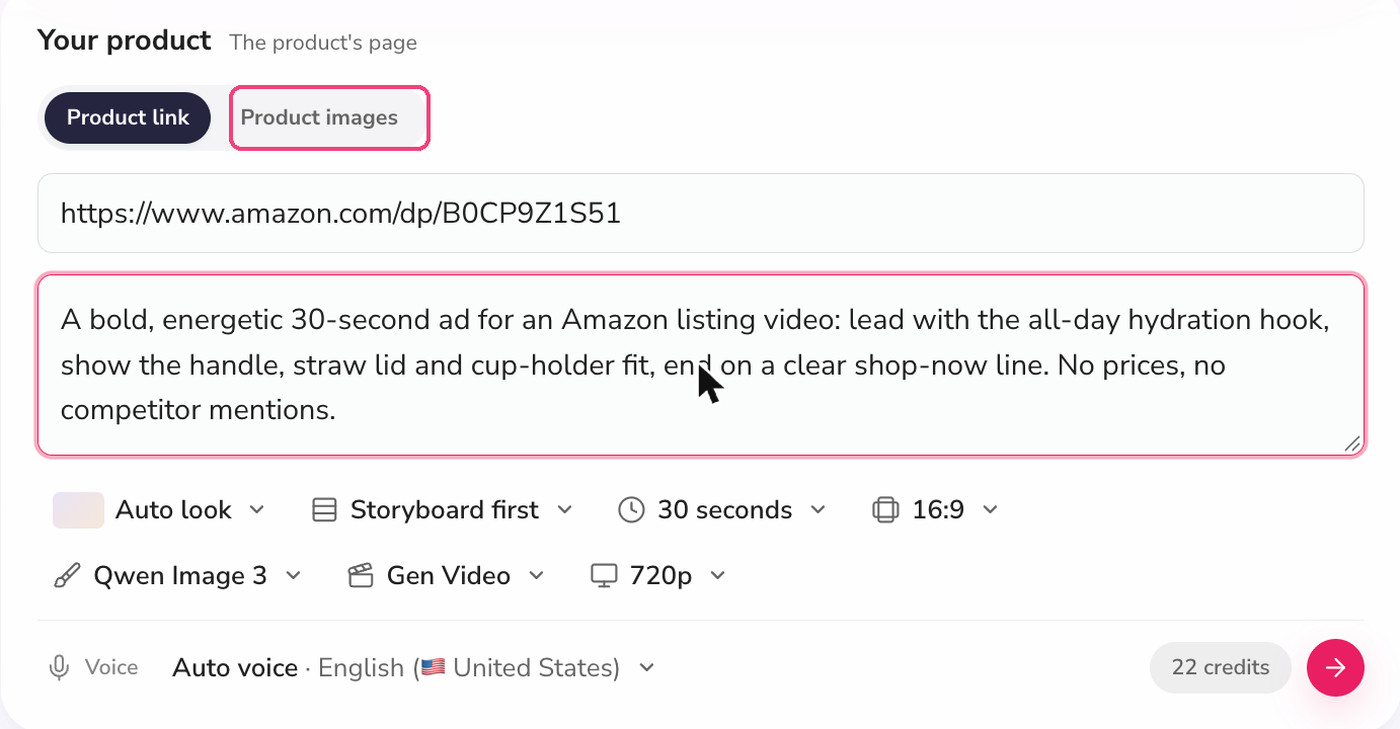
The form lets you choose the look (I left it on Auto), the length, the aspect ratio, the image and video models, the resolution and the voice. For a 30 second video at 720p, the form showed an estimate of 22 credits when I tested it, so check your own estimate before you submit. I set it to Storyboard first, which pauses the workflow after planning so you can review the scenes before spending credits on video generation. I recommend that setting for any ad.
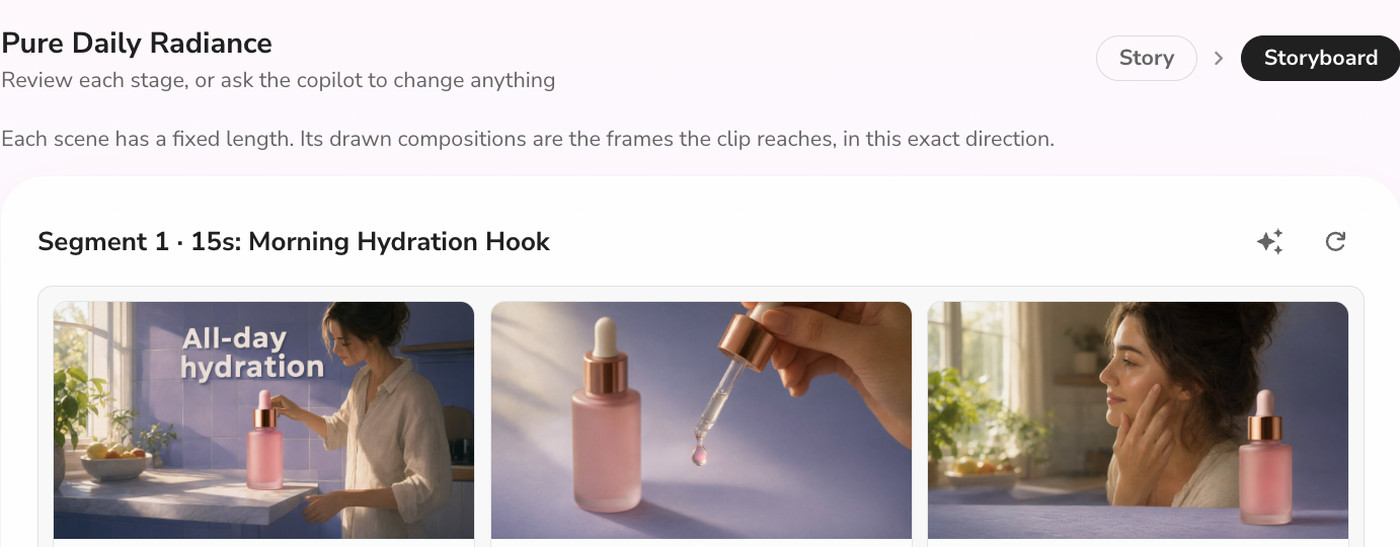
The storyboard stage shows each 15 second segment with three frames and the narration, plus a copilot box where you can ask for changes. This is the step to be strict about. Read every line of narration and every on-screen word, and check that the product name, any claims and the call to action are exactly what you intend. In my test the copy needed correcting, and the copilot corrections did not stick on my first few tries, so I stopped there rather than generate a video I could not stand behind. I would rather tell you that than pretend the workflow is flawless.
If you want more control than a workflow gives you, there are other routes. You can generate a script with text to video, add a voiceover, burn in captions, and trim the result in the video editor. If you need still images for the cover frame or the supporting shots, the AI image generator can produce them. The AI video ad generator is the better fit when the clip is mainly an ad.
5. Run the compliance check before you export
Amazon reviews listing videos and ads, and rejections cost you days. Amazon's own policy pages were not readable when I researched this, so the list below combines what Amazon's ad pages say with the rules that seller guides repeat consistently. Treat it as a checklist, then confirm against Seller Central.
No prices, discounts or offers. Prices change, and promotional claims are one of the most common reasons for rejection.
No URLs, phone numbers or calls to leave Amazon. The call to action should stay inside Amazon, like "shop now".
No review requests or star ratings. Do not ask for reviews and do not show rating graphics.
No claims you cannot prove. Amazon's ad guidelines require claims to be verifiable, so skip "best" and "number one" unless you can back them up.
No competitor products or comparisons. Sponsored Brands explicitly rules out direct competitor comparison.
No Amazon logos or unlicensed music. Use royalty-free or licensed audio, or no music at all.
This is why I put "no prices, no competitor mentions" directly into my brief. It is much easier to keep those out at the start than to remove them from a finished video.
6. Upload it
For a listing video, you need a Professional seller account with at least three months of selling history and live listings. Amazon's seller blog does not say Brand Registry is required for this. The path is Seller Central, then Catalog, then Upload and Manage Videos, then Upload video. You can also reach it through the Videos tab in Image Manager.
For ads, you upload inside the campaign flow in the Amazon Ads console: Sponsored Brands has a video ad format, and Sponsored Products video is added within a campaign. Sponsored Products video is US only at the time of writing and shows on search placements.
One rule explains many "my video disappeared" complaints: according to Amazon's guidance, the video shows in the main media block only when the listing has fewer than six images, and your most recent upload gets priority. If your listing already has a full image set, the video may not appear where you expect.
7. Wait for approval, then check the page
Amazon says listing video review takes about three days, and up to seven business days around the holidays. Sponsored Products video that is rejected and resubmitted takes 24 to 48 hours to review again. When the video goes live, open the product page in a private window, check that it plays, and check that the first frame looks good as a thumbnail.
The number of videos per product is where sources disagree. Third-party guides say four or five per ASIN, so check what Seller Central actually lets you upload rather than trusting any single article, including this one.
A shot list that works for listing videos
Here is the structure I use for a 30 to 45 second listing video. It follows Amazon's own advice to lead with the key feature, and it works whether you film it or build it from photos.
0 to 5 seconds, the proof shot: the product doing its main job, with a short text overlay naming the benefit.
5 to 15 seconds, the feature walk: two or three features, one shot each, with a three-word label on screen.
15 to 25 seconds, the fit and scale shot: the product next to something familiar, such as a hand, a cup holder or a shelf, so the size is obvious.
25 to 35 seconds, the lifestyle shot: the product in real use, in the setting your buyer cares about.
The last 3 to 5 seconds, the close: the product name and a clean "shop now" line, with no price.
For Sponsored Brands, cut this down to the first, second and last beats and aim for 15 to 20 seconds. For Sponsored Products, make one clip per feature, since each clip is shown with its own short feature title.
What to show for different kinds of products
The shot list above is a skeleton, and the proof shot changes with the product. For a drinkware or kitchen item, the proof is the product being used, such as ice in the cup or a lid sealing. For apparel, show fit and movement on a real person, because a flat lay does not answer the sizing question. For beauty and personal care, show texture and application up close, and keep claims modest, since that is where unprovable claims creep in.
For electronics and tools, show the product solving the problem on screen and keep any specification text on screen long enough to read. For toys and games, show a child-safe, adult-led demonstration of how it works, and remember that content aimed at children is one of the areas third-party seller guides flag as restricted. In every case, ask what question a shopper would otherwise have to scroll to the reviews to answer, and make that your second shot.
Amazon's free Video Generator, and when to use something else
Amazon retired its old Video Builder after December 31, 2025. Its replacement is the Video Generator for Sponsored Brands, which entered open beta on November 11, 2025. It is free, it makes up to six 15 second videos per batch from a product image or an ASIN, and it is available in the US, Canada, Mexico, the UK, Germany, France, Italy, Spain and India, through Creative Studio.
It is a good first stop if all you need is a fast Sponsored Brands clip with zero cost. The trade-off is control. It is built for one ad format, it produces short clips, and you cannot use its output as a 60 second listing demonstration. If you want a longer listing video, a voiceover in your own script, captions, or a version you can reuse on your own site and social channels, a general video tool gives you more room.
I would use both. Generate a quick Sponsored Brands clip with Amazon's tool to test the ad, and build the listing video separately, where you control the script. For other tools worth comparing, see our roundup of the best AI video generators.
Common mistakes that waste a good video
Using one file everywhere. The 5 GB listing limit and the 500 MB ad limit are different, and Sponsored Products strips audio entirely. Export per placement.
Burying the hook. If the product does not appear in the first five seconds, you have already lost the viewer you paid for.
Relying on sound. Sponsored Brands videos start muted, and Sponsored Products strips audio. Put the message in text, and keep the voiceover as a bonus.
Putting a price or promo in the video. It is the fastest route to a rejection, and it makes the video wrong the day your price changes.
Skipping the read-through. With AI-built video, read the narration and on-screen text line by line. Check the product name, the claims and the call to action every time.
Assuming the video will show. With six or more images on the listing, the video may not appear in the main block. Check the live page.
If you also sell through social platforms, the same footage can be adapted. Our guide to TikTok Shop videos covers the vertical version, and if you run an affiliate site, the Amazon affiliate guide covers the rules that apply there.
The bottom line
A good Amazon product video comes down to a few decisions made early: choose the placement, lead with the product doing its job, keep prices and claims out, and export the right file for each place it will run. The tool you build it with matters less than reading the final script line by line before you export.
If you want to build one from your product photos, you can try Fliki's Product video workflow for free, use the Product images tab, and review the storyboard before you generate. Check Amazon's spec pages for the latest limits before you upload, because they do change. For other plans and credit allowances, see the pricing page.
Written by Shivam Aggarwal, who works on content and marketing at Fliki and tested the Product video workflow for this guide. Specs and statistics were current as of October 2026, and the performance figures are Amazon's own. Verify current requirements in Seller Central and the Amazon Ads console before you rely on them.
FAQs
For a listing video, use MP4 or MOV up to 5 GB, up to 1080p, ideally 30 to 90 seconds with the key feature in the first 5 to 10 seconds. You need a Professional seller account with live listings and about three months of selling history. Ads have stricter specs, such as 500 MB and 16:9 only.
Amazon recommends 30 to 90 seconds for a listing video, although it allows 1 to 12 minutes. Sponsored Brands video runs 6 to 45 seconds, with 20 or less recommended. Sponsored Products video needs to be at least 7 seconds. Put the main feature in the first five seconds in every case.
Amazon's seller guidance for listing video does not list Brand Registry as a requirement. You need a Professional selling account, live listings and roughly three months of selling history. Premium A+ video is separate and needs brand representative status, so the two should not be confused.
Amazon says listing video review takes about three days, and up to seven business days around holiday periods. A Sponsored Products video that is rejected and resubmitted takes 24 to 48 hours to review again. Plan your upload before a launch or sale so the video is live in time.
Yes. AI tools can build a video from your product photos, and Amazon has its own free Video Generator for Sponsored Brands. Whichever you use, read the narration and on-screen text before export, and remove prices, offers, unprovable claims and competitor mentions, because those are common reasons for rejection.
A common reason is the image count. According to Amazon's guidance, the video appears in the main media block only when the listing has fewer than six images, and the most recent upload gets priority. Also check that the video was approved and that it is not a lower-visibility Video Shorts upload.